




.svg)
.svg)

.svg)


.svg)




.svg)
.png?width=500&height=424&name=Style-1---V1-(1).png)

.png?width=1230&height=692&name=Vector%20(13).png)
 What are Remote Desktop Tools?
Remote desktop tools let users access and control a computer from a different location as if they were sitting in front of it.
They work by transmitting the remote system’s screen, keyboard, and mouse input over a secure connection.
They are a staple in system maintenance, troubleshooting, or accessing work files and applications off-site.
Read More: Top 10 Countries for Remote Work
Why Remote Desktop Tools Are Essential for Modern IT Management
Because it’s not 2010. IT teams these days aren’t managing office desktops anymore; they have to operate fleets of devices across homes, co-working spaces, branch offices, and cloud environments.
With so many moving parts, remote access software has become a core part of the toolkit, not only for convenience but for control, security, and speed.
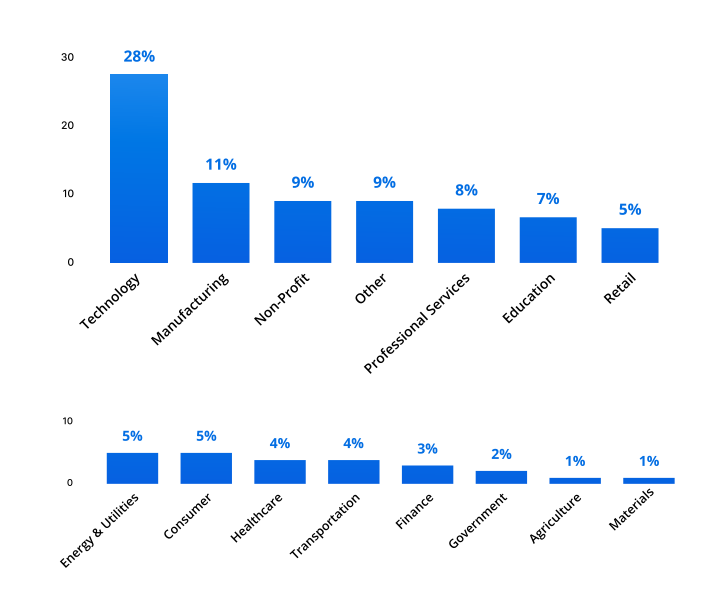
Use of remote access software by industry. Via RealVNC
These tools let you solve critical remote work challenges. For example
- You can run diagnostics in real-time by viewing system processes, registry data, or event logs, just like you would in person.
- Deploy patches and software updates remotely for consistency across machines without relying on remote users to do it themselves.
- Jump into problematic machines quickly to troubleshoot without disrupting the end-user or waiting on slow back-and-forths.
- Control access using integrations with SSO, Active Directory, or custom permissions.
They also offer visibility that’s hard to replicate otherwise. Session recordings, audit logs, and minute role-based access keep things compliant and transparent. In mid-2024, over 72% of enterprises deployed unified remote access and support platforms, up from 51% in 2020.
However, while remote desktop tools are great for access and support, they don’t tell you where devices are, who has them, or how to retrieve them.
That’s where Workwize steps in. It manages the full hardware lifecycle—so while you solve issues remotely, Workwize keeps the bigger picture of IT in view.
Our Picks: Top 5 Remote Desktop Tools
|
Security |
Ideal for |
Pricing |
|
|
TeamViewer |
256-bit AES encryption, 2FA |
IT teams that need unified support, collaboration, and remote meetings |
$24.90/month (Indiv.) |
|
AnyDesk |
TLS 1.2, RSA authentication |
Users who want fast response and low-bandwidth performance |
$22.90/month (Solo) |
|
Zoho Assist |
SSL, AES-256 encryption |
Small businesses in the Zoho ecosystem or those wanting quick, browser-based help |
Free plan; $10/month |
|
Microsoft Remote Desktop |
RDP with network-level authentication |
Windows-centric environments with free, native RDP with AD integration |
Included with Windows Pro |
|
Splashtop Remote Access |
AES 256-bit, device authentication |
Power users who need ultra-HD streaming and multi-monitor setups |
Custom pricing |

1. TeamViewer
Via Teamviewer
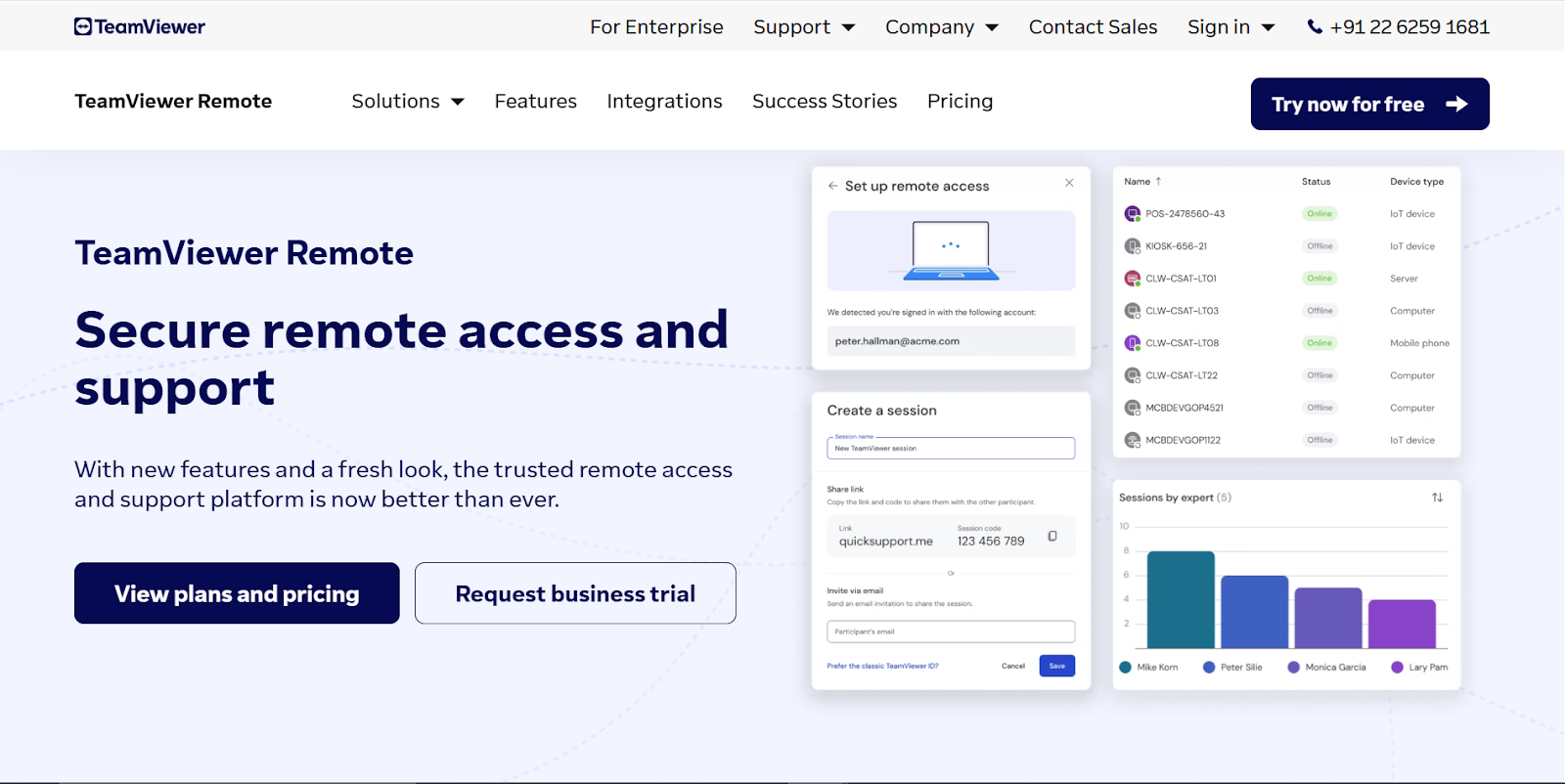
TeamViewer is a popular cross-platform remote support tool that can connect to almost all mainstream platforms—Windows, Mac, Linux, iOS, Android, etc. There’s minimal setup involved, usually just exchanging ID and password.
TeamViewer also offers online meetings and collaboration features like screen sharing, VoIP and video, and a whiteboard. Its 256-bit AES encryption, two-factor auth, and remote management add-ons make it suitable for enterprise use.
Key features
- Connect instantly across devices with high-speed remote control and live support.
- Host virtual meetings and conduct video/audio conferences with teams.
- Transfer files, print remotely, and reboot/reconnect without interrupting users.
Ratings and reviews
- G2: 4.5/5 (3,000+ reviews)
- Capterra: 4.6/5 (11,000+ reviews)
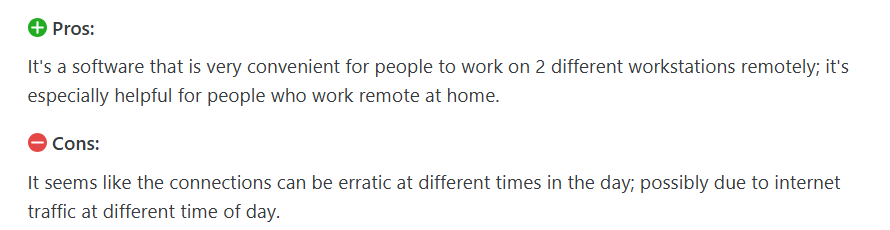
Users don’t have much negative to say about the platform, but you need a fast internet connection:
Via Capterra
Pricing
- Individual plan: $24.90/month billed annually
- Team plan: $50.90/month billed annually
- Premium plan: $112.90/month billed annually
Read More: 5 Best TeamViewer Alternatives in 2026
2. AnyDesk
Via AnyDesk
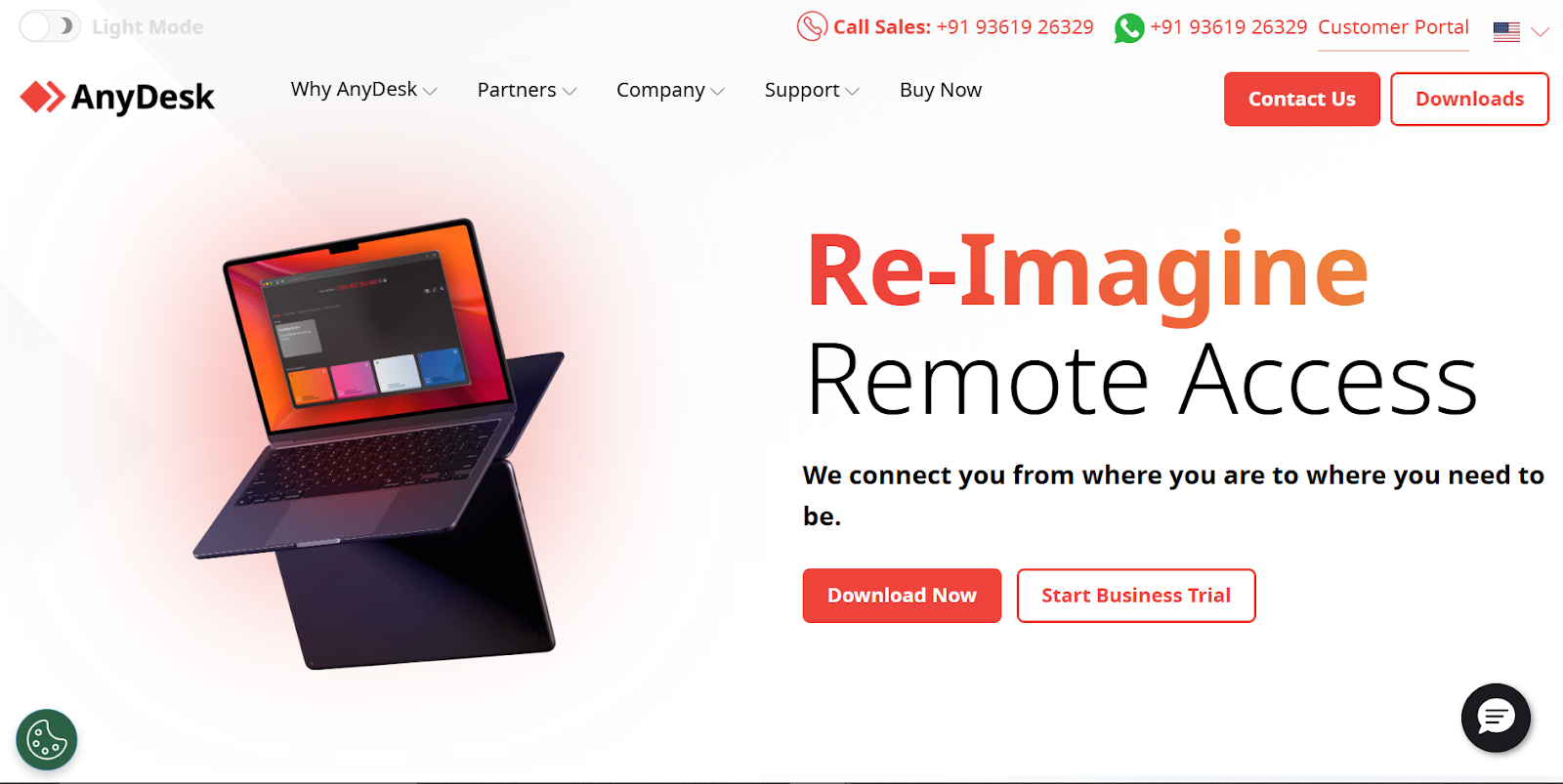
AnyDesk is a lightweight remote desktop solution with high performance and low latency. It uses a proprietary video codec (DeskRT) that allows smooth screen updates even with a weak internet connection. The client is small and can run in portable mode without full installation.
The client is small and can run in portable mode without full installation.
It supports unattended access with easy device authorization and attended support via session codes. Security features include TLS 1.2, RSA authentication, and customizable permissions.
Enterprises can customize the client via white labeling and centrally manage hundreds of seats.
Key features
- Connect instantly across networks with minimal lag, thanks to a low-bandwidth codec.
- Set up one-click unattended access by approving devices per user profile.
- Use Enterprise features for multi-user management, custom clients, and AD integration.
Ratings and reviews
- G2: 4.5/5 (1,000+ reviews)
- Capterra: 4.6/5 (1,500+ reviews)
Although its powerful, you’d have to install in the main system it to get all the benefits:

Via G2
Pricing
- Solo plan: $22.90/month billed annually
- Standard plan: $35.90/month billed annually
- Advanced plan: $79.90/month billed annually
3. Zoho Assist
Via Zoho
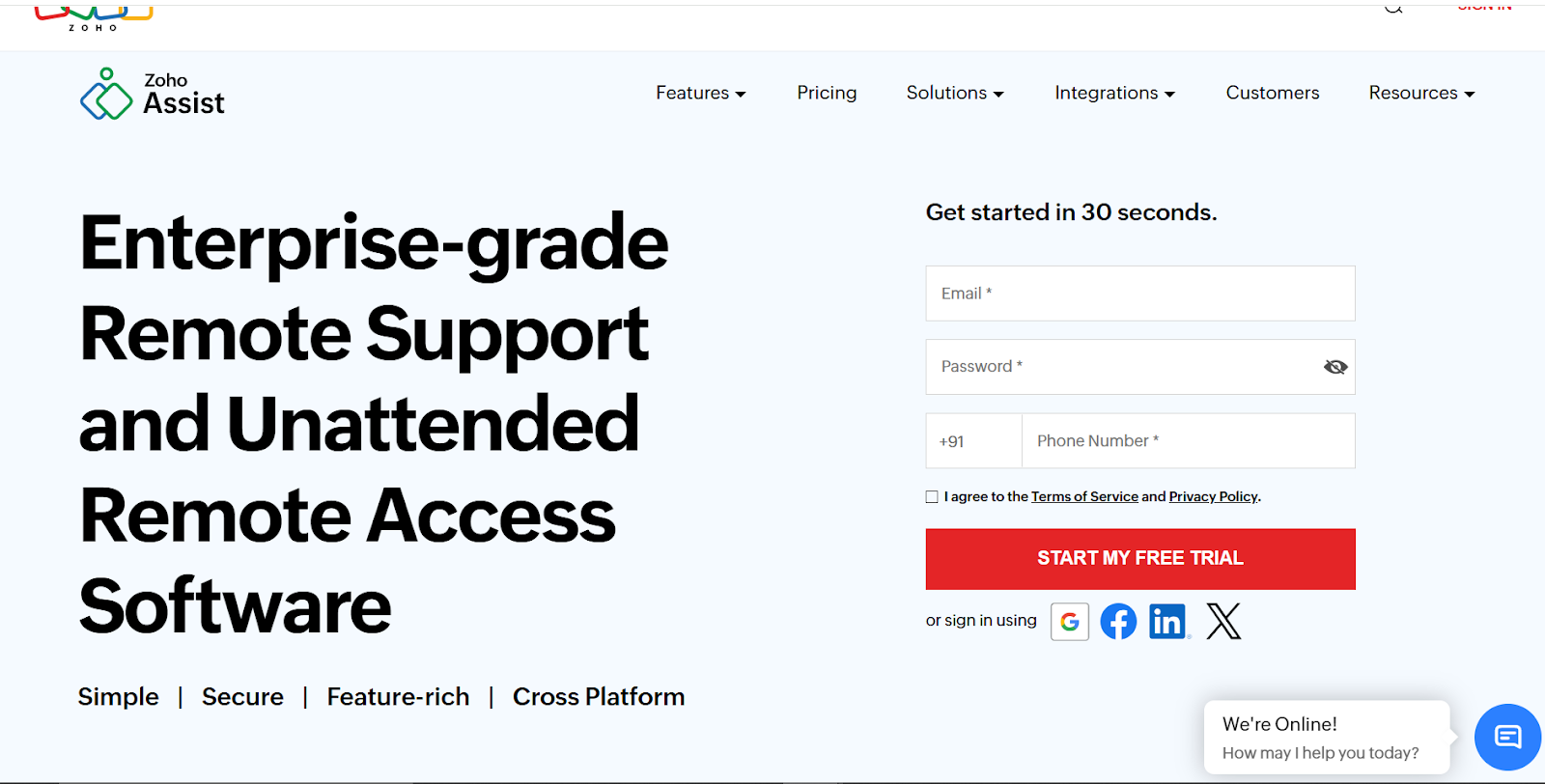
Zoho Assist is a cloud-based remote support and unattended access tool from Zoho. It brings both quick ad-hoc support with instant screen-sharing with customers and unattended monitoring of remote machines.
Additional features include native integration with Zoho Desk (helpdesk tickets) and Zoho CRM. The interface is clean and simple: starting a session takes just a few clicks, and you can join via a browser or a small app.
Key features
- Set up permanent access to manage remote devices with Wake-on-LAN.
- Share Android or iOS screens for troubleshooting mobile apps.
- Connect sessions with Zoho Desk tickets or automate through Zoho Flow or CRM.
Ratings and reviews
- G2: 4.7/5 (400+ reviews)
- Capterra: 4.7/5 (1,200+ reviews)
It's a dependable and easy solution, but one can always nitpick when you’re paying a premium:

Via G2
Pricing
- Free plan available
- Standard plan: $10/month billed annually
- Professional plan: $15/month billed annually
- Enterprise plan: $24/month billed annually
4. Microsoft Remote Desktop
Via Microsoft
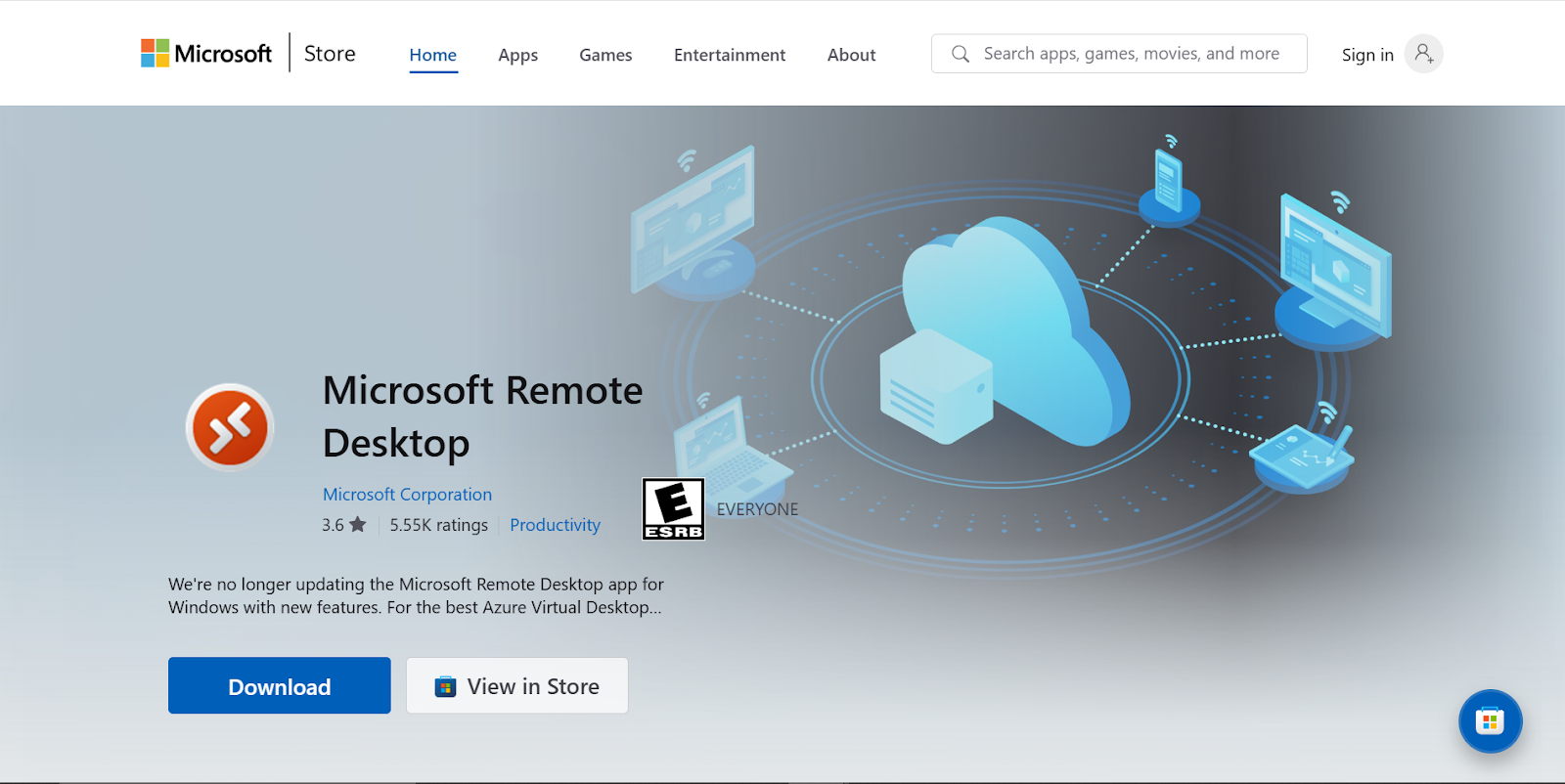
Microsoft Remote Desktop, built into Windows, provides native RDP-based access to Windows PCs and servers. It is free with Windows Pro and Enterprise, which makes it a no-cost choice for Windows environments.
Its strengths are easy integration with Active Directory, secure access, and support for high-resolution and multi-monitor sessions. Through Remote Desktop Services (RDS) or Azure Virtual Desktop, admins can enable multi-user remote sessions or publish RemoteApp programs. Client apps exist on Windows, Mac, iOS, and Android.
Best features
- Connect securely to Windows machines using Microsoft’s Remote Desktop Protocol.
- Deploy Remote Desktop Services or Azure Virtual Desktop for shared virtual desktops and apps.
- Use Microsoft’s free Remote Desktop apps on other platforms like macOS, iOS, and Android.
Ratings and reviews
- G2: 4.5/5 (100+ reviews)
- Capterra: Not enough reviews
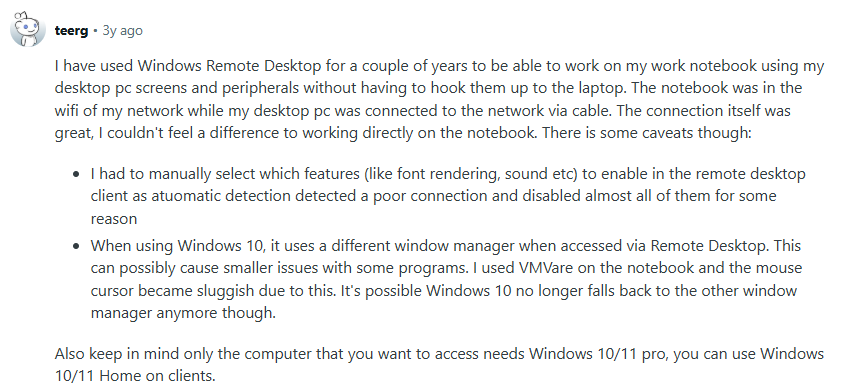
Although it’s plenty powerful, it’s not without its quirks, like how it relies on a different window manager for Windows 10:
Via Reddit
Pricing
- Custom pricing
5. Splashtop Remote Access
Via Splashtop
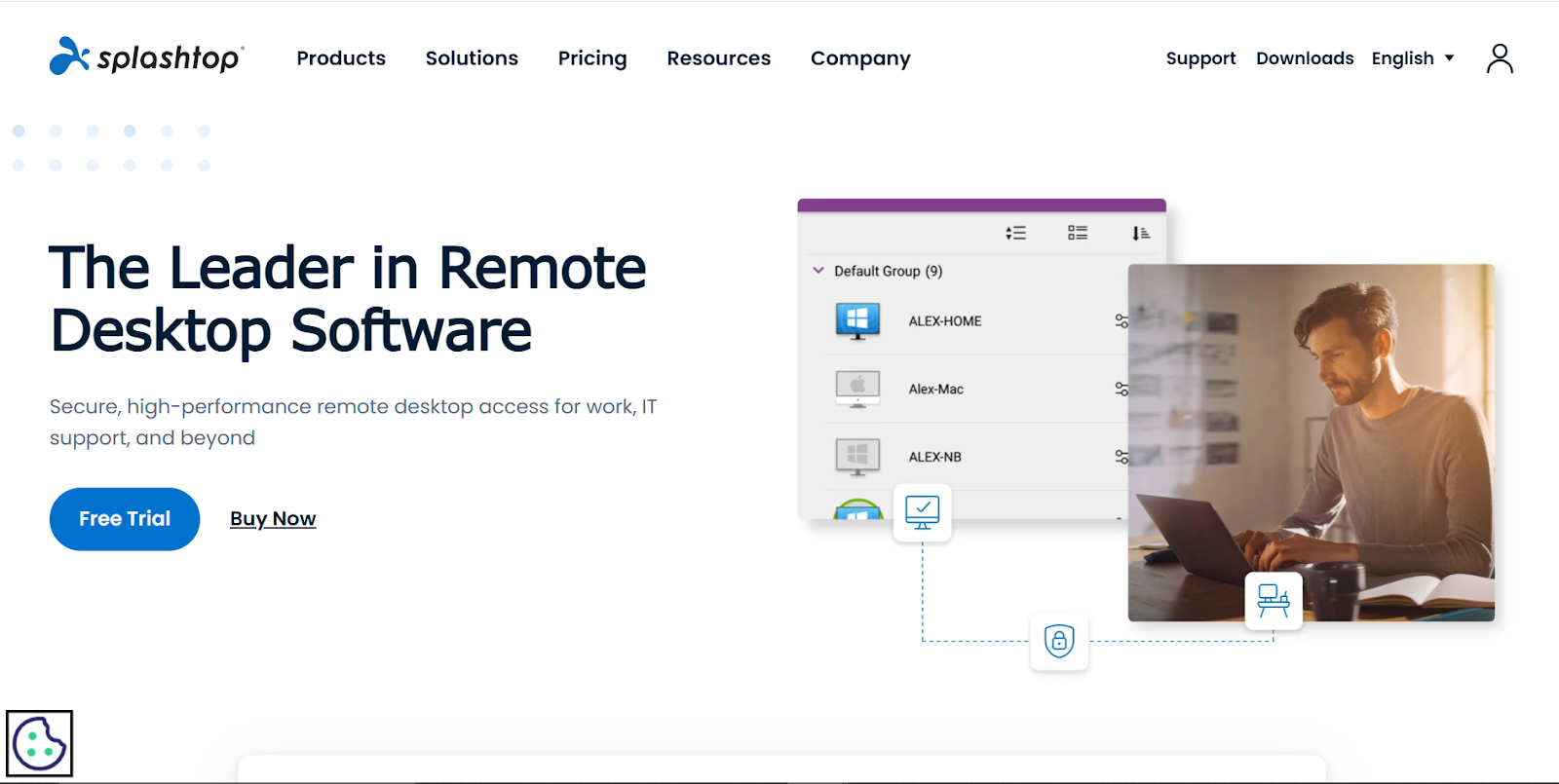
Splashtop is a high-performance remote desktop solution that prioritizes speed and ease of use. Its biggest draw is high-definition streaming; the “Performance” edition delivers 4:4:4 color and high-fidelity audio for graphics-intensive work.
Offerings include Splashtop Business Access and Remote Support with features like file transfer, multi-monitor support, remote print, and on-demand access codes. Splashtop also supplies an SOS app for attended support, MSI deployment, and Active Directory management as the default.
Best features
- Connect with low latency and a crystal-clear display over LAN or the internet.
- Generate one-time 9-digit session codes for customer-initiated remote support (SOS).
- Organize users into teams, share device access, and deploy Splashtop to several remote computers via MSI.
Ratings and reviews
- G2: 4.8/5 (600 reviews)
- Capterra: 4.7/5 (700+ reviews)
Splashtop’s wide feature set and support for HD streaming make it a strong contender in our list.

Via Reddit
Pricing
- Custom pricing
Read More: Top 10 Remote Equipment Management Software
Choosing the Best Remote Desktop Tool for Your Needs
Here are some basics to keep in mind when looking for a remote desktop tool:
- Security: Look for end-to-end encryption, two-factor authentication, and compliance with industry standards like GDPR or HIPAA if applicable.
- Ease of use: A clean UI, fast setup process, and friendly controls are needed, especially for non-technical users.
- Performance: The tool should offer low-latency connections, more so if you'll be transferring files or using resource-intensive applications.
- Cross-platform support: Make sure it works across all required operating systems and has mobile access with support for iOS and Android.
- Scalability and licensing: For business use, check if the pricing model supports scaling. Some tools charge per user or device, but others offer flat-rate plans.
That’s All for This Session
That’s a wrap on the top remote desktop software for 2026.
The key is choosing a tool that balances security, speed, and simplicity. It’s also worth knowing when to switch as your needs evolve.
But while these tools help you access devices, they don’t help you manage them. That’s where Workwize comes in—handling the full hardware lifecycle, so your IT setup stays just as seamless behind the scenes.
Brands like HighLevel, DuckDuckGo, and more trust Workwize to manage their IT.

Book a Workwize demo now.

Shashank Mishra

Establish a single source of truth for every IT asset across the globe.
.png?width=258&height=318&name=g10%20(5).png)
More related resources to help you stop firefighting hardware operations.




Get monthly insights into how other IT leaders are improving their ops.



.png?width=2880&height=1232&name=Group%202147262874%20(1).png)
Stop coordinating
hardware like it's 2012.
.svg)
.svg)
.svg)
.svg)
.svg)