




.svg)
.svg)

.svg)


.svg)





.svg)
.png?width=500&height=424&name=Style-1---V1-(1).png)


.png?width=1230&height=692&name=Vector%20(13).png)
What is Microsoft Intune?
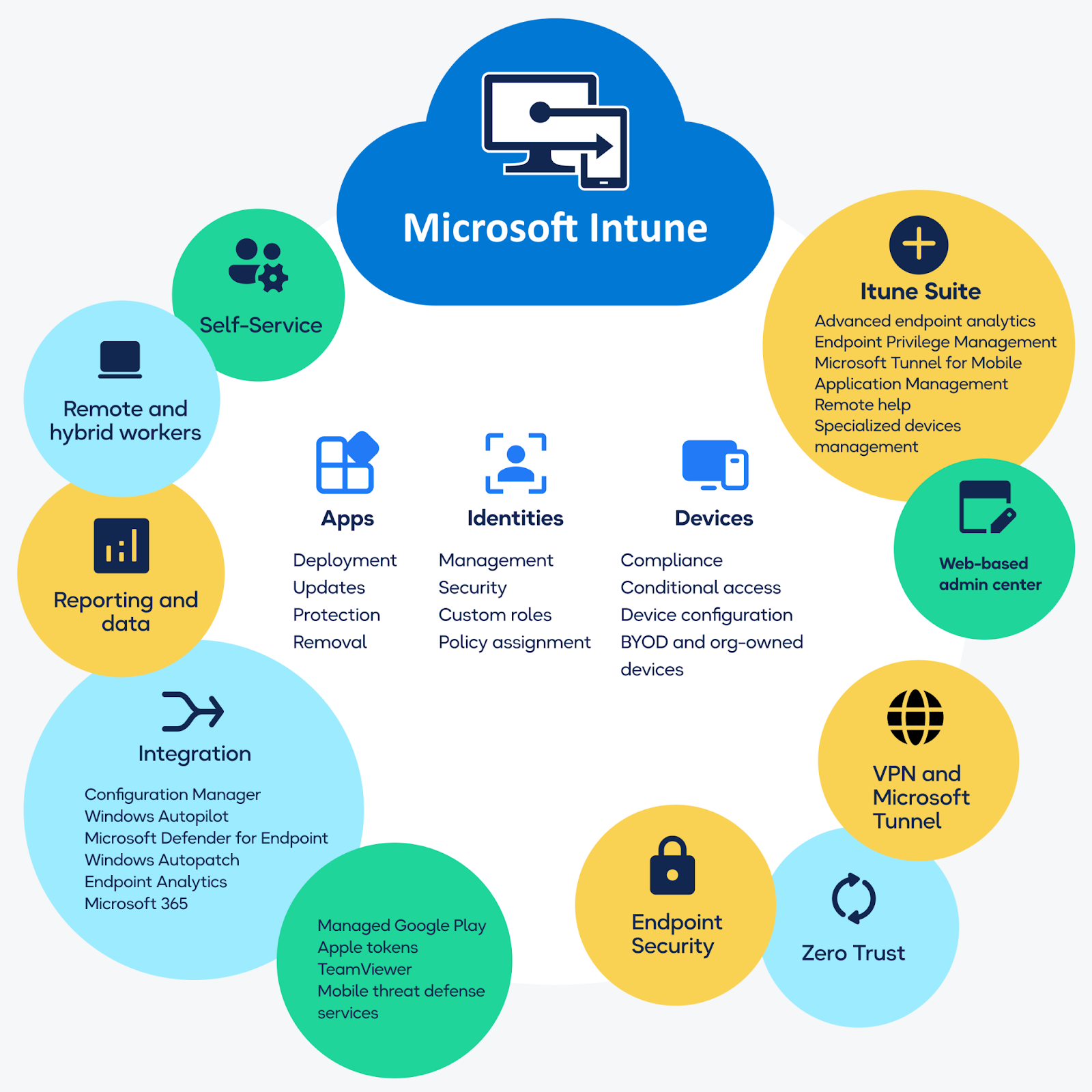
Microsoft Intune is a comprehensive cloud-based endpoint management solution that manages and secures your organization's devices, applications, and data from a unified console. It handles access to all your organizational resources and simplifies managing organizational devices, including mobile devices, desktops, and virtual endpoints.
Designed to address the complexities of modern IT environments, Intune integrates tightly with Microsoft 365 and Azure Active Directory (or Microsoft Entra ID), making it ideal for hybrid and remote workplaces.
In 2023, Forrester named Intune a leader in its Unified Endpoint Management (UEM) solutions survey. They found it offered a whopping 181% Return on investment (ROI) and a Net present value (NPV) of $11.36 million.
But what makes Microsoft Intune stand out? Here’s a closer look at its strengths:
Mobile Device Management (MDM)
Intune manages all your devices in a single console. It supports Android, Android Open Source Project (AOSP), iOS/iPadOS, Linux Ubuntu Desktop, macOS, and Windows client devices.
You can enforce security policies such as encryption, password complexity, and device lockdown. You can also perform remote actions like wiping or resetting if something goes wrong.
Mobile Application Management (MAM)
Intune extends management to the application layer for granular control over organizational data within apps.
What this means:
-
Intune connects to and distributes apps from your private app stores.
-
Enables Microsoft 365 apps, including Microsoft Teams, Outlook, etc.
-
Deploys Win32 and line-of-business (LOB) apps.
-
Blocks non-compliant apps from accessing corporate resources with conditional access policies.
-
Integrates with Microsoft Defender for Endpoint for threat detection and remediation.
Integration with Microsoft 365 and Microsoft Entra ID
Intune’s tight integration with Microsoft’s ecosystem benefits you with user identity management through Microsoft Entra ID and automatic device enrollment and policy assignment during Microsoft 365 setup.
Intune’s admin center uses Microsoft Graph REST APIs to provide systematic access to Intune services. You also get advanced analytics via Microsoft Endpoint Manager and Azure Monitor.
How does it measure up against the competition?
Unlike solutions like Jamf (specializing in Apple devices) and VMware Workspace ONE (a versatile cross-platform tool), Intune shines in environments deeply integrated with Microsoft services. Intune manages and protects endpoints from the chip level of physical devices to cloud-based devices in a single console.
Its built-in compliance and conditional access features use Microsoft Entra ID for advanced identity and access control, making it the better option for organizations embracing hybrid or remote work models.
For context, Gartner’s 2023 report highlights that 80% of organizations now prioritize unified endpoint management (UEM) solutions, and Intune is consistently rated as a leader in this category.
Other Intune features
-
Scalability: Intune’s architecture is built on Microsoft’s global cloud infrastructure, which implies high availability and performance for organizations of any size. It is ideal for scaling operations and supports managing tens of thousands of devices simultaneously.
-
Enhanced security: Security is baked into Intune’s design. Features like Conditional Access, Endpoint Protection, and Data Loss Prevention (DLP) protect sensitive data with encryption and access restrictions across your infrastructure.
You also get remote help, Endpoint Privilege Management, Microsoft Tunnel for MAM, and more as an add-on feature.
-
Cost-efficiency: Intune combines device, app, and identity management into one platform, removing the necessity for various redundant solutions. This reduces licensing costs, administrative overhead, and operational inefficiencies.
-
AI-ready: Intune relies on Microsoft Copilot to create AI-powered analyses. Copilot helps it summarize existing policies and give you more settings-related information, including recommended values and potential conflicts.
3. Integration: Intune connects to different partner services for various use cases and built-in Microsoft integrations.
- It integrates with Configuration Manager for on-premises endpoint management and Windows Server, including deploying software updates and managing data centers.
-
Windows Autopilot streamlines modern OS deployment and provisioning.
-
Endpoint analytics makes visibility and reporting on end-user experiences easy.
-
Microsoft 365 is essential for end-user productivity Office apps, including Outlook, Teams, Sharepoint, OneDrive, and more.
-
Windows Autopatch enables automatic patching of Windows, Microsoft 365 apps for enterprise, Microsoft Edge, and Microsoft Teams.
-
It also integrates with IT hardware lifecycle Management solutions like Workwize to make it easy to manage and organize IT hardware across your organization.

Common Use Cases
Intune shines with features like zero-touch provisioning for remote and hybrid workforces, as IT teams can preconfigure devices before they are delivered to employees.
Devices provisioned with Intune are secure and fully operational right out of the box. It also lets you monitor device health and compliance from anywhere.
With app-level management, employees can use personal devices for work without compromising security. IT teams can enforce policies that protect organizational data—like encrypting files and blocking data transfers to unauthorized apps while keeping personal data untouched.
Regulated industries like healthcare and finance face strict compliance requirements, and Intune is well-suited to meet even these demands. Predefined policy templates for standards like HIPAA and GDPR make implementing encryption, multi-factor authentication, and access restrictions easy.
Read More: 19 MDM Benefits for Remote Teams
Microsoft Intune Best Practices
⏳Pre-deployment best practices
If your preparations are good while setting up Intune, you will save a lot of headaches down the line. Here are some essential things to keep in mind before deployment:
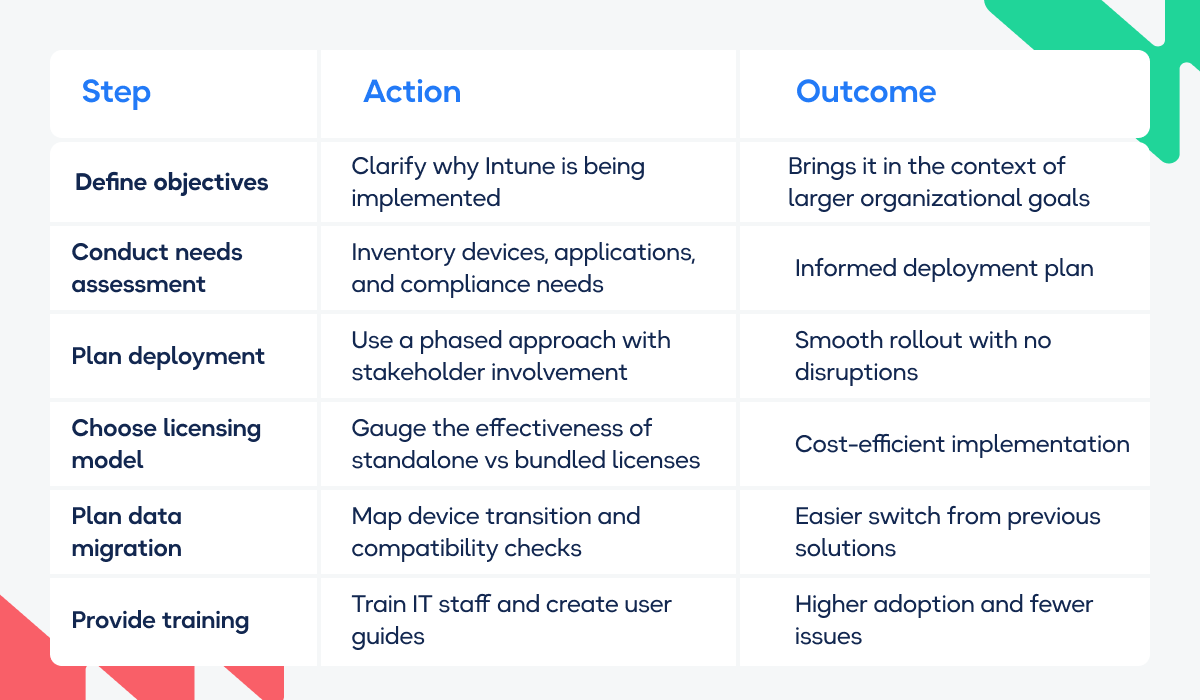
Make your business objectives clear from the get-go
The best place to start is by asking the big questions: Why are you implementing Intune? What problems are you trying to solve?
You need to pinpoint how Intune fits into your broader IT strategy. For example, are you enhancing endpoint security to make device management easier or trying to support a hybrid workforce?
It’s important to be laser-focused on the measurable outcomes. Define success metrics like reduced helpdesk tickets, improved compliance rates, or increased adoption of secure mobile working policies.
Carry out an internal needs assessment.
Step back to map out your environment and requirements before configuration processes start.
Here’s what to do:
-
Create an inventory of all devices—desktops, laptops, tablets, and smartphones—that will be managed via Intune. Include BYOD (Bring Your Own Device) scenarios and categorize devices by OS (Windows, macOS, iOS, Android).
-
Identify what critical applications will be used and confirm which ones must be integrated with Intune for secure deployment. Also include legacy apps, as these often need special attention.
-
Revisit your organization’s compliance standards (like GDPR, HIPAA, etc.) and determine security baselines like password policies, encryption, and conditional access requirements.
This assessment will be the backbone of your deployment plan—don’t skip it.
Make a plan for deploying Intune
Intune doesn’t work with an all-at-once deployment plan. A phased approach works best. Start with a pilot group, called something like test@mydomain.com. Include your IT staff or a specific department to test configurations and get some initial feedback. Once you’ve ironed out any issues, gradually expand to larger groups.
A common mistake in most Intune deployments is not involving stakeholders early on. That’s why engaging key players from the start—HR for BYOD policies, compliance officers for regulatory needs, and department heads for operational input is essential.
Take end users into consideration, too. Create a team to develop messaging for end users. For example, explain how Intune will benefit them, like easy access to work apps or enhanced data security, to reduce resistance to change.
Figure out the licensing model
Okay, let’s discuss money. Microsoft Intune’s licensing model is not the easiest to understand, so take the time to get it right.
You can purchase Intune as a standalone license or as part of bundles like Microsoft 365 Business Premium and Enterprise Mobility + Security (EMS). Choose the option that best suits your organization’s size and needs.
Work with your finance team to figure out the total cost of ownership. Factor in additional services like Microsoft Entra ID Premium, if needed.
Take data migration into consideration
Switching to Intune from another Mobile Device Management (MDM) or Mobile Application Management (MAM) solution? Good luck with that.
Here’s some pointers to ease the process:
-
Create a roadmap for transitioning devices, including de-provisioning old solutions and enrolling devices into Intune.
-
Ensure critical data like device configurations and compliance records are backed up and properly migrated.
-
Validate that your existing devices and applications are fully compatible with Intune.
💡 Streamline Intune Deployment and IT Asset Management with WorkwizeSetting up Microsoft Intune can be daunting with its extensive configurations and deployment intricacies. Workwize simplifies the process by integrating device lifecycle management with Intune, ensuring seamless and secure IT operations. Here’s how Workwize transforms your Intune experience:
HighLevel, a SaaS company managing IT for 991 employees across the US, India, and the Philippines, saved $1.4 million annually with Workwize. They eliminated shipping delays, standardized equipment, and reduced administrative overhead while delivering MDM-enrolled devices quickly and efficiently. Workwize ensures devices arrive ready for productivity, reduces IT overhead, and simplifies global management.

Transform your IT workflows—Book a demo today! |
🔧Configuration Best Practices
Once your pre-deployment preparations are complete, you must complete your Intune configurations.
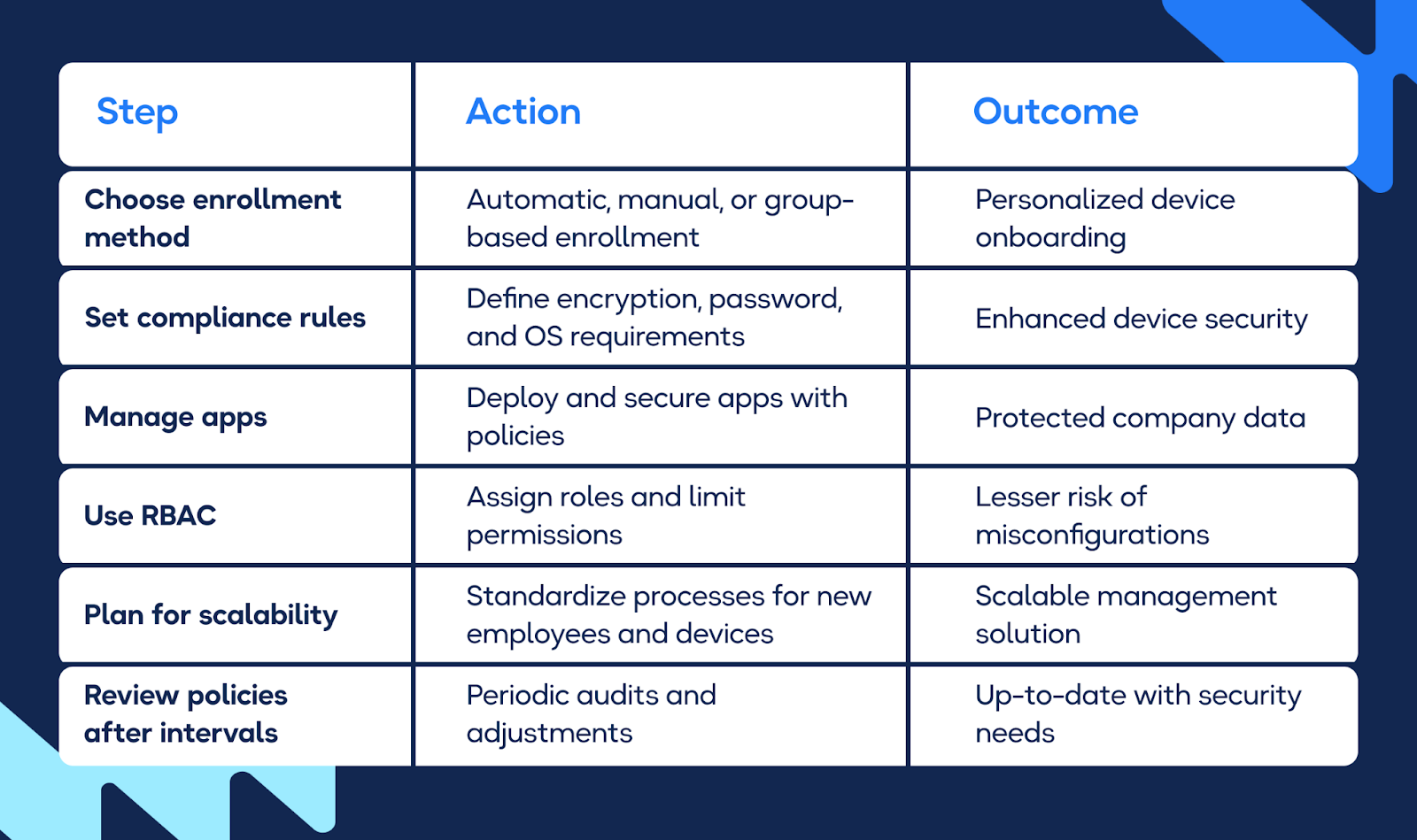
Figure out the best enrollment methods for your organization. These are the different types of enrollment commonly used in Intune configs:
-
Automatic enrollment: Ideal for corporate-owned devices; set up with minimal user intervention.
-
Manual enrollment: Useful for smaller organizations or ad hoc device additions, but users need to have clear instructions.
-
Group-based enrollment: Eases the process by targeting specific groups within your Microsoft Entra ID.
Separating personal and corporate data is a good idea for BYOD policies. Features like app-based conditional access and selective wipes are designed to maintain employee privacy and data security.
Establish strong baselines to keep devices secure
First, define device compliance rules, like enforcing encryption, password complexity, and OS version requirements.
You can also set up separate device profiles if you need to restrict some device features like camera usage or Bluetooth connections. Custom configuration profiles are also handy—adjust settings to specific requirements like deploying Wi-Fi profiles or configuring VPN access.
Pro tip: Use conditional Access Policies for an added layer of security. Set conditions based on user location, device compliance, or application type so that only authorized users have access.
Keep your apps and the data inside them safe
Use Intune to securely deploy Microsoft and third-party apps and ensure proper permissions and updates.
Implement measures like app wrapping or requiring app-level PINs to protect company data, even on unmanaged devices.
Utilize role-based access control (RBAC)
Assigning roles is essential because you can give the right people the correct permissions to perform their duties without overexposing sensitive configurations.
You will find predefined roles like Intune Administrator, Policy Manager, or Read-Only Operator—these are good starting points. For example, a Help Desk technician only needs read access to device compliance reports, but a Security Officer can manage conditional access policies.
Along with RBAC, limit permissions to only what’s necessary for a user’s role to minimize security risks and prevent accidental misconfigurations.
Read More: The Ultimate IT Hardware Deployment Guide For 2024
Plan for scalability
As your organization grows, your Intune deployment needs to scale with it. Develop a standardized process for enrolling new employees and their devices. Use tools like bulk enrollment to simplify large-scale additions.
Resource scaling is your friend here. Evaluate the performance of critical infrastructure, like Microsoft Entra ID, and make sure it can handle an expanding user base.
Review policies periodically
Regular reviews might seem unnecessary, but they keep your policies compatible with changing security scenes and business requirements:
Schedule biannual or quarterly audits of compliance and security policies. Look for gaps, outdated configurations, or new threats that must be addressed.
Pro tip: Ask for feedback from IT teams and end-users. The input you get will be helpful in fine-tuning configurations and identifying areas for improvement.
Mind that Intune is not the fastest solution in the market. Be patient.
[Restart the IntuneManagementExtension service, and you’ll force deployment of all apps. Thank me later ]
🔐Security best practices
Finally, here are security best practices that pave the way for a more resilient and adaptable Intune-powered IT infrastructure.
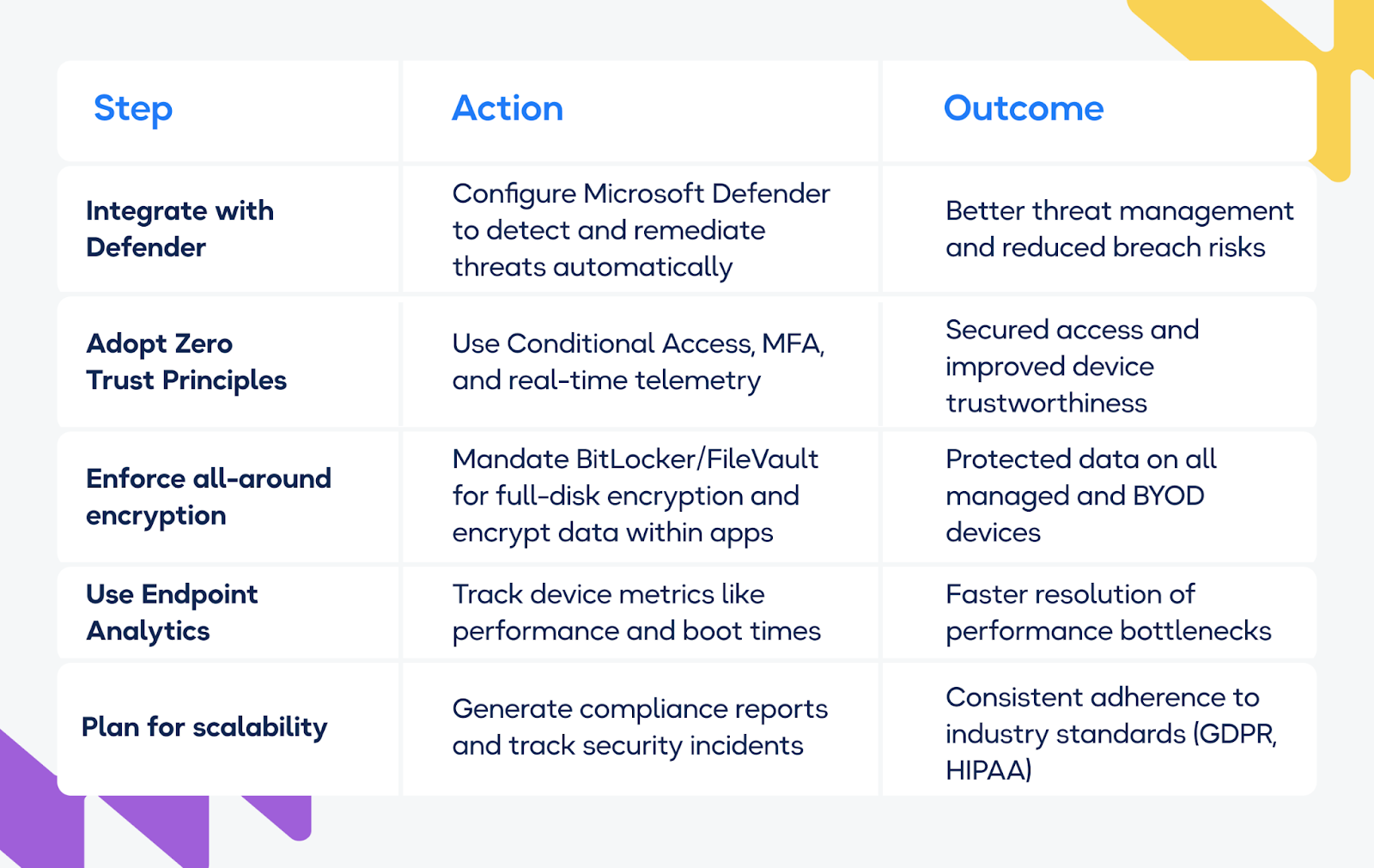
Take advantage of Microsoft Defender for endpoint
A good thing about Microsoft Intune is that it integrates easily with Microsoft Defender for Endpoint and offers robust threat management. This proactive security in Intune has reduced the risk of data breaches by 15%.
Use this integration to identify and remediate vulnerabilities across managed devices automatically. For example, Defender for Endpoint can isolate infected devices and stop further network exposure.
Configure Defender to work in tandem with Intune policies. For instance, Intune enforces compliance when a threat is detected, such as limiting device access or initiating a selective wipe.
Pro tip: In Defender settings, enable Bitlocker to use the TPM and save the user’s Azure AD account recovery keys.
Make use of the zero-trust architecture in Intune
Intune supports Zero Trust principles for secure access regardless of where your users or devices are. For identity protection, use Microsoft Entra ID’s Conditional Access to validate users’ identities continuously. Combine this with MFA to add a layer of security.
In addition, you can use real-time telemetry to gauge devices' security posture. Intune’s integration with compliance policies means only trusted devices and users access sensitive resources.
Mandate encryption across all managed devices
BitLocker for Windows devices and FileVault for macOS will grant you full disk encryption. For mobile devices, enforce encryption through Intune’s device compliance policies.
Use app protection policies to encrypt data at rest within corporate applications—your data will be safe even on BYOD devices.
Work with Endpoint Analytics to track device performance
Endpoint Analytics can track metrics like boot times, app reliability, and hardware performance. This helps you identify and resolve bottlenecks before they affect user productivity.
Analyze data to determine the effectiveness of your current policies. For example, revisit those settings if devices with specific configurations show slower performance.
Pro tip: Intune produces detailed trend data and predictive insights. Use these to detect issues before they become severe.
Stay compliant with industry standards
Schedule periodic reviews of your Intune deployment to remain compliant with frameworks like GDPR, HIPAA, or ISO 27001. You can use Intune’s built-in reporting tools to generate compliance reports quickly.
Don’t neglect incident tracking—always document and analyze security incidents. For example, track login attempts and device access anomalies at all times to identify vulnerabilities.
Note: Microsoft Fasttrack can guide you through the majority of Intune setup. It comes free if you give 150 licenses or more.
Tune Endpoint Management with Intune and Workwize
Microsoft Intune has become the new default for modern endpoint security. Its benefits over competitors are clear: cross-platform, built-in endpoint security, mobile application management, endpoint analytics, Microsoft Configuration Manager (ConfigMgr), and more.
Organizations relying on Intune are seeing dramatic returns. Eighty percent faster new-device onboarding, 75 percent reduced device failure triaging, and 80 percent reduced endpoint-update downtime translate to an overall 30 percent increase in productivity.
With Workwize, you can automate deploying Microsoft Intune across all your organization’s devices. Procure, deploy, manage, retrieve, and dispose of devices quickly. Book a Workwize Demo now to learn more.


Shashank Mishra

Establish a single source of truth for every IT asset across the globe.
.png?width=258&height=318&name=g10%20(5).png)
More related resources to help you stop firefighting hardware operations.



Get monthly insights into how other IT leaders are improving their ops.



.png?width=2880&height=1232&name=Group%202147262874%20(1).png)
Stop coordinating
hardware like it's 2012.
.svg)
.svg)
.svg)
.svg)
.svg)