




.svg)
.svg)

.svg)


.svg)




.svg)
.png?width=500&height=424&name=Style-1---V1-(1).png)
.png?width=1230&height=692&name=Vector%20(13).png)
Your team's best hours may be going to tasks you should automate.
Every time a new hire comes on board, someone orders a laptop, someone else receives or confirms the stock, and IT configures and deploys it.
When an employee leaves, the same manual coordination runs in reverse. IT needs to arrange device retrieval, coordinate access removal, track the returned laptop, and prepare it for reuse or disposal.
An automated workflow can take over that entire chain. It can connect your HR, ITSM, and MDM systems so one action triggers the next until each operation is complete.
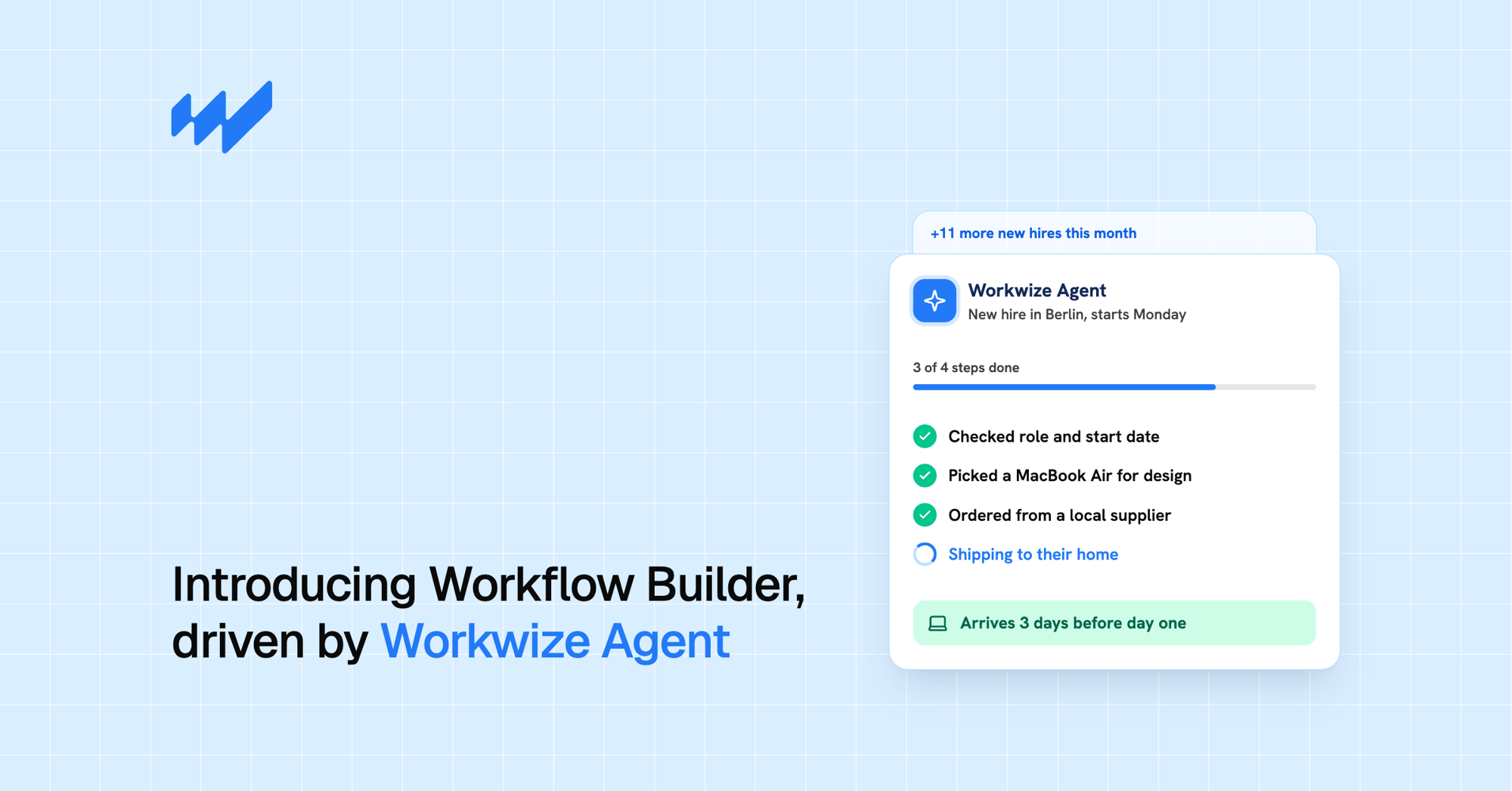
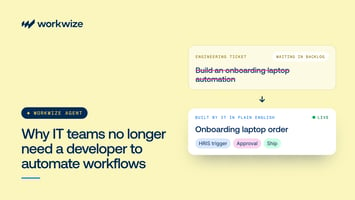
You don't need to submit a ticket to create the workflow. With Workwize Workflow Builder, IT teams can describe routine processes in plain language and let Workwize Agent, the Workwize AI agent behind Workflow Builder, turn those instructions into a workflow.
Once the workflow is reviewed and published, the Workflows engine runs the configured steps across connected systems and Workwize's hardware operations, with approvals where required.
That means workflows can do more than create tickets or send notifications. They can also initiate physical operations such as shipping laptops, retrieving devices and arranging repairs.
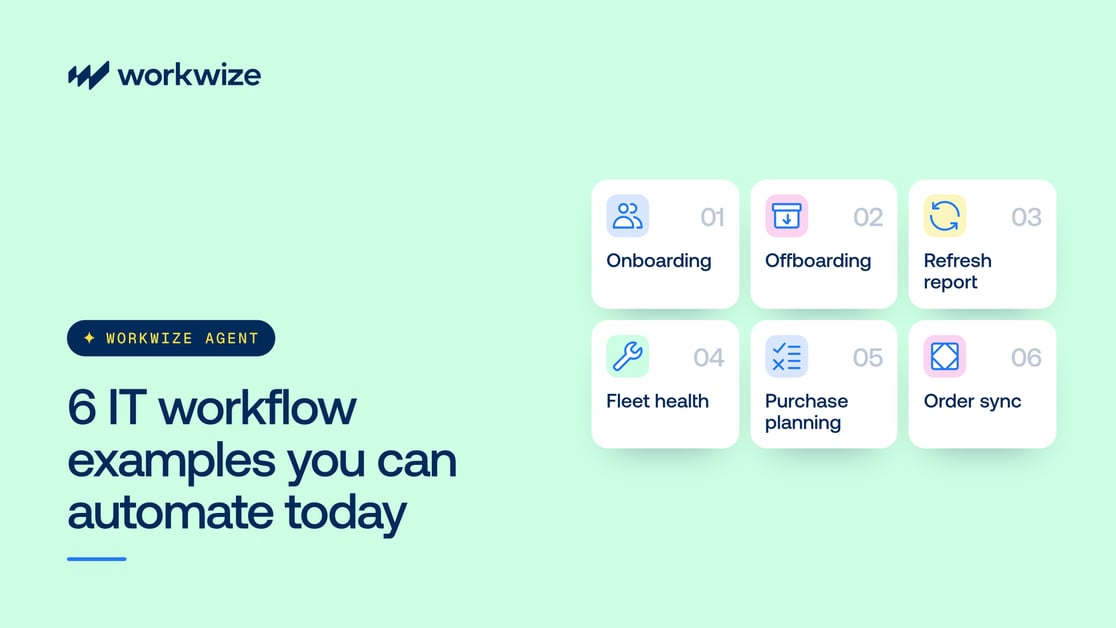
In this article, we'll walk through six practical IT workflow examples that you can build with Workwize Agent today, how each one works, and what to check before running them.
6 IT workflow examples you can build with Workwize Agent
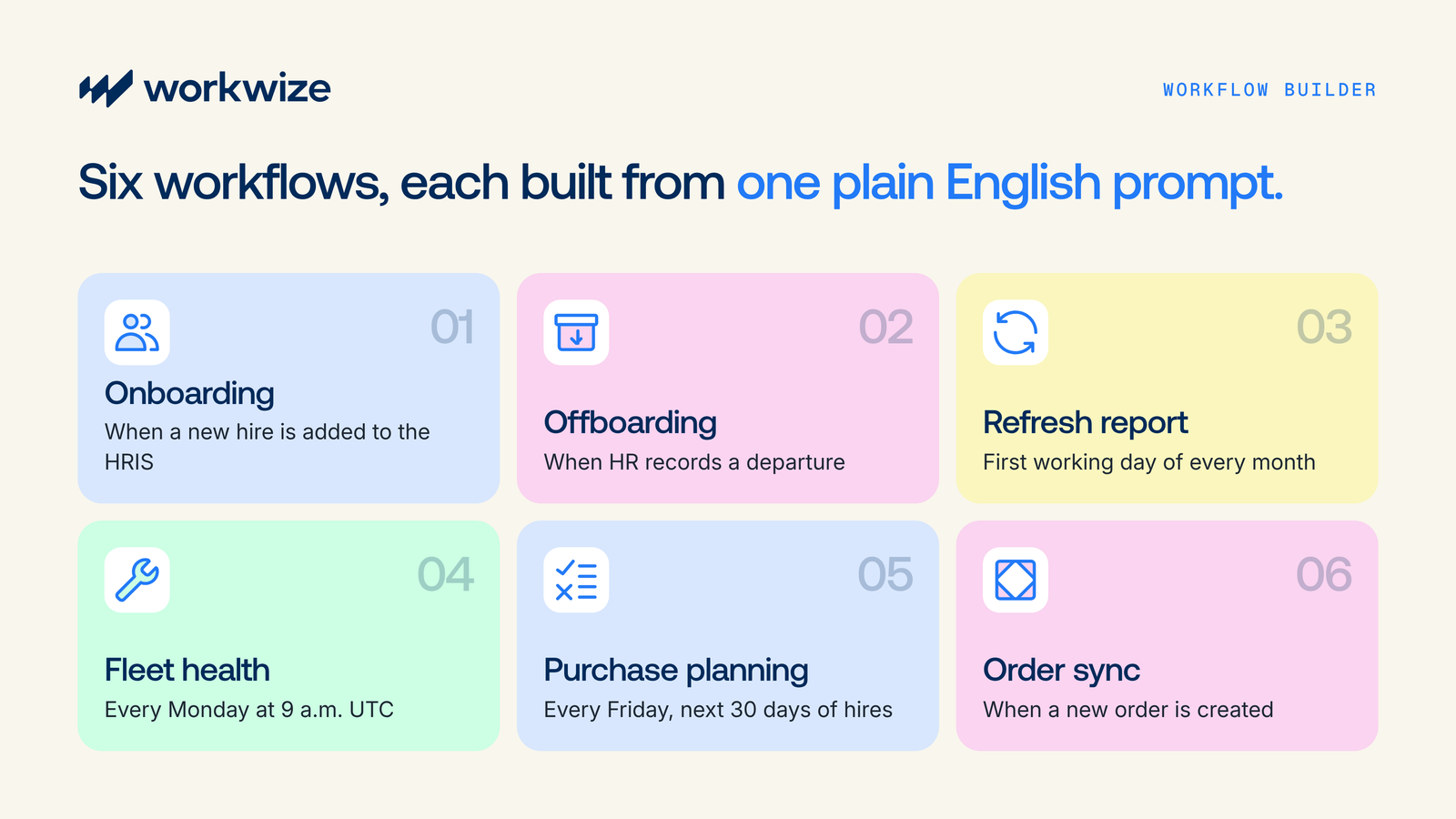
Each of these IT workflow examples starts with a plain language prompt to Workwize Agent and ends with a workflow your team can review, test and publish. Together, they cover the hardware lifecycle from a new hire's first laptop to the device a leaver sends back.
1. Automate employee onboarding and device provisioning
Onboarding a new employee involves checking inventory, selecting suitable hardware, and preparing it for work. When HR, IT, and procurement handle these steps separately, someone has to pass information between them and follow up whenever the process stalls.
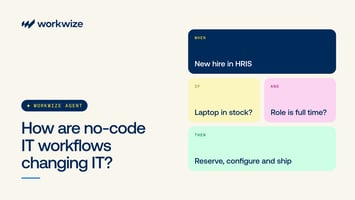
An automated onboarding workflow can use a new employee's HRIS record to start that sequence. Their role and location determine equipment needs, while their start date sets when the device is needed.
An IT manager could describe the intended workflow this way:
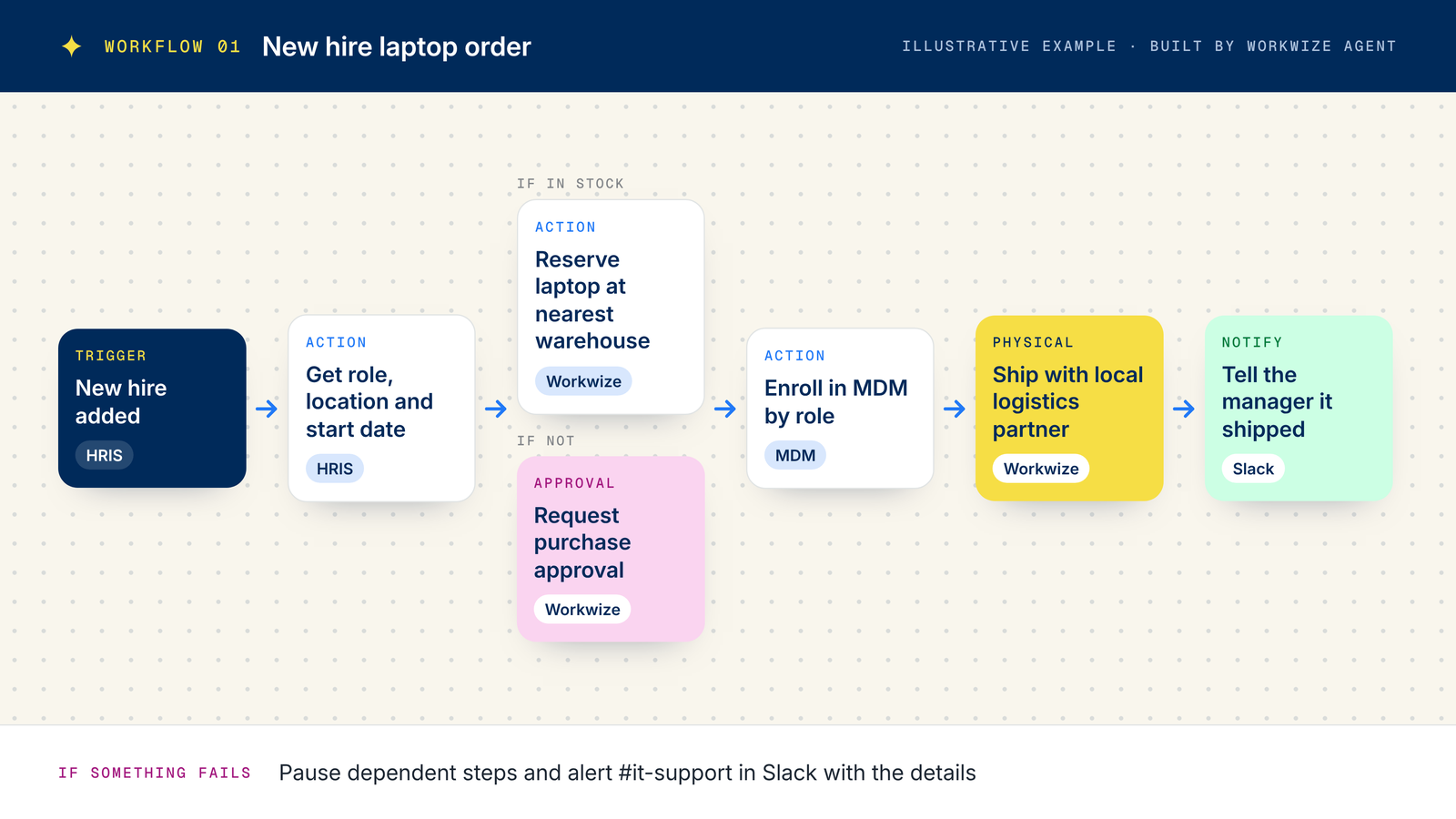
"When HR adds an employee in the HRIS, retrieve their role, location, start date, and address. Allocate a laptop that suits their position from the nearest warehouse, or request purchase approval if unavailable. Enroll the device in our MDM based on the employee's role and arrange delivery through the local logistics partner. Update the asset's assignment, serial number, and shipping status in the ITSM, and notify the manager when it ships. If information is missing or a step fails, pause the affected process and alert #it-support in Slack with details."
Workwize Agent translates these instructions into a workflow with the following steps:
- Sets the trigger. The workflow watches the connected HRIS for new hire entries.
- Retrieves employee details. The new-hire record supplies the information needed to select equipment and arrange delivery.
- Checks stock before purchasing. The workflow matches available equipment in your inventory to the employee's requirements. If no suitable device exists, the process moves to purchase approval.
- Provisions the laptop. The existing zero-touch provisioning sequence enrolls the laptop in the company's MDM. Failed enrollment prevents the device from proceeding as ready to ship.
- Coordinates delivery. The local logistics partner receives the fulfillment details, and shipment confirmation triggers the manager's notification.
- Updates records and handles exceptions. Inventory reflects the employee assignment and shipping status. Missing information or failed actions generate an IT alert, with dependent steps paused.
The prompt can also account for regional keyboard layouts, department-specific software, or a minimum preparation window before the employee's start date. For Windows fleets, the same sequence can lean on Windows Autopilot through Microsoft Intune to handle zero-touch setup.
Workwize's native integrations with HRIS, ITSM, MDM, and messaging platforms let these systems connect and communicate. Workwize Agent turns the prompt into a workflow that uses those connections, and Workwize handles the deployment of the device itself.
For example, a Workwize client in the private equity industry uses a prompt that automatically opens a ticket in its ITSM platform two weeks before each new hire starts. Another customer in the SaaS space has Workwize automatically pick up device provisioning after they create new employee profiles in their ITSM tool and order their laptops.
2. Automate employee offboarding and device retrieval
Every employee departure requires IT to revoke access, recover equipment, and decide what happens to the retrieved device. An automated offboarding workflow can use an employee's departure recorded in the HRIS to coordinate the process.
The last working day determines when access should be removed, while the employee's assigned assets and contact details help IT arrange equipment collection.
An IT manager could describe the workflow to Workwize Agent like this:
"When HR records a departure in the HRIS, identify the employee's assigned device, send templated pickup instructions, and schedule reminders every four days. Arrange collection with the local logistics partner. Revoke company access on the employee's last working day. Escalate after seven days and notify #ops in Slack if the employee does not respond to pickup requests. On return, initiate approved wiping and inspection, routing serviceable devices to redeployment and unusable ones to decommissioning. Update asset records throughout and alert IT to missed pickups, failures, or devices needing review."
Workwize Agent translates these instructions into a workflow that:
- Identifies assigned equipment. The HRIS departure triggers a check of the employee's assigned devices and contact details.
- Arranges device collection. The workflow sends templated pickup instructions and coordinates collection with the local logistics partner.
- Follows up on outstanding returns automatically. Reminders go out every four days while pickup remains outstanding. If the employee hasn't responded after seven days, the workflow alerts the designated team in Slack.
- Initiates access revocation. On the employee's last working day, the workflow triggers the configured access removal process through the connected identity provider, such as Okta or Microsoft Entra ID. This step doesn't depend on the physical return of the device.
- Coordinates device processing. Once the laptop is received, the workflow initiates the approved data sanitization process and inspection. Devices suitable for reuse can be prepared for redeployment, while unusable equipment moves toward certified disposal.
- Updates records and flags exceptions. The relevant asset records reflect retrieval and processing status. Failed actions, missed pickups and devices requiring review are escalated to IT.
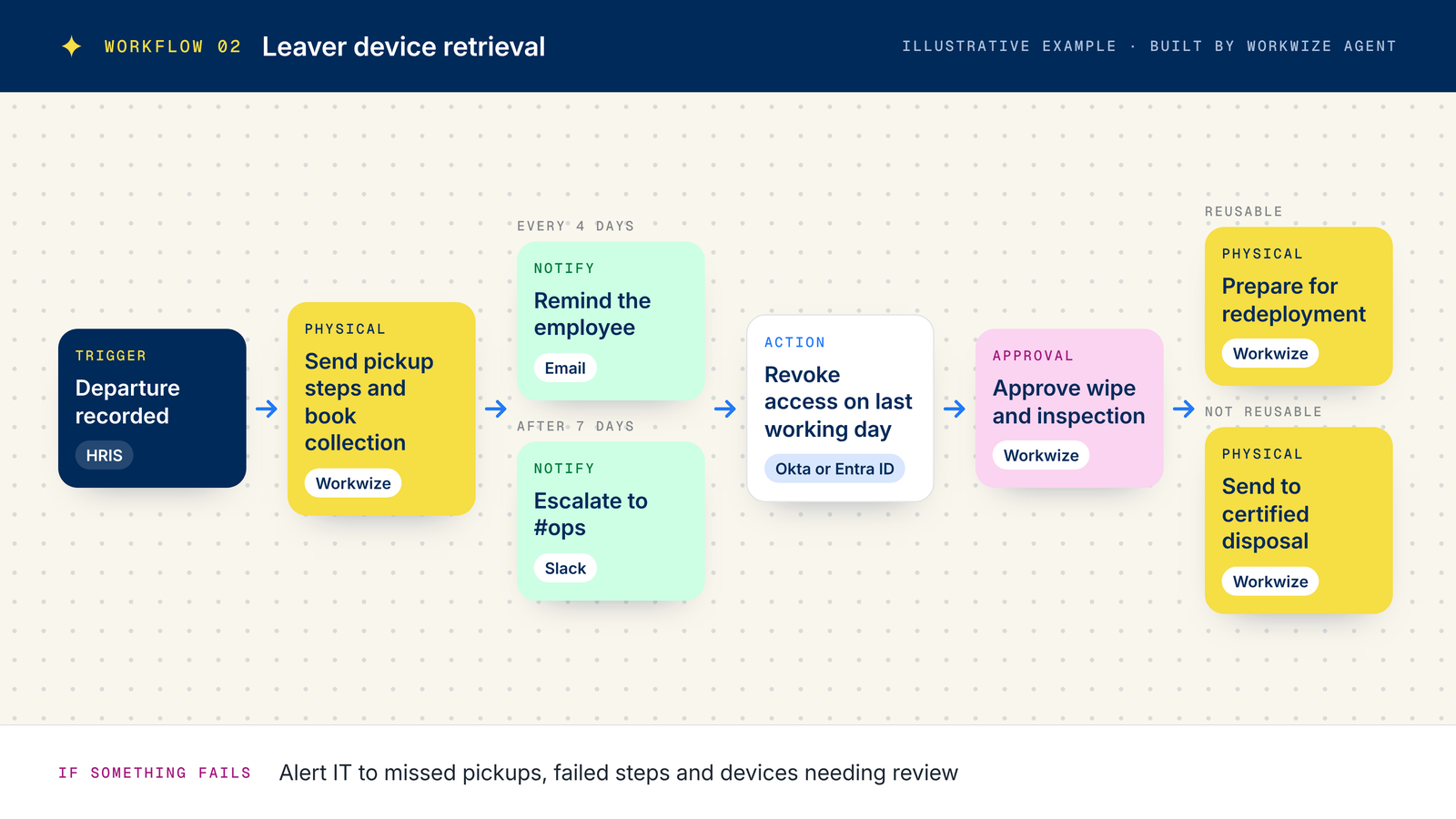
You can add specifics here, such as telling the workflow to close certain tickets in your ticketing platform. For example, the same SaaS company that creates employee profiles from its ITSM platform automatically deletes users once their assets have been collected.
Workwize Agent connects these workflows to Workwize's IT asset retrieval operations, so IT can initiate collection, follow device status and coordinate the next steps without managing each handoff separately.
3. Automate IT hardware refresh reporting
Deciding when to replace employee laptops requires more than checking their purchase dates. Some devices remain reliable well beyond their expected refresh cycle, while others develop performance issues or require frequent repairs much earlier.
A recurring hardware refresh report helps IT identify devices that may need replacing based on their age, condition, warranty status and repair history. Instead of reviewing asset records manually, IT managers can automate the reporting process and use the findings to plan replacements and allocate budgets.
For example, an IT administrator could give Workwize Agent this instruction:
"On the first working day of each month, find assigned laptops purchased more than three years ago. Group them by location and department, showing the model, assignee, purchase date, warranty status, recorded condition, and current value where available. Email the report to the IT asset manager. List records with missing purchase dates separately and alert IT if the report fails. Note which devices have received the most complaints and repair requests. Do not place replacement orders."
This creates a reporting sequence that:
- Runs on a recurring schedule. The monthly trigger removes the need for someone to remember and rebuild the report.
- Finds refresh candidates. Purchase dates, assignment status, repair frequency, and assignee complaints determine which laptops enter the review.
- Organizes the results. Location and department groupings help the asset manager understand where replacement demand may arise.
- Adds decision-making context. Available warranty and condition information helps distinguish equipment needing attention from older devices that remain useful.
- Separates incomplete records. Missing dates appear as data gaps, so devices aren't silently excluded from consideration.
- Delivers the report. The asset manager receives the findings, while a failed run generates an IT alert.
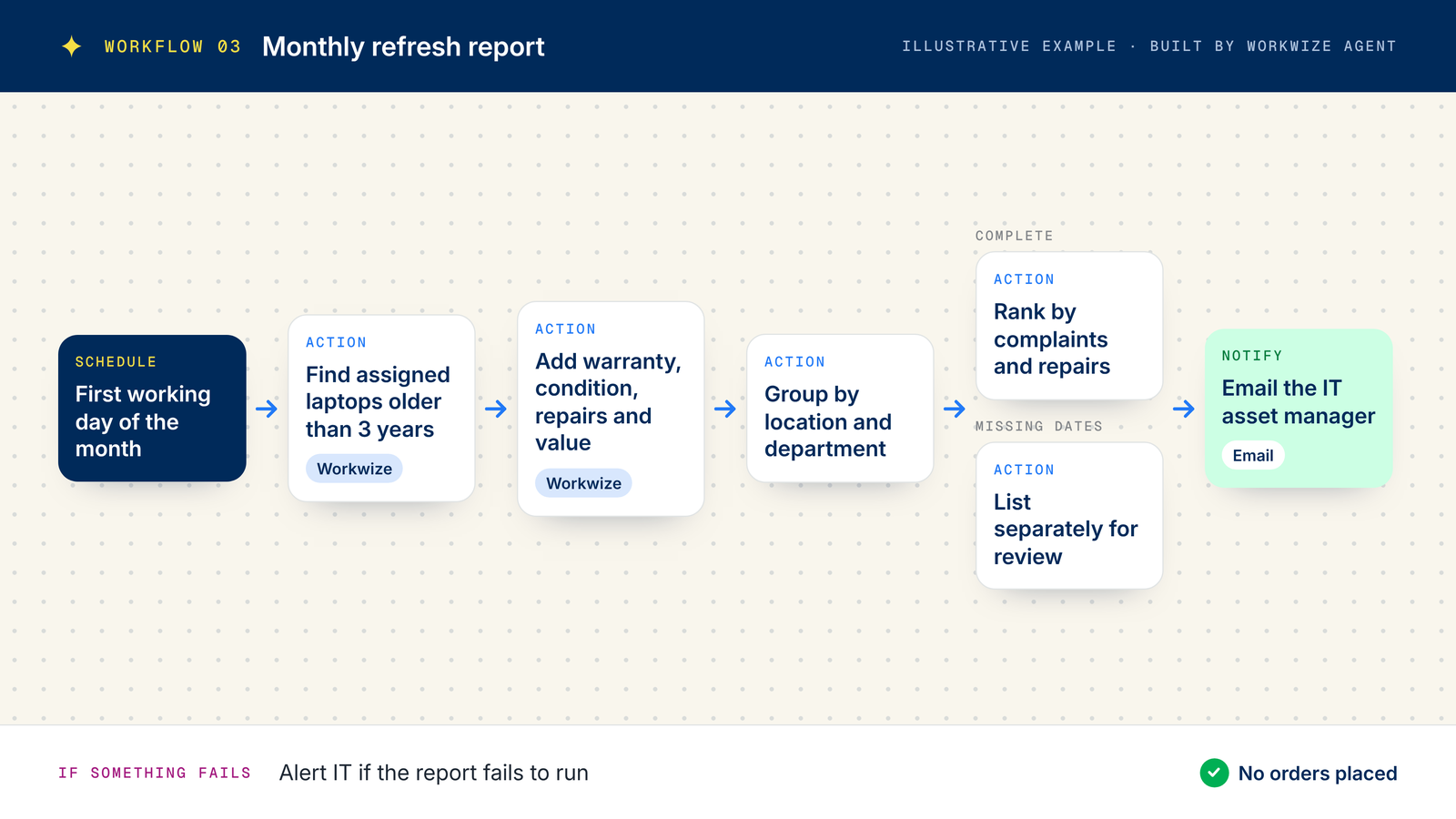
The three-year threshold is only an example. Companies can adjust it to match their refresh policies, device requirements and budgets. The report identifies laptops for review and leaves the replacement decision with IT.
For instance, an AI firm runs a monthly check for laptops overdue for renewal and starts a resale process for qualifying devices, with each one wiped and issued a data erasure certificate before it's sold. Workwize handles that end-of-life step through its IT asset disposal service.
With recurring refresh reports, IT teams can anticipate replacement demand, plan procurement budgets and identify devices that may still have resale or redeployment value before making purchasing decisions. Feeding the results into global IT procurement turns those reports into a repeatable plan.
4. Automate IT asset fleet health monitoring
A laptop doesn't have to be old to develop problems. Devices can suffer damage, experience recurring faults or remain stuck in repair queues, affecting employee productivity and increasing IT support work.
Monitoring these issues across a large device fleet can be difficult, especially when employees work in different locations. IT teams need to review asset records, identify unresolved problems and follow up with the people responsible for repairs.
With the Workwize AI agent, IT can automate these checks and receive regular updates on device condition and outstanding repair issues. A fleet health prompt could read:
"Every Monday at 9 a.m. UTC, review inventory for devices recorded as damaged, broken, awaiting repair, or older than our review threshold. Count each category and create a table showing unique asset IDs, locations, assignees, and recorded issues. Email IT the report and flag repairs unchanged for more than 14 days. Identify devices appearing in multiple categories and alert #ops if data retrieval or report delivery fails."
This workflow is worth running separately from the refresh report, because device age alone can't reveal the maintenance work building across a fleet. Recorded damage, open repairs, and unresolved faults provide another view of asset tracking that a scheduled workflow can summarize before issues become harder to manage.
Companies already use these types of automated workflows for real-world tasks. A company in the consumer goods industry pulls its last seven repairs to understand exactly what went wrong.
The workflow turns those instructions into the following actions:
- Retrieves recorded asset information. The scheduled review reads the condition, age, and repair fields available in inventory.
- Categorizes devices. Matching records enter the relevant groups, with overlapping categories identified to avoid misleading totals.
- Builds an actionable table. Asset IDs, locations, and recorded issues give IT enough context to investigate individual devices.
- Highlights stalled repairs. Records unchanged for more than 14 days receive additional attention in the report.
- Distributes findings and reports failures. IT receives the summary, while #ops is notified if the workflow cannot retrieve or deliver it.
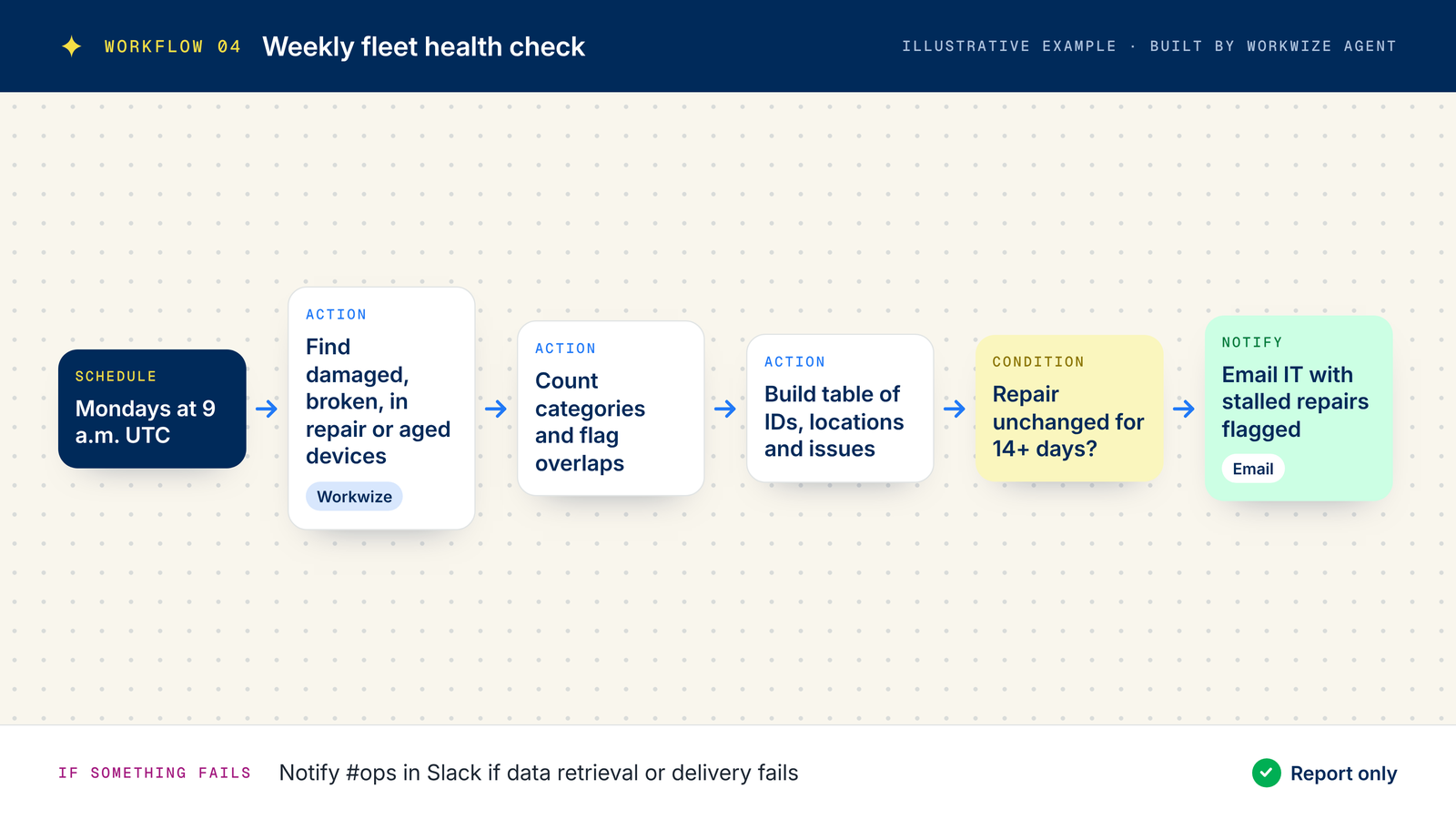
This workflow summarizes recorded information and doesn't diagnose hardware on its own. Its usefulness depends on employees, technicians, and connected systems keeping those records current, which is why accurate IT asset management matters so much.
5. Automate device purchase planning for upcoming hires
When hiring plans change, IT teams need to know whether existing inventory can cover upcoming equipment requests or whether they need to purchase more devices. Without an accurate view of demand and available stock, companies risk ordering laptops they don't need or discovering shortages too close to an employee's start date.
A purchase planning workflow compares incoming demand with usable inventory, showing where existing devices cover requirements and where a shortage remains. This helps the company make the right IT procurement decisions, such as when to plan ahead with buffer stock or redeploy devices already in the fleet.
An illustrative instruction would be:
"Every Friday, retrieve employees starting within the next 30 days and match their equipment requirements to available warehouse stock by country and role. Exclude reserved devices and equipment awaiting repair, wiping, or configuration. Calculate shortages by approved model and location, and email the findings to IT and procurement. Flag missing employee details or uncertain stock availability for review. Do not place orders."
The process works through these stages:
- Checks upcoming hires. HRIS records establish demand within the 30-day planning window.
- Matches equipment requirements. Role and country rules determine which devices could meet each employee's needs.
- Reviews usable stock. Reservations and preparation statuses prevent unavailable equipment from being counted as ready for deployment.
- Calculates the shortfall. The comparison shows which requirements existing inventory can cover and which need procurement attention.
- Shares recommendations and uncertainties. IT and procurement receive the purchasing summary, with incomplete records clearly distinguished from confirmed shortages.
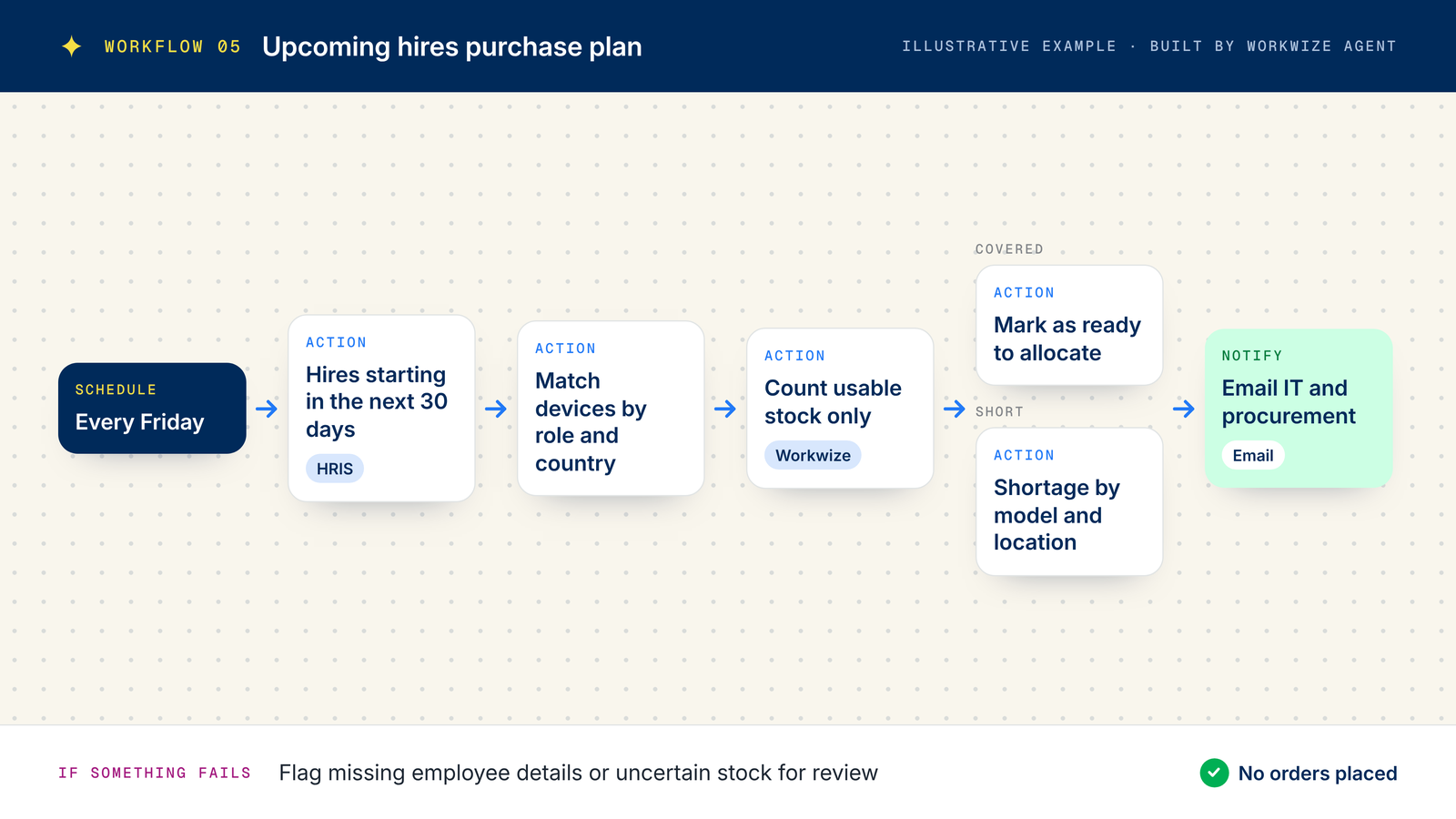
This workflow also helps the onboarding automation run more smoothly by identifying stock shortages early, giving procurement time to secure devices before they're needed.
For example, a data security company using Workwize Agent prefers to get a daily Slack digest of employees starting next month and whether their orders are ready.
6. Automatically sync IT order data across your applications
Copying equipment order details into another application creates repeated work and opportunities for mismatched records. An order sync workflow sends that information when the order is created, then checks whether the receiving system accepted it.
This workflow makes IT asset management less error-prone and keeps your asset register a dependable source of truth.
The prompt could read:
"When a new equipment order is created in Workwize, send its order number, employee ID, model, cost, and status to our internal procurement application through the configured API. Use the Workwize order number as the unique reference. Record successful transfers. If the request fails or times out, notify #ops in Slack with the order number and error details. Before retrying, check whether the destination has already received the order to prevent duplicates."
Workwize Agent translates these instructions into a workflow that:
- Captures the new order. Order creation starts the transfer using the fields available through the configured connection.
- Maps and sends the details. The outgoing request matches Workwize's order information to the destination application's expected fields.
- Checks the response. Confirmation from the receiving system establishes whether the transfer succeeded.
- Investigates uncertain outcomes. A timeout triggers a check for an existing destination record before another attempt.
- Logs results and alerts the owner. Successful transfers are recorded, while failures reach #ops with enough detail to identify the affected order.
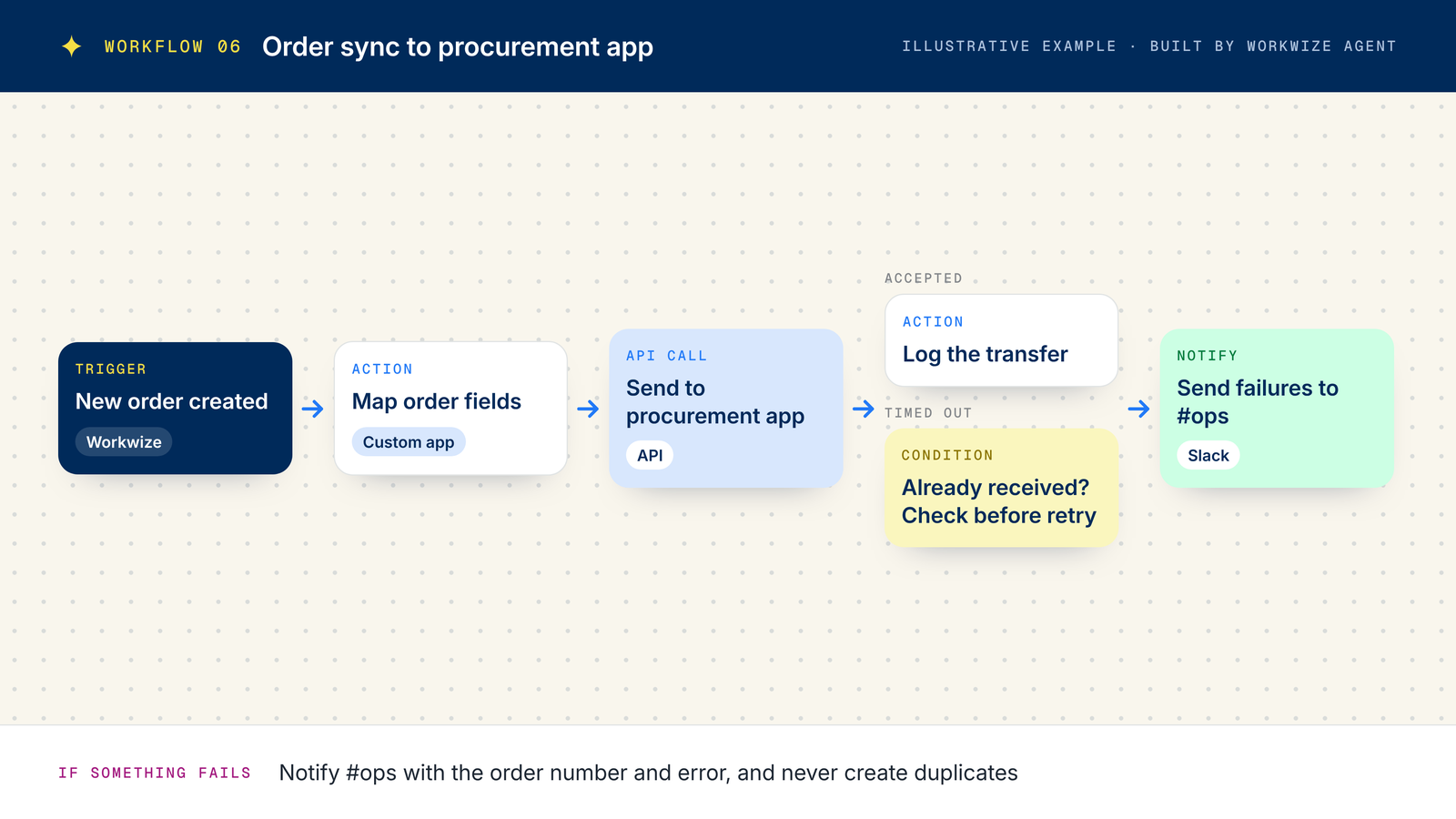
The integration needs the appropriate authentication, field mapping and permissions to work correctly. If IT also wants subsequent order changes reflected in the destination system, it can configure additional triggers to synchronize those updates.
You can also use Workflow Builder for regular asset updates. For example, Workwize clients use it to get weekly email reports of available stock per warehouse. In this case, a simple prompt such as "Send a weekly report of available assets per warehouse to the IT manager's email address" will do.
How Workwize Agent automates IT tasks across systems and devices
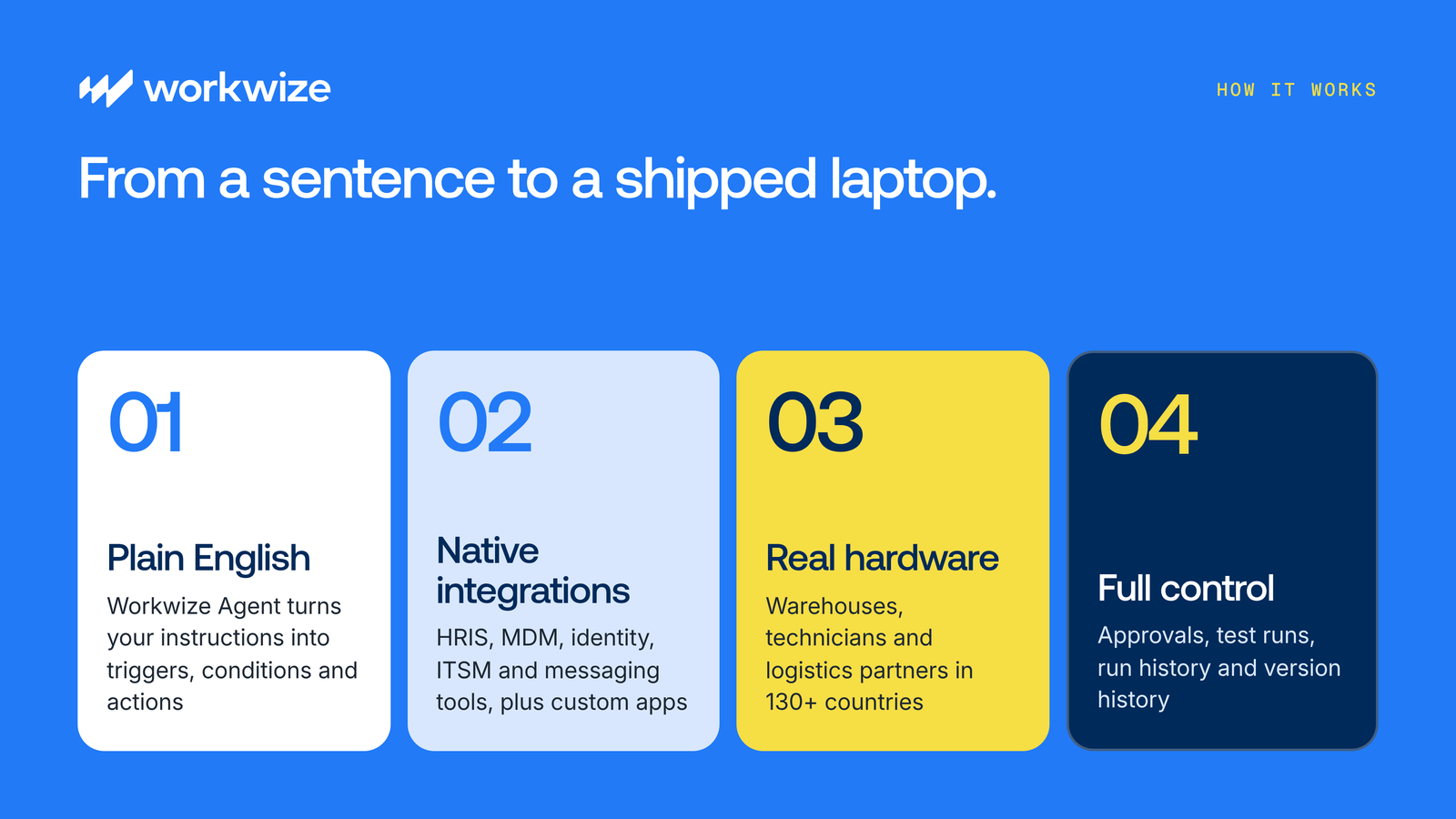
Workwize Agent brings workflow creation, connected applications, and hardware fulfillment together, so IT can automate a process and the resulting workflow can trigger real, physical device operations.
From plain language instructions to executable workflows
When an administrator describes a process, Workwize Agent translates the instructions into triggers, conditions, and actions for review. The Workflows engine then executes the approved logic through the configured connections, following the rules for timing, approvals, and exceptions.
For example, an IT manager can request a workflow that checks available inventory when a new employee joins, initiates device procurement when stock is insufficient and notifies the relevant team when an order ships.
IT can review the generated logic, test the workflow and adjust it before making it live.
Connections across your existing IT systems
Workflow Builder connects employee information, device records, and operational updates, so workflows can carry information between systems and initiate the next action. Its native integrations include:
- HRIS: BambooHR and HiBob
- Device management: Jamf Pro, Iru (formerly Kandji), JumpCloud and Microsoft Intune
- Identity: Okta and Microsoft Entra ID
- ITSM: ServiceNow, Freshservice and Jira Service Management
- Communication: Slack, Microsoft Teams and email
HRIS data can guide equipment selection, connected MDM tools can apply the right configuration, and ITSM and asset tracking connections can keep relevant tickets updated.
For applications without a native integration, IT can create a custom app and configure its API connection. Workwize Agent can then use that connection when building workflows. The available actions depend on the integrations and permissions configured for each workflow.
Hardware infrastructure behind physical actions
What sets Workwize apart from conventional workflow automation tools is its connection to physical hardware operations.
Workwize connects workflow execution to its warehouses, technicians and logistics partners in 130+ countries, allowing approved workflows to initiate activities such as laptop procurement, deployment, retrieval and repair.
For example, an employee departure recorded in an HRIS can initiate a device retrieval request. Workwize then coordinates the physical collection through its logistics network, while the workflow tracks progress and updates the relevant asset records.
Device wiping can also be initiated through a connected MDM where supported, following the organization's security policies and approval requirements. Returned devices can be erased to a recognized standard such as NIST SP 800-88, with a data erasure certificate for each device.
This means IT can automate the coordination between systems and hardware operations without manually managing every handoff.
Control and visibility throughout execution
Automation still needs oversight, particularly when workflows involve purchasing equipment, changing access permissions or handling company data.
Workwize requires approval by default for hardware orders, retrievals and repairs, and IT can decide which other actions need sign-off. Test modes let teams check a workflow without placing real orders, and sharing settings control who can view, edit and publish it.
After publishing, run history shows each execution step by step, an audit trail records workflow activity, and version history lets IT restore an earlier version if an update causes problems.
If a workflow encounters missing information, an unavailable device or a failed integration, the configured exception handling can pause affected actions and notify the responsible team. Workwize can also pause a workflow automatically after repeated failures.
These controls help IT teams automate routine processes while retaining oversight of consequential decisions.
What to consider before automating an IT workflow
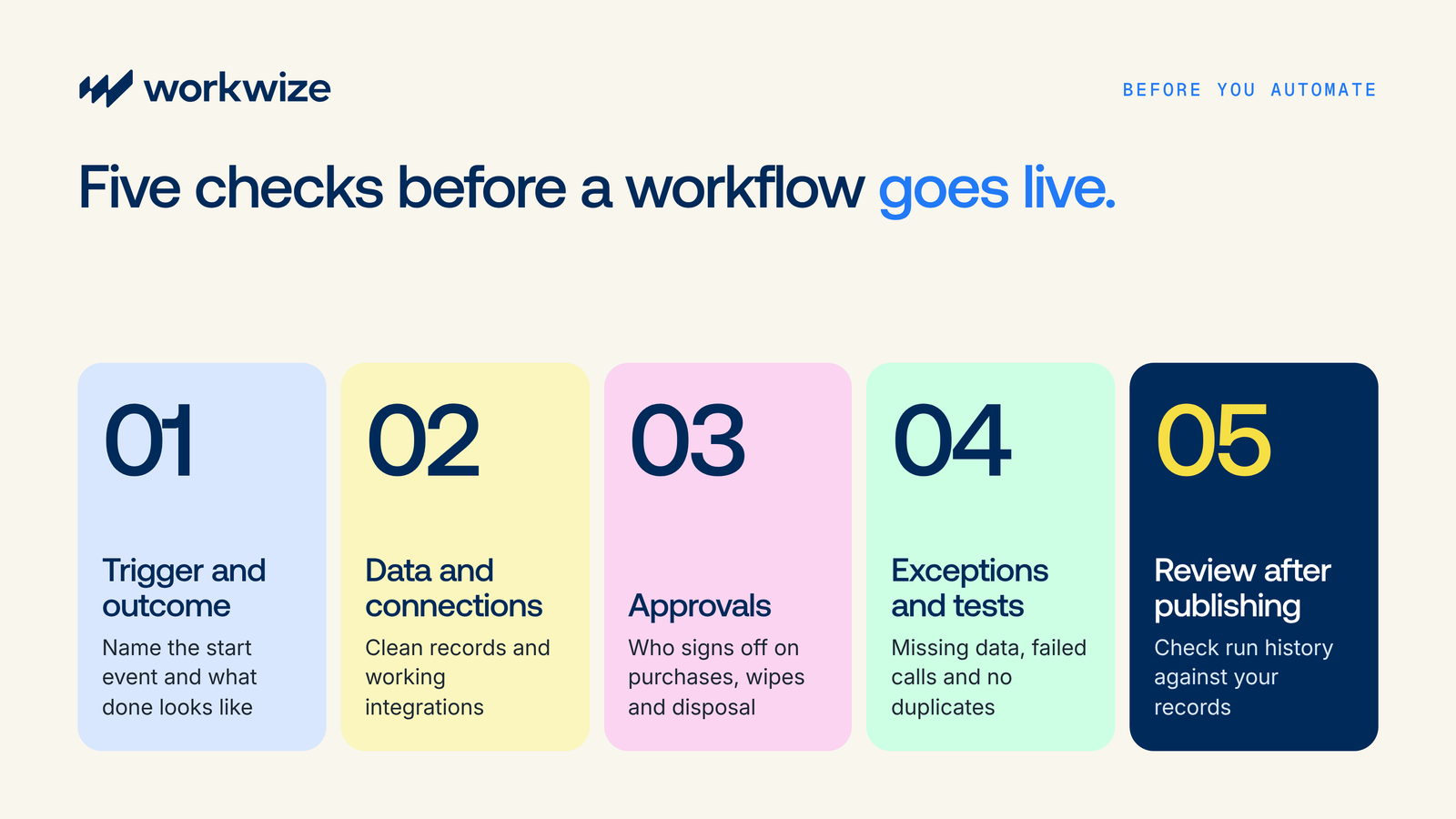
Before any of these IT workflow examples takes over a recurring task, IT needs to establish what it should accomplish, which information it can trust, and when someone should intervene. Those decisions help turn a promising prompt into a process the team can rely on.
Define the trigger and expected outcome
When describing the process, connect the starting event to a clear result.
For example, "Handle a new hire" leaves a lot of room for interpretation. A more useful instruction specifies when the workflow should start, which employee details to retrieve, what actions to perform and how to confirm completion.
Be specific about the final outcome. A laptop order being placed, shipped and delivered represents three different stages, and your workflow should distinguish between them so IT can track progress accurately.
Check the data and connections
An automated workflow is only as reliable as the information and systems it depends on.
Outdated inventory records, incorrect delivery addresses or missing employee details can cause delays or trigger the wrong actions. Similarly, an integration failure can prevent information from reaching the next system.
Make sure your internal systems are connected and their records are current before you publish. Run history will show where a step failed, but planning ahead saves you the extra work of troubleshooting.
Decide where approval belongs
Before allowing purchases, wipes, or disposal requests to proceed, agree which actions require human approval and who can authorize them. The workflow should also account for an unanswered or rejected request, so dependent steps cannot continue prematurely.
Workwize Workflow Builder supports configurable approvals, which lets IT teams retain oversight of consequential actions while automating routine steps.
Explain exceptions and test the responses
A workflow should account for what happens when something goes wrong.
For example, a new hire might have an incomplete address, the required laptop model might be unavailable or an API request might fail.
Define how the workflow should respond to these situations. Depending on the issue, it may need to pause the affected action, request missing information or notify the responsible team.
Test both successful and unsuccessful scenarios before publishing. Check that notifications reach the right people, failed steps don't trigger dependent actions and retries don't create duplicate orders or records.
Review execution after publishing
Publishing a workflow doesn't mean IT should stop monitoring it.
Workwize's run history helps administrators review completed actions, identify failures and investigate where a process stopped. Compare workflow results against the relevant employee, asset, order or ticket records to confirm that the intended actions occurred.
Regular reviews can also reveal opportunities to improve the workflow as business requirements, systems and policies change.
Put your IT workflows on autopilot with Workwize Agent
Your IT team shouldn't need developer support every time it wants to automate a routine process. From onboarding and offboarding to device monitoring and procurement, the IT workflow examples covered here give teams a practical way to reduce repetitive work. And because the Workwize platform also handles procurement, deployment, retrieval and disposal, those workflows reach all the way to the physical device.
With Workwize Agent, IT turns plain language instructions into workflows they can review, test and manage, all without asking developers to write the logic. As an AI agent connected to real hardware operations, it goes further than most workflow tools. Once reviewed and approved, the workflow can update your systems, initiate device shipments and arrange retrievals while keeping your team in control.
Book a Workwize demo to see how Workwize Agent builds these IT workflow examples for your team.

Establish a single source of truth for every IT asset across the globe.
.png?width=258&height=318&name=g10%20(5).png)
More related resources to help you stop firefighting hardware operations.

Get monthly insights into how other IT leaders are improving their ops.



.png?width=2880&height=1232&name=Group%202147262874%20(1).png)
Stop coordinating
hardware like it's 2012.
.svg)
.png?width=172&height=68&name=apple%20business%20patner%20(1).png)
.svg)
.svg)
.svg)
.svg)