




.svg)
.svg)

.svg)


.svg)




.svg)
.png?width=500&height=424&name=Style-1---V1-(1).png)

.png?width=1230&height=692&name=Vector%20(13).png)
Managing a few remote employees by hand is easy. IT can correct an address, track a delayed shipment, troubleshoot enrollment, or remotely set up a device when something goes wrong.
Those individual fixes stop working once a rollout spans multiple locations, device configurations, deadlines, and employee cohorts, even with a modest device count.
IT starts losing visibility. Which devices were delivered? Which ones enrolled? Do asset records match who actually has what? The result is delayed deliveries, employees sitting idle on day one, and devices lost in transit.
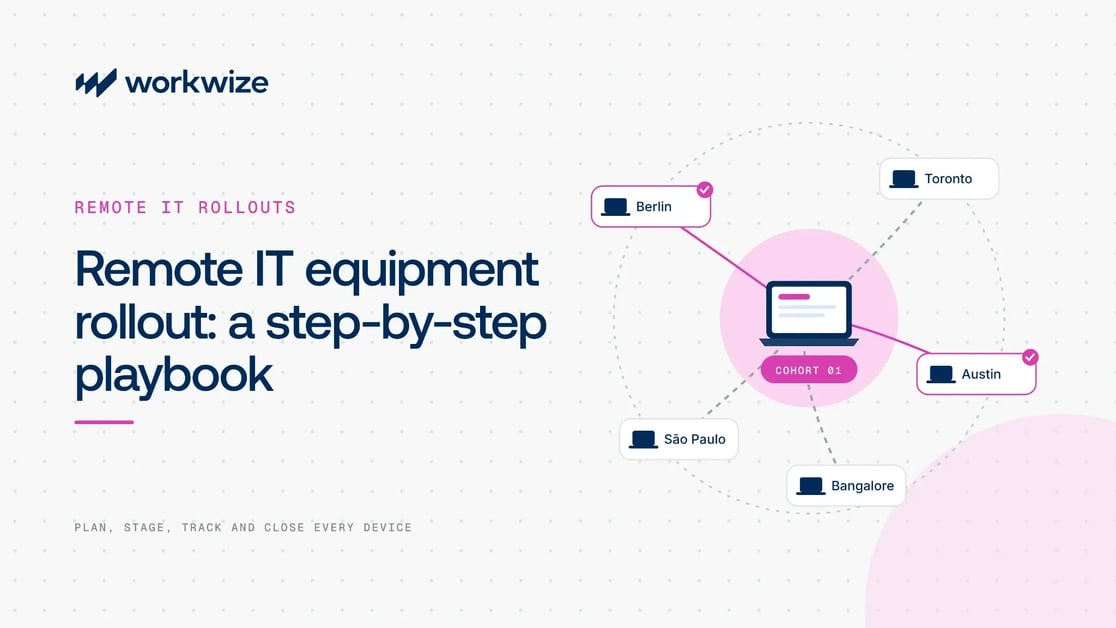
That's why a remote IT equipment rollout needs to run as one coordinated project, not a series of individual orders. This playbook shows how to plan, stage, track, and close a rollout so delivery, enrollment, asset records, and employee readiness stay in sync.
What is a remote IT equipment rollout?
A remote IT equipment rollout is the coordinated process of procuring, configuring, delivering, enrolling, and verifying IT hardware for a group of distributed employees.
Unlike everyday device deployment for a single new hire, a rollout has to keep many moving parts aligned: multiple locations, cohort-specific configurations, and a shared deadline.
A rollout usually covers laptops and desktops plus accessories such as monitors, keyboards, mice, docking stations, headsets, and webcams. Kits are assigned by role, department, seniority, and other factors.
Common triggers include:
- A large onboarding cohort, such as a hiring surge or a new office opening, often handled through automated onboarding.
- A hardware standardization program, such as moving an existing team from BYOD to company-owned devices.
- A refresh cycle that replaces end-of-life devices across the fleet on a set timeline.
Complexity doesn't come from device count alone. A 25-device rollout across eight countries can be harder than 200 devices in one country. Locations, configuration variants, deadlines, customs, and the number of cohorts all add risk.
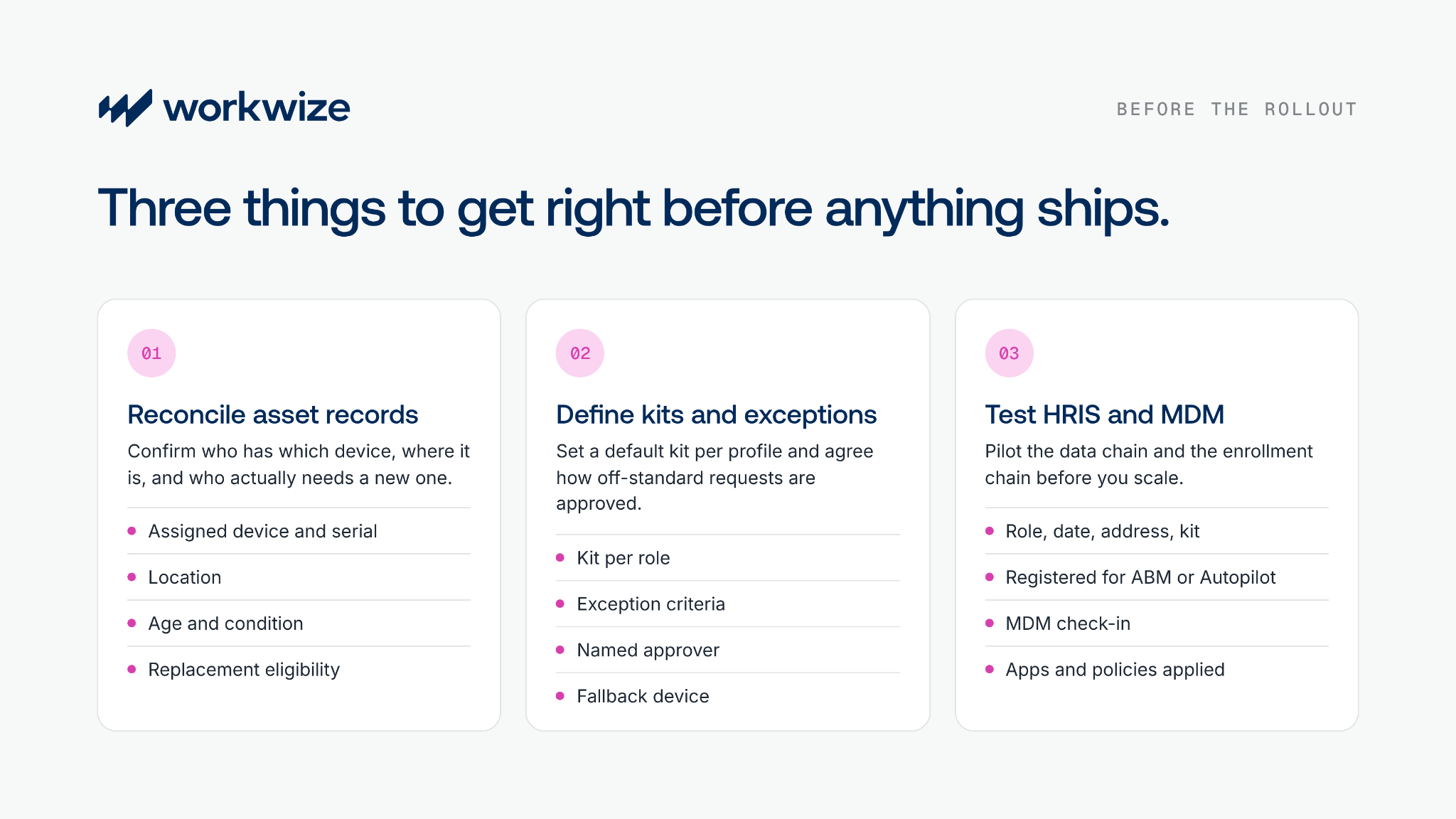
Three things to get right before the rollout starts
1. Reconcile your asset records
Before deciding what to buy, check your existing inventory against the employees in the rollout. You need to know who already has a suitable device and who actually needs a replacement.
For each employee, confirm:
- Assigned device: Check the model and serial number against the asset record.
- Location: Verify where the device actually is.
- Replacement eligibility: Check whether it qualifies under your refresh policy or the rollout's requirements.
- Age and condition: Confirm how old the device is, whether it works properly, and whether it meets the employee's needs.
Otherwise, you may order devices nobody needs.
Say employee A leaves and their two-year-old laptop is informally reassigned to employee B. The record isn't updated, so it still shows A as the owner and B on a five-year-old device. Based on the records, you'd order B a replacement, even though their current laptop has two good years left.
This isn't a rare edge case. Teams that track assets in spreadsheets often order duplicates or lose devices during retrieval. This sysadmin on Reddit found more than 100 missing laptops after a simple audit:
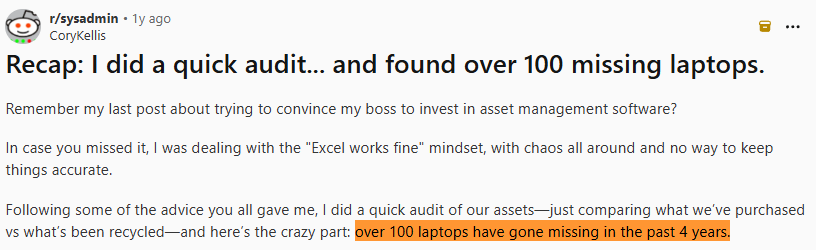
Source: Reddit
Pro tip: The easiest way to keep records current is IT asset tracking that adds new devices automatically and updates whenever a device changes hands or lifecycle stage.
2. Define device standards and exceptions
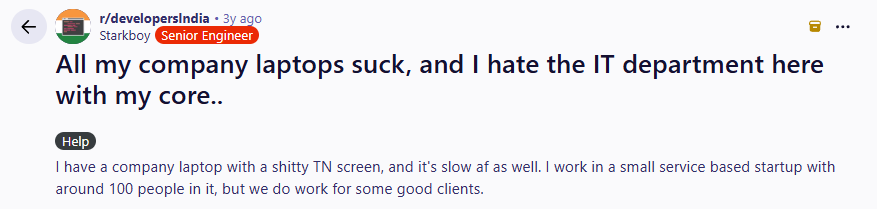
If a developer receives a laptop specced for HR or executives, it can be almost as bad as receiving nothing. And employees notice when IT gets it wrong.
Here's a developer frustrated with their IT team over a slow laptop:
Source: Reddit
So define a default kit for each employee profile before you place any order. For example:
- General employee: A standard business laptop
- Developer: A higher-spec laptop for development workloads
- Designer: A higher-spec laptop with an external monitor
- Frequent traveler: A lightweight laptop
Pro tip: Specify the operating system, processor, memory, storage, and included accessories for each kit.
Then decide how you'll handle employees who fall outside those standards. A video editor may need more memory than the default kit, and an employee in France may need a different plug type or keyboard layout.
Before orders start flowing, agree on:
- What qualifies for an exception: A work requirement the standard kit can't meet.
- Who approves it: A named approver for the hardware request and any extra spend.
- What happens if it's unavailable: An approved alternative or temporary device if the requested equipment can't arrive in time.
The rollout gets much harder if IT is making one-off hardware decisions for hundreds of people while IT hardware procurement is already underway.
3. Validate HRIS and MDM readiness
Before the rollout begins, test two separate dependencies:
- Your employee data, which decides what gets sent and where.
- Your enrollment process, which decides whether devices are usable on arrival.
Skipping either can send devices to the wrong address or leave employees with laptops that aren't ready to use.
First, validate the employee data. Check every employee's role, start date or rollout deadline, country, shipping address, and approved device kit. Confirm delivery details with employees instead of assuming the address in your HRIS is current.
If your HRIS and MDM integrations trigger orders automatically, test one employee end to end to confirm the data produces the right kit, address, and order timing.
Then test device enrollment. Run a pilot with the device types and configurations you plan to deploy. Check that:
- Devices are registered for Windows Autopilot or Apple Automated Device Enrollment.
- The correct deployment or enrollment profiles are assigned, with Apple devices assigned to the intended MDM server.
- Devices can complete initial setup over the internet.
- Devices enroll successfully and check in with your MDM.
- Required apps install, security policies apply, and employees can reach their work tools.
Fix any failures in both chains before you scale the rollout.
Staging and sequencing the rollout
When a rollout spans hundreds of devices, several countries, and multiple departments, don't default to a big-bang launch if the project can be staged. Splitting it into a sequence reduces errors and keeps the workload manageable.
Group employees into manageable cohorts
Set cohort boundaries by geography, role or configuration, start date, business unit, or deployment risk. Keep cohorts with extra risk, such as unfamiliar configurations or complex delivery requirements, separate.
Start with a small pilot cohort that covers your main configurations and workflows. Fix what breaks, then move to lower-complexity cohorts before higher-complexity ones, where deadlines allow.
That way you catch errors before they reach more employees and swamp an already stretched IT team.
Decide the shipment priority
Before you set shipment dates, confirm:
- When the required devices will be in stock
- How long configuration and preparation will take
- The provider's estimated delivery time for each route
- Any customs requirements or likely clearance delays
- A contingency buffer for delays and setup issues
Use these to set a dispatch deadline for each cohort, then work from the earliest deadline. A cohort that goes live later may still need to ship first if its route takes longer. A hard-to-reach country may need to order first even if it isn't the first group to go live.
If stock or configuration would push you past a deadline, fix it before you commit to the schedule.
Pro tip: Confirm stock and dispatch readiness even when your provider has a local warehouse. Set buffers from route-specific estimates and past delivery data, not a fixed number of days for every country. For hard-to-plan locations, global IT procurement from in-country suppliers can avoid import clearance altogether.
Configuration and MDM enrollment at scale
It helps separate three steps that often get blurred: registration, enrollment, and configuration.
Registration happens before shipment. When you buy through an OEM, an authorized reseller, or an IT asset management platform, devices can be registered to your organization in Apple Business Manager (ABM) or Windows Autopilot. You then assign them to your MDM server or deployment profile. At this point, the device is still sealed in its box.
Enrollment usually happens on first power-on. With automated enrollment, the employee turns on the device, connects to the internet, and signs in. The device recognizes it belongs to your organization and enrolls in your MDM without IT touching it. This is what's usually meant by zero-touch deployment.
Configuration follows enrollment. Once enrolled, the MDM pushes apps, security policies, and settings. Some teams also pre-provision Windows devices before shipping, so they do more of the setup before the employee opens the box. That takes more hands-on time but shortens the employee's setup.
Zero-touch works well when registration and profiles are correct, but it can fail at scale, for example when a device was never registered or an assignment is missing. Plan a fallback, such as a support engineer who can take over remotely, and test the full flow in your pilot.
Employee communication: What to send and when
Poor communication creates avoidable support tickets and delays employee readiness. Keep employees informed at each stage so they know what's happening and what to do next:
- Before shipping: Confirm the delivery address and contact details, and set a deadline for changes before booking the shipment.
- Once shipped: Share the tracking link, courier, and estimated delivery date or window. Use automated notifications if delivery plans change.
- Before the device arrives: Send short setup instructions covering what to expect during enrollment, which credentials they'll need, and how long setup should take based on your pilot.
- With the setup instructions: Share one clear support route, such as a help desk email they can reach before the new device works. Ask them to include the issue and any error message so IT can route it internally.
- After delivery: Ask employees to confirm the device and accessories arrived, that setup finished, and that they can sign in and reach their tools. Follow up on missing confirmations.
Tracking rollout completion: How to know it's actually done
Define what complete means
A device reaching the employee doesn't mean the rollout is complete. Use four checks for each device:
- Delivery confirmed: The intended employee received the correct device and accessories. Resolve missing items or delivery issues before closing the shipment.
- Enrollment and configuration confirmed: The device checked in with your MDM, and the required security settings, policies, and applications are applied. Enrollment alone doesn't prove setup is complete.
- Asset record updated: The asset register shows the correct employee, device, serial number, location, and assignment status. That accuracy matters later for support, IT asset retrieval, and automated offboarding.
- Employee readiness confirmed: The employee can sign in and reach the applications and company resources they need.
Mark a device complete only when it has passed all four checks, not when the courier marks it delivered.
Enable real-time visibility
Organize your rollout view as a funnel, so you can see where devices drop out of the expected flow:
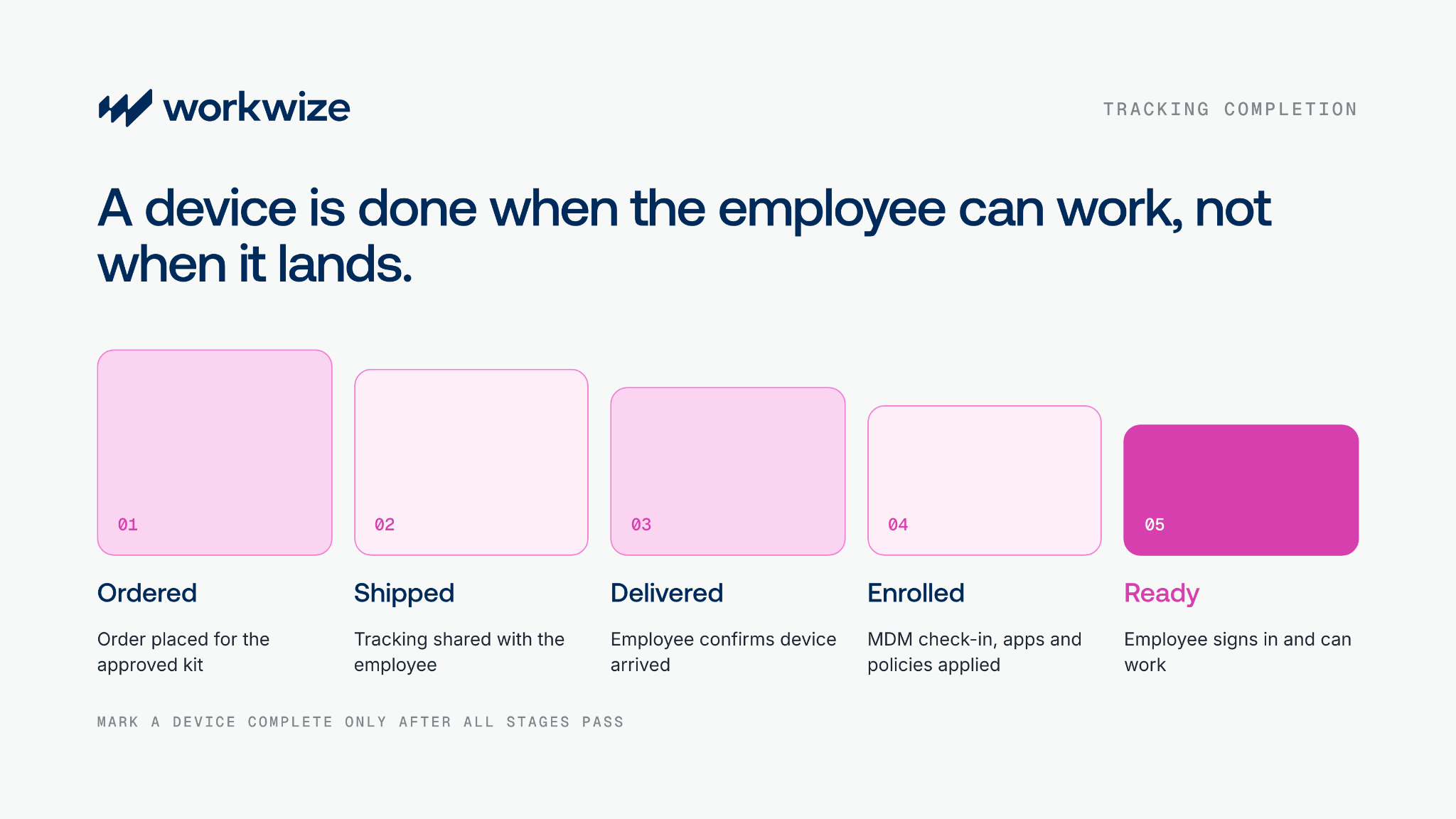
Then layer these metrics on top:
- On-time delivery rate: The share of devices delivered by the agreed date.
- Exception rate: The share of devices that hit a rollout issue.
- Average resolution time: How long exceptions take to resolve.
- Open exceptions: Unresolved issues by stage, cohort, and geography, each with an owner.
Keep the view updated automatically where possible, and show when each status was last refreshed. A live IT inventory management view makes this far easier than a spreadsheet.
If devices have arrived but employees aren't ready past the planned setup window, IT can investigate before the next cohort hits the same problem.
Track and handle exceptions
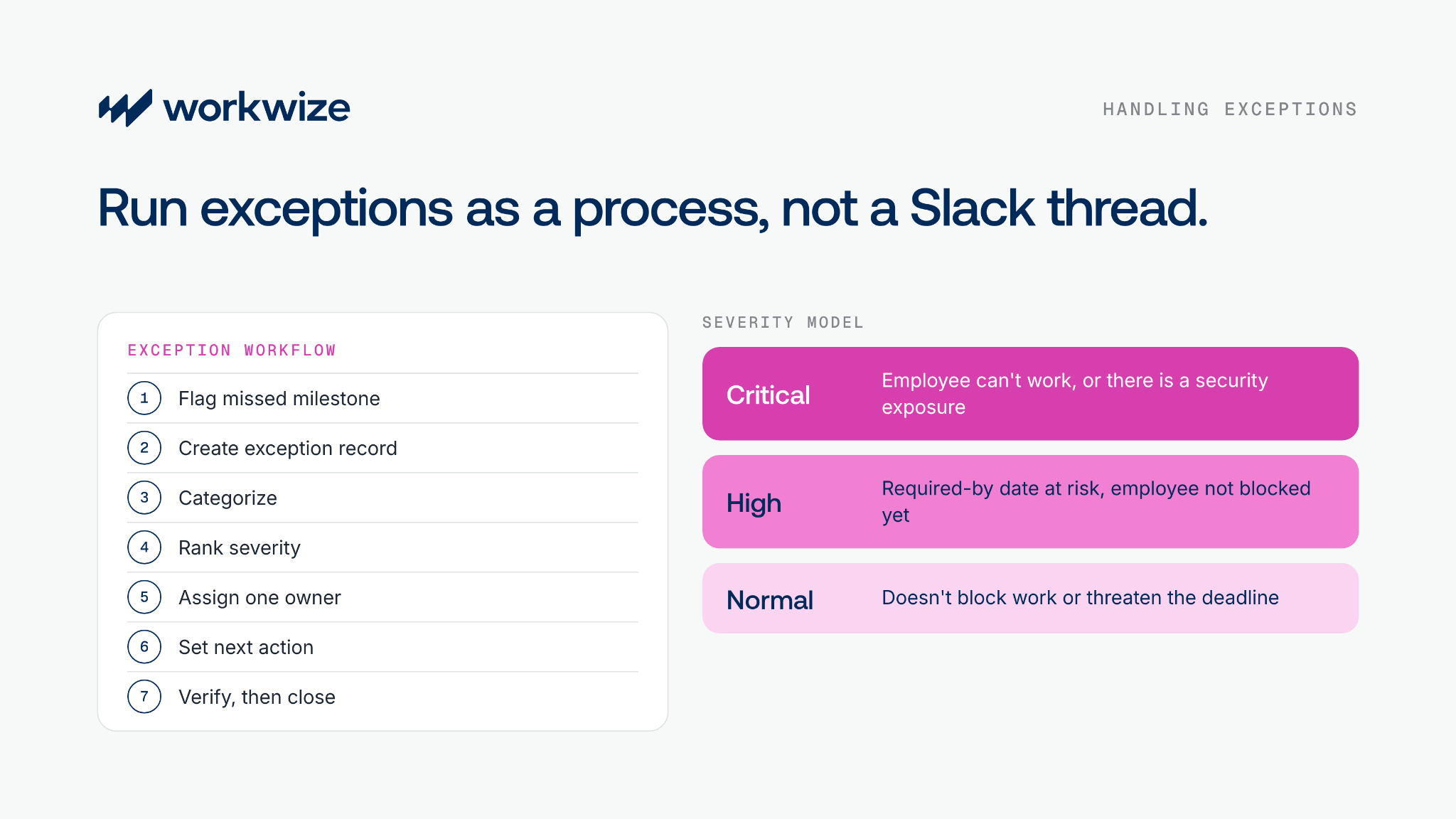
When you deploy across many geographies and departments, some failures are inevitable. A device gets stuck in customs, a courier tries the wrong address, or enrollment fails. A simple framework keeps these out of Slack threads and memory:
- Track and flag issues: Follow each device from order to employee readiness. Set automated alerts when a device misses a delivery, enrollment, or setup milestone.
- Create an exception record: Include the employee, device serial number if available, cohort, country, issue, affected milestone, and date detected.
- Categorize the issue: Use consistent categories so IT can spot recurring problems.
|
Category |
Examples |
|
Logistics |
Delayed or lost device, customs hold, delivery attempted at the wrong address |
|
Hardware |
Damaged laptop, wrong device supplied, device won't power on |
|
Enrollment |
Missing device registration, wrong MDM assignment, failed enrollment |
|
Configuration |
Required application missing, security policy not applied |
|
Employee data |
Wrong role, shipping address, or start date in the employee record |
|
Asset records |
Wrong employee assignment, serial number, or device status |
- Rank it by urgency and impact: Use a simple severity model. Critical: the employee can't work, or there's a security exposure. High: the required-by date is at risk, but the employee isn't blocked yet. Normal: the issue doesn't block work or threaten the deadline.
- Assign one accountable owner: Even when IT, HR, and the logistics provider are involved, one person tracks the issue to resolution.
- Record the next action and deadline: Make clear what happens next, who acts, and when to escalate if progress stalls.
How Workwize handles remote IT equipment rollouts
A rollout isn't complete when the last device ships. It's complete when the right employees have the right devices, enrollment and configuration have succeeded, asset records are accurate, employees can work, and open exceptions are resolved.
Managing that by hand gets harder as employees, configurations, and countries multiply. Workwize brings the rollout into one IT hardware lifecycle management platform, connecting the chain this playbook covers: HRIS, procurement, configuration, delivery, MDM, asset records, and employee readiness, across 130+ countries.
- HRIS-triggered orders: Workwize connects to HR platforms such as BambooHR and Workday. When a new hire is added to a configured department, a device order can start automatically, with no manual handoff.
- Local sourcing and storage: Devices come from local suppliers and partner-operated warehouses in key regions, shortening delivery times and reducing customs exposure. Spare devices can wait in IT device storage for the next cohort.
- Zero-touch ready devices: If you use Apple Business Manager or Windows Autopilot, devices can be registered to your organization before they ship, so they enroll in your MDM on first power-on. Workwize integrates with MDMs including Jamf, Intune, Kandji, and JumpCloud.
- Order and delivery tracking: IT can follow each order from placement to delivery in one place and act early when a shipment stalls.
- Automatic asset records: Delivered devices sync to the asset register with the assigned employee and serial number, so records stay accurate for later support, retrieval, and IT asset disposal.
Planning a rollout across several countries? Book a 30-min demo to see how Workwize coordinates procurement, delivery, and asset tracking in 130+ countries.
Frequently asked questions
What is the difference between a remote IT equipment rollout and bulk procurement?
Bulk procurement focuses on buying the required devices from the right vendor, at the right price and quantity. A remote rollout is a full project that covers what happens around and after the purchase: allocation, configuration, delivery, enrollment, employee readiness, and asset-record reconciliation.
How long does a large-scale remote IT equipment rollout take?
There's no universal benchmark. A rollout can take a few weeks to several months, depending on inventory, configuration, countries, customs, cohort size, delivery lead times, enrollment complexity, and the number of exceptions.
What commonly delays a remote IT equipment rollout?
Common blockers include incomplete customs documentation for cross-border shipments, incorrect delivery details, and devices shipped without the correct ABM or Autopilot assignment.
How do you handle a rollout in countries with complex customs regulations, like Brazil or India?
Start procurement and shipping earlier for those countries, or use in-country inventory so the final delivery avoids import clearance. Avoid a fixed buffer rule. Set buffers from the destination's documentation requirements, provider lead times, and pilot shipments.
Does every employee need to set up their device, or can it be fully zero-touch?
Even with zero-touch deployment, the employee has to power on the device, connect to the internet, and usually sign in. Everything after that, including enrollment, apps, and policies, can happen automatically.
How do you confirm a remote IT equipment rollout is complete?
Each device should be delivered to the intended employee, checked in with your MDM with the required configuration, able to reach essential work tools, and recorded accurately in the asset register. Delivery alone doesn't prove a device is managed, and enrollment without correct assignment data leaves a blind spot in your inventory.


Establish a single source of truth for every IT asset across the globe.
.png?width=258&height=318&name=g10%20(5).png)
More related resources to help you stop firefighting hardware operations.

Get monthly insights into how other IT leaders are improving their ops.



.png?width=2880&height=1232&name=Group%202147262874%20(1).png)
Stop coordinating
hardware like it's 2012.
.svg)
.png?width=172&height=68&name=apple%20business%20patner%20(1).png)
.svg)
.svg)
.svg)
.svg)