




.svg)
.svg)

.svg)


.svg)




.svg)
.png?width=500&height=424&name=Style-1---V1-(1).png)

.png?width=1230&height=692&name=Vector%20(13).png)
IT automation used to focus on simple, repetitive tasks like sending reminders or updating tickets. Today, a single workflow can do much more.
It can pull employee records, order laptops, trigger device retrieval, or wipe a device through your MDM.
But the more a workflow can do, the more important it becomes to control how it runs. A wrong condition could ship hardware to the wrong person or wipe a device too early. Building these workflows has also usually meant custom scripts, developer support, and weeks of setup and testing.
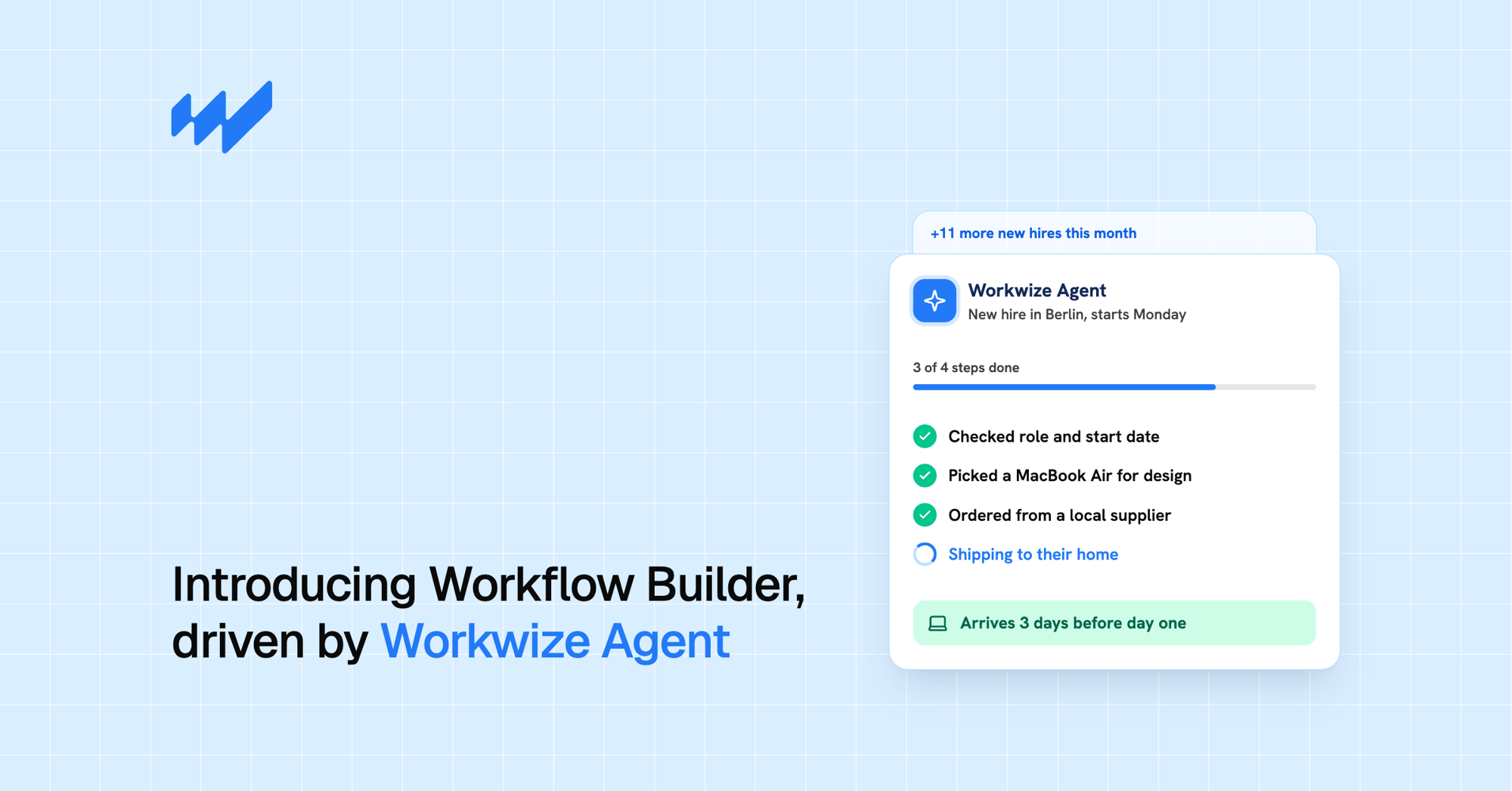
Workflow Builder, driven by Workwize Agent, makes that easier. You tell Workwize Agent what you want in plain English, and it builds the workflow in minutes.
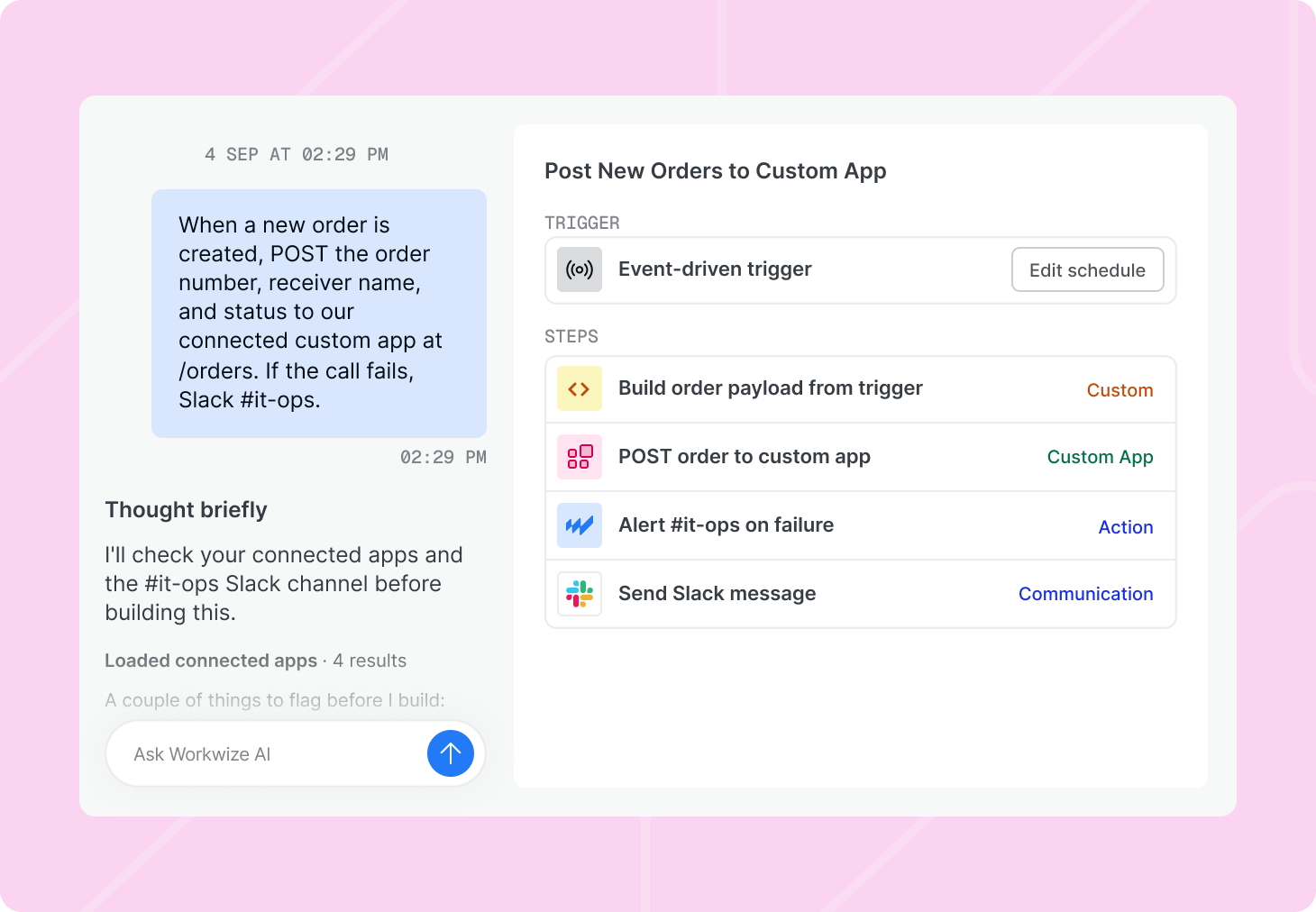
Workflows are the execution engine underneath. It runs triggers, conditions, and actions across the device lifecycle, including physical operations like shipping, retrieval, repairs, and device wiping, through Workwize's logistics network and integrations.
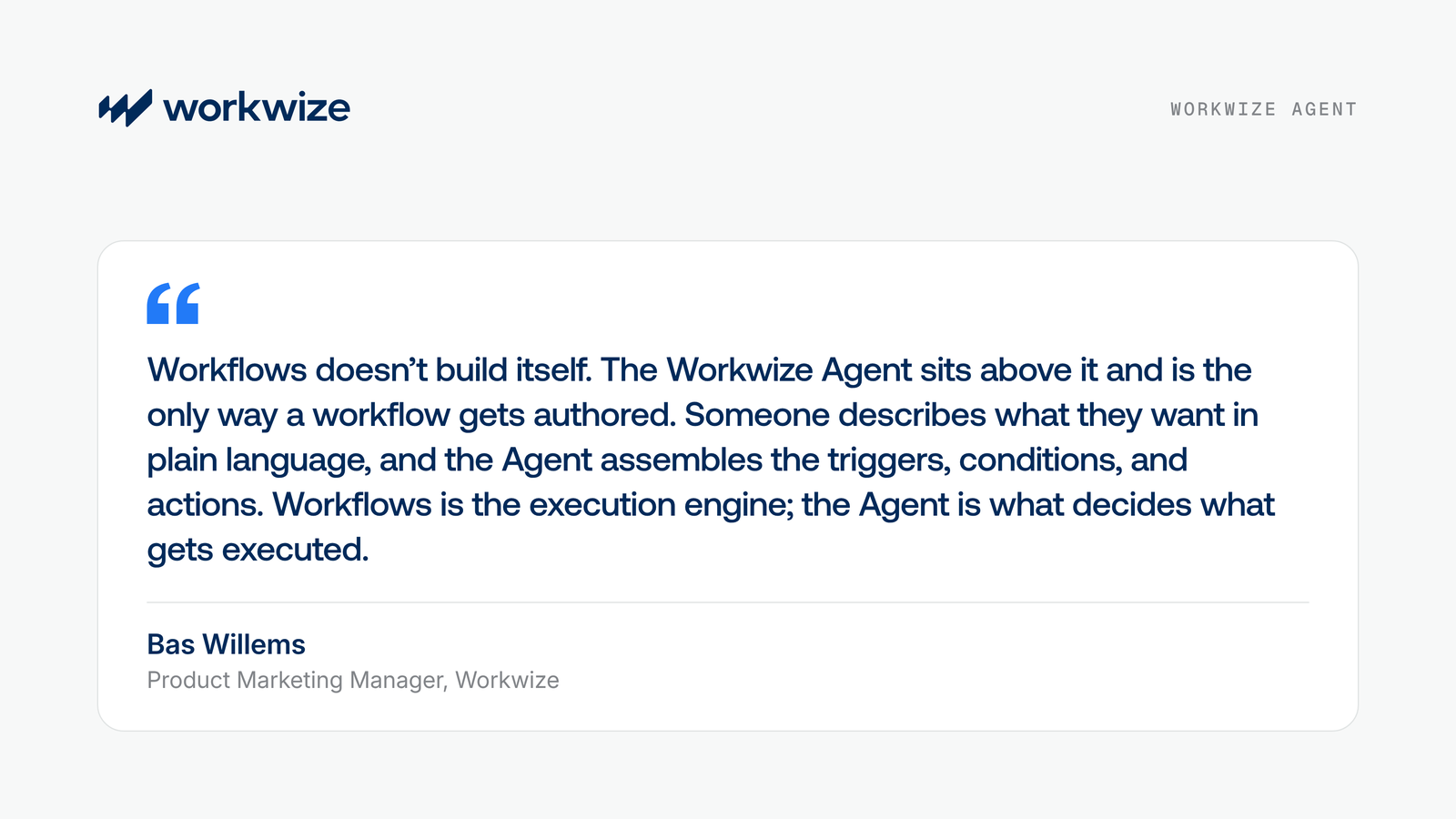
Making workflows easier to build doesn't remove the need for permissions, human approvals, and visibility into what happens when they run.
In this article, we'll walk through five steps to build secure IT workflows with Workwize. If you're new to the product, read the Workflow Builder launch post for the basics.
What makes an IT workflow secure?
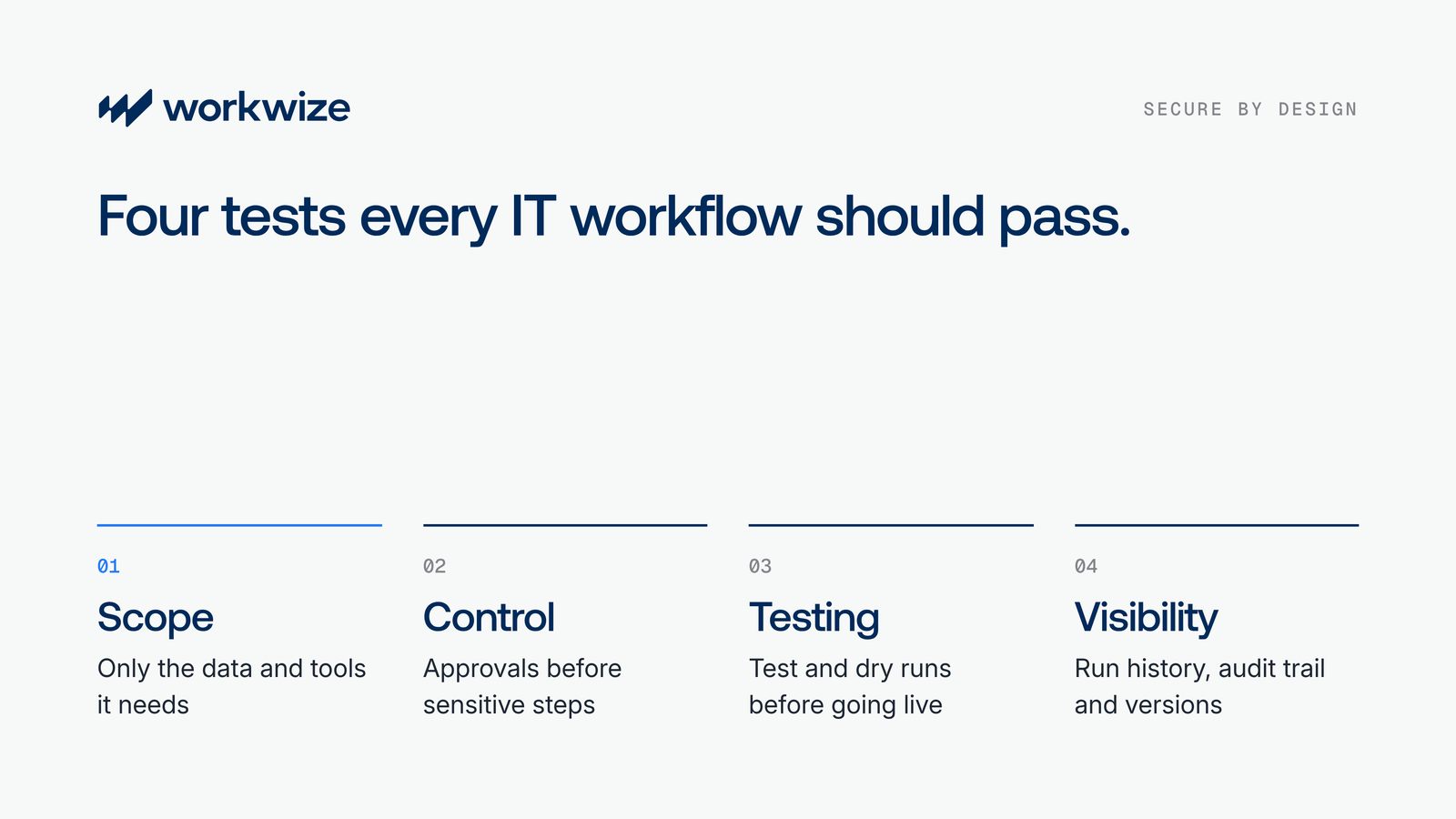
Before you build anything, be clear about what "secure" means. Simply put, a secure IT workflow is one you can predict and verify. Before you trust a workflow with real devices, make sure it passes four tests:
- Scope: The workflow accesses only the data and connected tools it needs. Integration settings help limit what it can reach.
- Control: Roles decide who can view, edit, and share workflows, and human approvals add a check before sensitive actions like ordering or retrieving devices.
- Testing: Test runs let you check how a workflow handles different inputs, conditions, and errors before it goes live.
- Visibility: Run history shows what happened during each run, including inputs, outputs, and errors for every step. An audit trail and version history track who built, changed, published, and ran each workflow.
These tests line up with two well-known security ideas. The first is least privilege, which NIST describes as limiting each user or process to the minimum access its task requires. The second is separation of duty: no single user should have enough power to misuse a system alone.
How to build secure IT workflows with Workwize in 5 steps
The five steps below follow the life of a workflow, from the first idea to the day it runs on its own. For each one, we explain what to do, why it matters, and which Workwize feature helps.
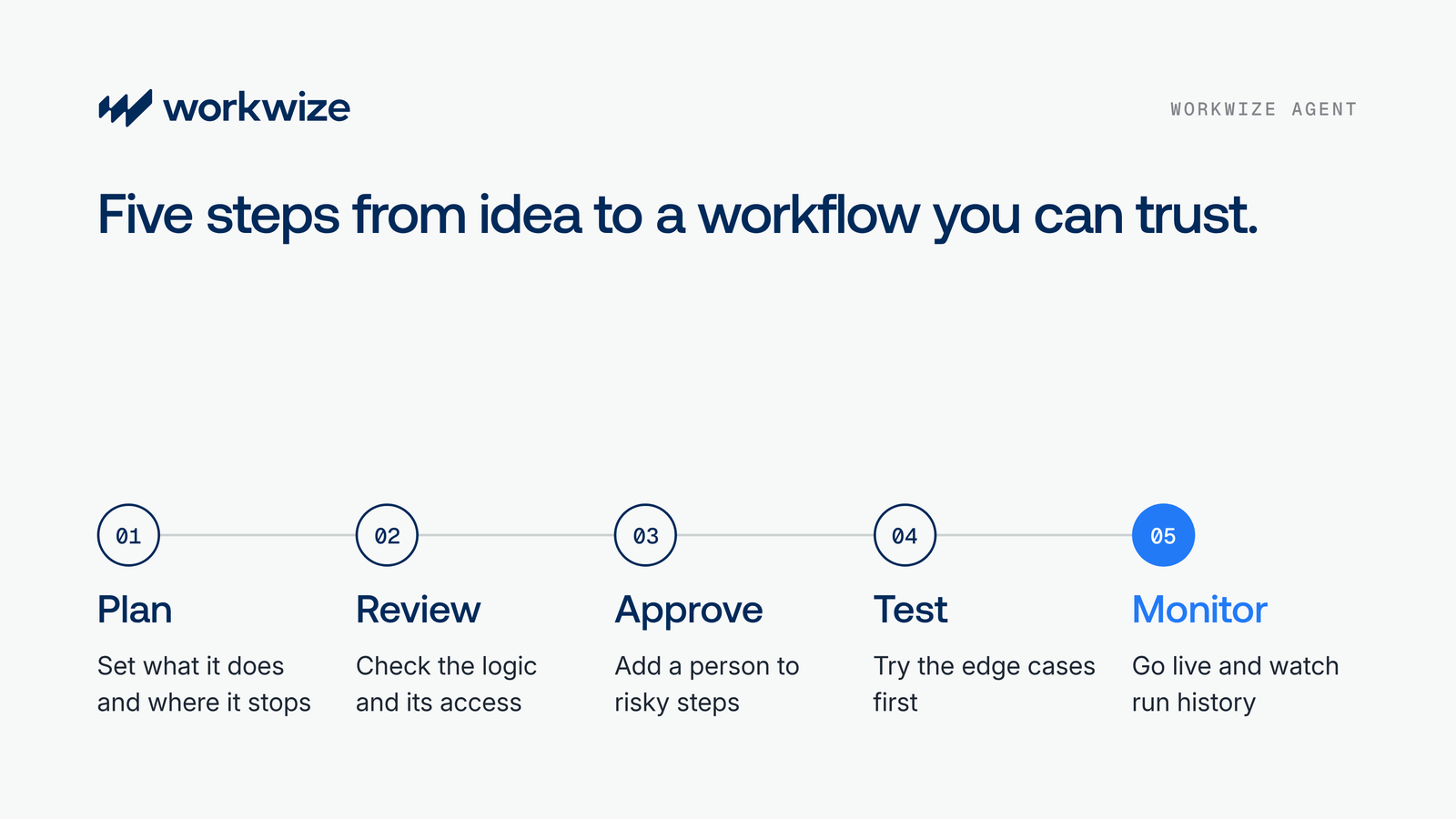
Step 1. Decide what the workflow should do and where it must stop
Every secure workflow begins with a clear plan. Write that plan down before you open a chat with Workwize Agent, because a vague request leads to a vague workflow. Start by answering four questions:
- What starts it? A new hire in your HRIS or a weekly schedule, for example.
- What should happen? The result you expect when everything goes right.
- What data does it need? Employee details and assigned devices, for example.
- What can it change? Any record it edits and any device it acts on.
Once you have those answers, sort every action into two groups. Some actions only read information, like counting how many laptops are unassigned. Others change something, like placing an order or starting a retrieval. Read-only actions generally carry less risk, but they still need the right access. Actions that involve hardware purchases or permanent data deletion need extra care, so flag them now. You'll add approvals for them in Step 3.
With the plan in hand, describe the process to Workwize Agent in plain English. A strong prompt covers the limits as well as the goal, so tell the Agent what to skip and where to pause. Here's an example:
When an employee is marked as leaving, create a retrieval for their assigned laptop and leave other equipment alone. If they have no laptop on record, email the IT team and stop. Ask me for approval before any device is wiped.
This prompt handles an edge case (no laptop on record) and names the step that needs a human. If you leave those lines out, the Agent has to guess.
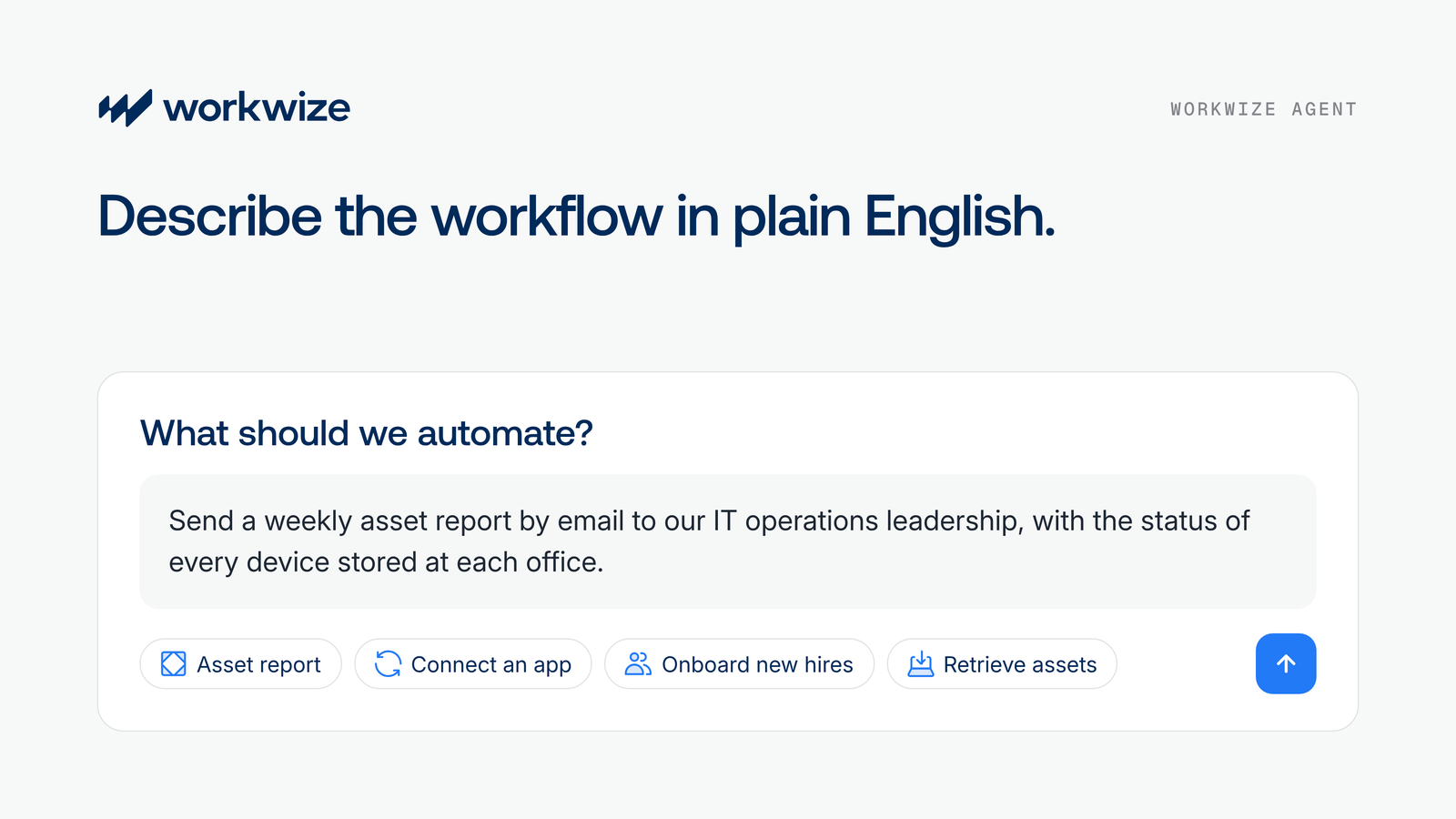
Finally, expect a few follow-up questions. Workwize Agent asks structured, multiple-choice questions before it builds anything, such as what a report should cover. Answer them with care, since each answer becomes part of the workflow's logic.
Step 2. Review what the Agent built and what it can reach
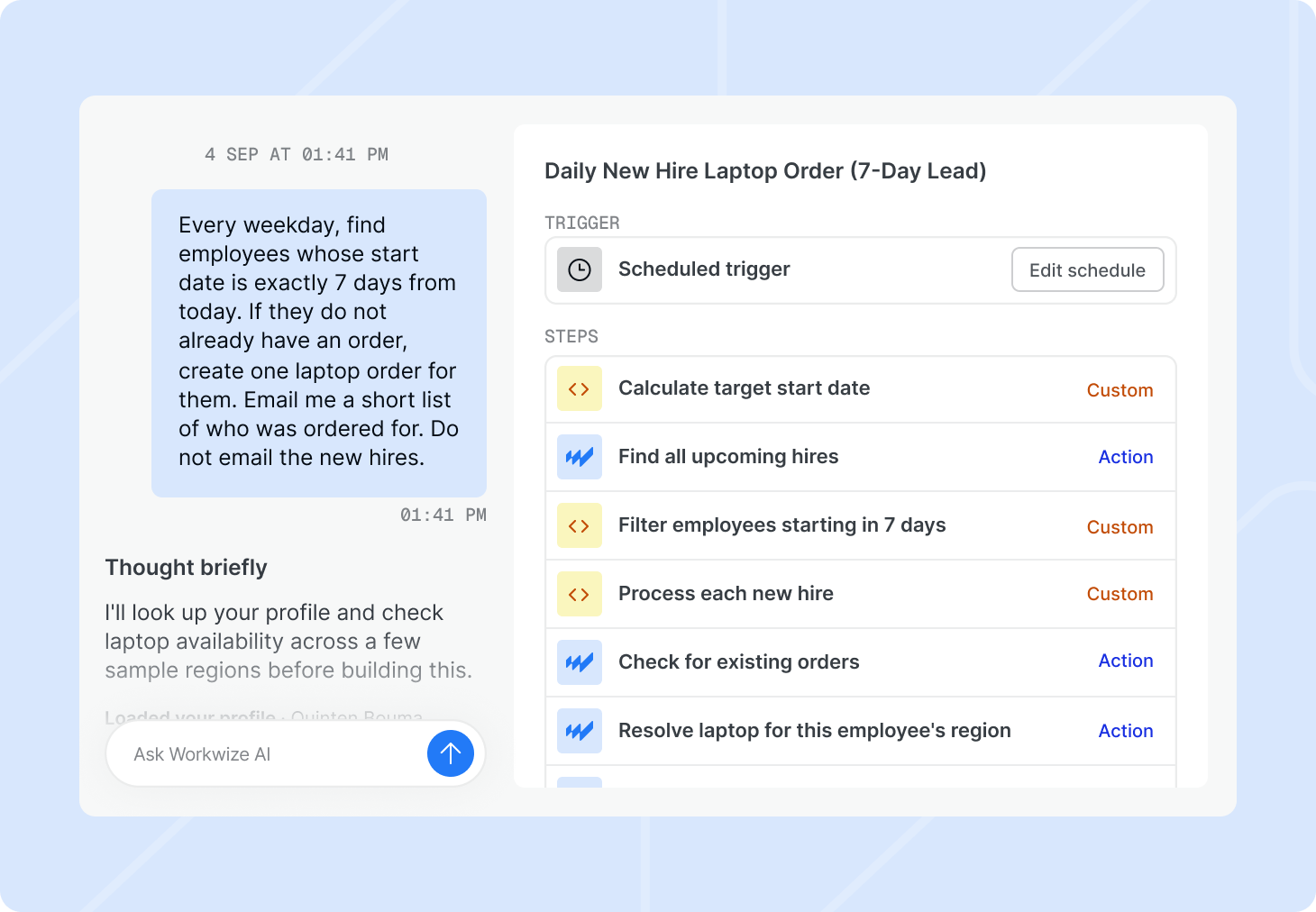
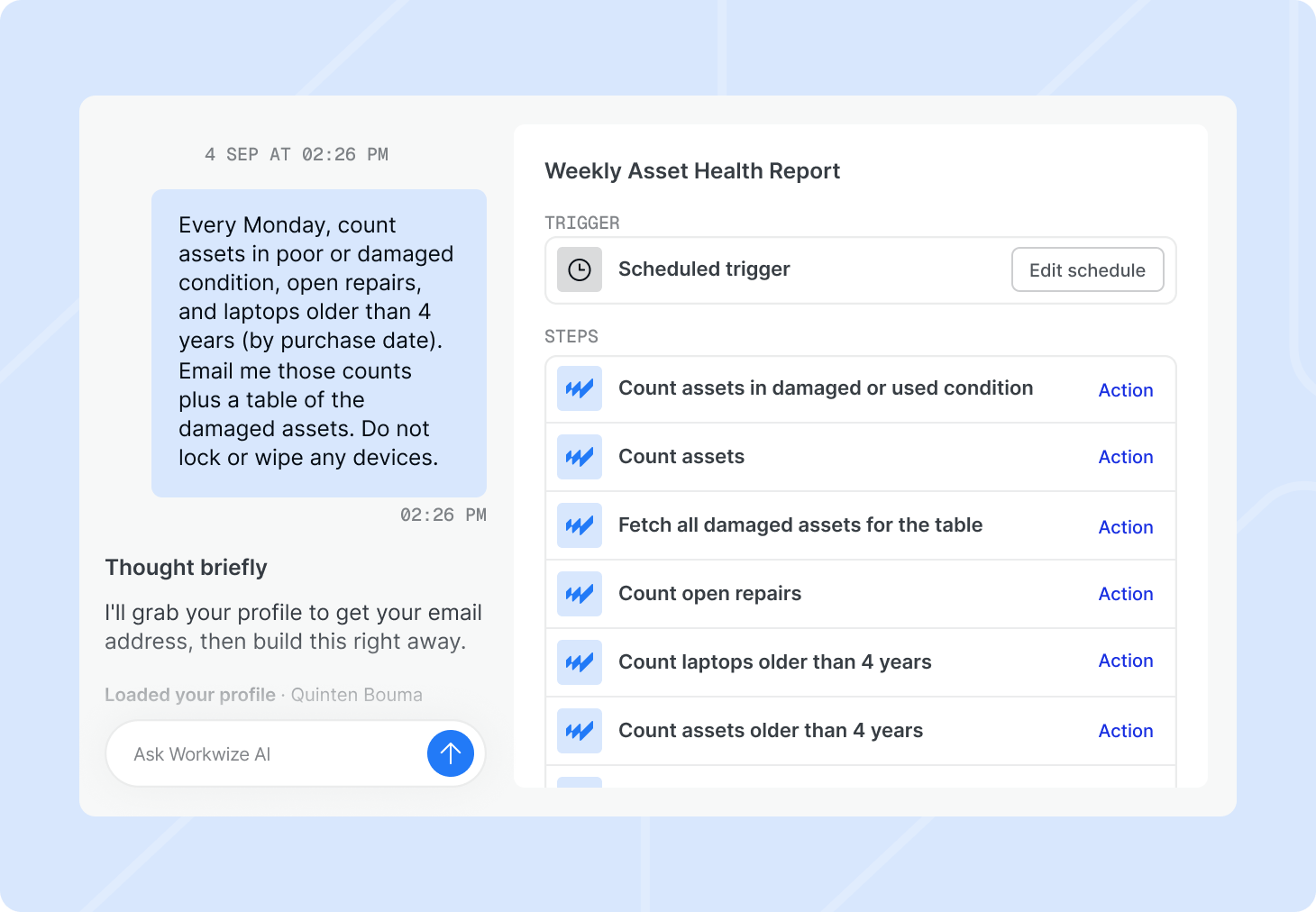
Next, Workwize Agent turns your request into a working workflow. A weekly asset report, for example, could look like this:
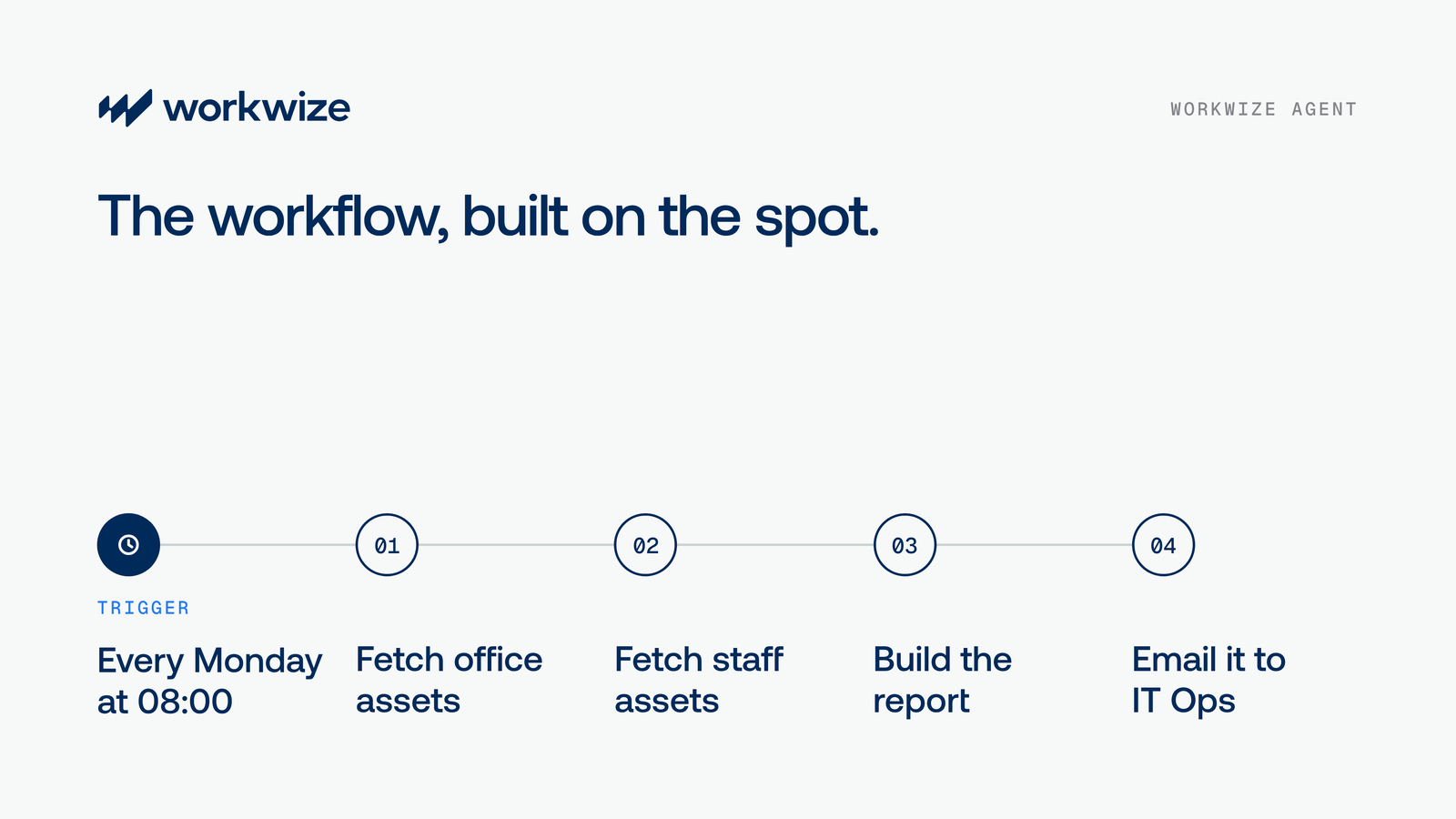
Every workflow has a trigger that starts it, followed by the steps that do the work. Treat this first version as a draft, and read it the way you'd read a script from a new teammate before you let it run.
Workwize gives you two ways to read a workflow. The steps view lays out each action in order and labels what kind of step it is, while the code view shows the actual TypeScript that Workwize Agent wrote. You can edit that code directly or change it by asking the Agent in words. The workflow's logic lives in that code, so reviewing it tells you exactly what will run.
As you read, look for these problems:
- Wrong trigger: It starts on a different event than the one you described.
- Wrong targets: It picks up the wrong people or the wrong devices.
- Missing checks: It has no plan for empty or missing records.
- Extra actions: It includes a step you never asked for.
Once the logic looks right, check what the workflow can reach. Slack, email, and Kandji for device management connect natively. Other tools, like a ticketing system or an internal app, connect through custom connectors and webhooks. Workwize Agent can even read a tool's API documentation and set up the connection itself. If it does, take a moment to check which endpoints it calls and what data it sends.
Pro tip: Give each connection only the access it needs. Most tools let you limit what a connected app can do, often through permission scopes. Granting only what the workflow uses reduces the damage from a compromised token or a faulty workflow.
Step 3. Set up approvals for sensitive actions
By now, you know which actions in your workflow carry real risk, and some of them should never run on autopilot. Ordering hardware is a financial commitment, and wiping a device can permanently erase important data. An approval step gives someone the chance to review these actions before they happen.
Workwize builds this check in. Approvals are on by default for every action with a real-world consequence, such as placing an order, starting a retrieval, or requesting a repair. Each one waits in an approvals queue until a person signs off. You can still switch approval off for a specific step, but only as a deliberate choice.
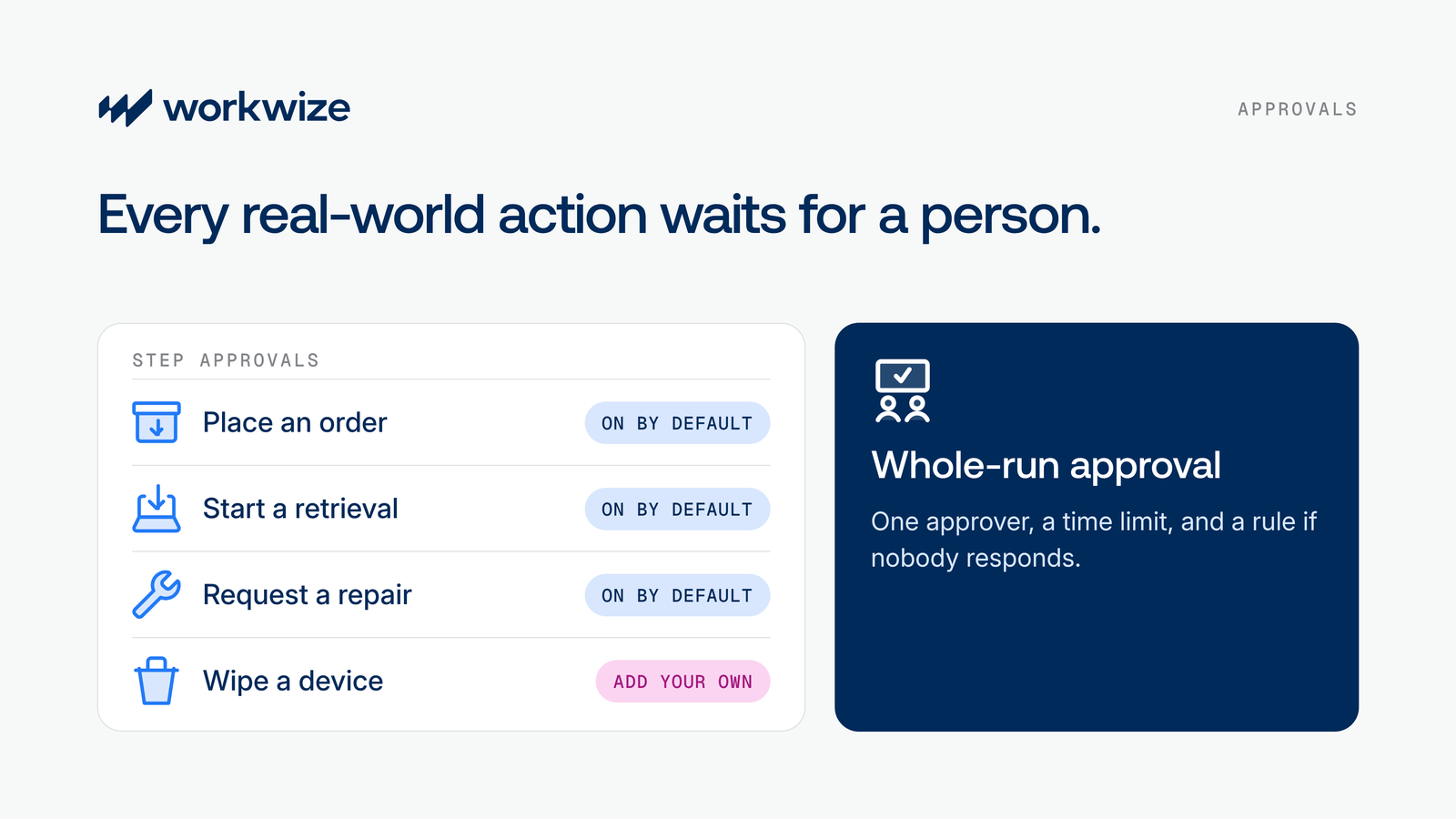
Some jobs need tighter checks. For those, you can require approval for a whole workflow run, with a named approver, a time limit, and a setting for what happens if no one responds in time. This works well when step order matters, such as a retrieval followed by a device wipe.
Device wipes deserve extra attention because they run through your MDM (Kandji today). Check that the workflow asks for approval before the wipe, and schedule the wipe for when the device reaches a Workwize warehouse.
Approvals decide whether an action runs. Just as important is who can build and change workflows in the first place. Workwize handles this with roles and sharing settings:
- Workflow Editors can build, run, and publish workflows.
- Workflow Viewers can see workflows but can't change them.
- Sharing ranges from private, to chosen colleagues, to a department, to the whole company.
Where possible, divide these responsibilities between people. The person who builds a workflow shouldn't be the only one who approves its riskiest actions.
Before moving on, trace every branch of the workflow and confirm that each path to a sensitive action passes through an approval. This matters most for steps you've opted out of default approvals and for MDM actions like wipes, since those rely on the approvals you add yourself.
Step 4. Test the workflow before it touches real devices
With approvals in place, it's time to see how the workflow actually behaves. A workflow can look right on screen and still fail in practice. To keep this safe, Workflows supports test runs and dry runs alongside real runs. Test and dry runs let you try a workflow without real-world consequences, so no device ships and no device gets wiped. Use them every time a workflow can order or wipe hardware, because a real run started "just to see" still creates a real order.
First, test the normal path using realistic employee and device data. Then move on to the cases that tend to break things. A simple table like this one helps you keep track:
| Test case | What should happen |
|---|---|
| Employee has an assigned laptop | The workflow finds the right device |
| Employee has no laptop on record | The workflow flags the gap and stops |
| Approval is still pending | The sensitive step waits and doesn't run |
| A connected tool returns an error | The failure is logged and the team gets an alert |
| Everything is in place | The workflow completes along the approved path |
After each run, open the run details. Workwize shows every step, the data that went in and came out, and how long the step took. When a step fails, you can see exactly what it received and where it broke.
Fix any problems by asking Workwize Agent to adjust the workflow or by editing the code. Then run the same tests again, and repeat until every case in your table behaves the way you expect.
Step 5. Publish, monitor, and keep the workflow up to date
Once your tests pass, you're ready to publish. As part of publishing, Workwize asks you to review permissions and sharing, so take a final look at who can see the workflow and what it can reach. Workwize also checks the code before it goes live and blocks unsafe operations. After that, the workflow runs with sandboxed execution and tenant isolation, which keeps every action limited to your company's data.
Still, a published workflow won't keep working forever on its own. Over time, connected tools change their settings and records go missing, so you need a way to spot problems early.
Run history gives you that visibility. It shows every run, including failures, and you can open any run to see each step, just as you did during testing. Workwize also pauses a workflow automatically if it fails repeatedly, so a broken process doesn't keep running unchecked.
Finally, Workwize keeps a version history of your workflows. Every time you publish, it saves a snapshot. If an update causes problems, you can restore an earlier version instead of rebuilding the workflow from scratch.
A practical example of a secure workflow in Workwize
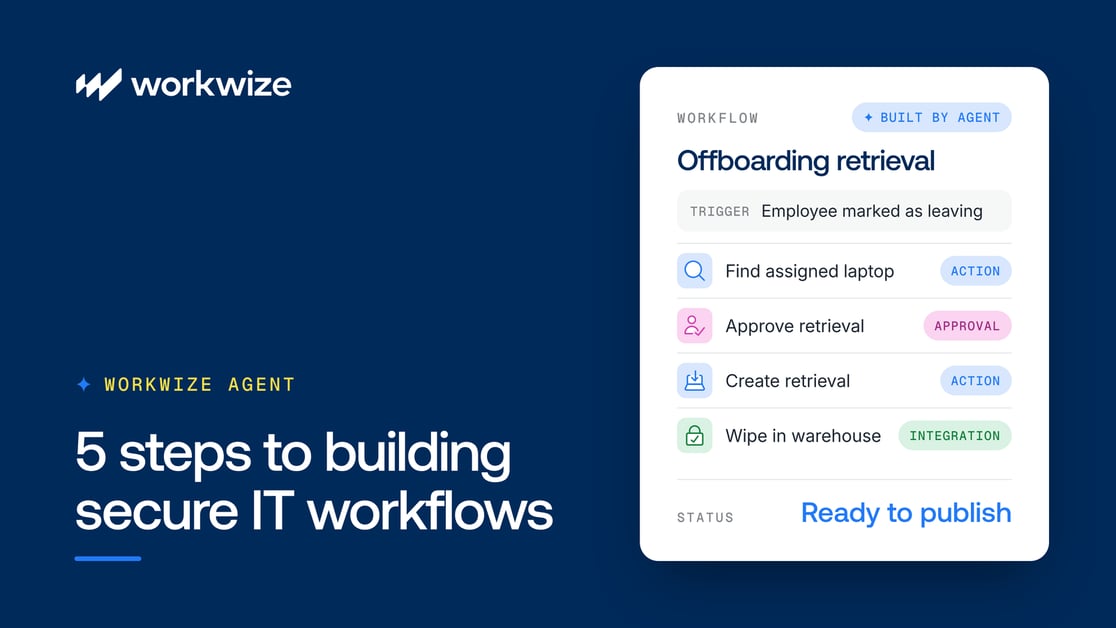
So far, we've looked at each step on its own. To see how they work together, let's take a common IT task: retrieving a laptop when someone leaves the company. A typical retrieval workflow could look like this:
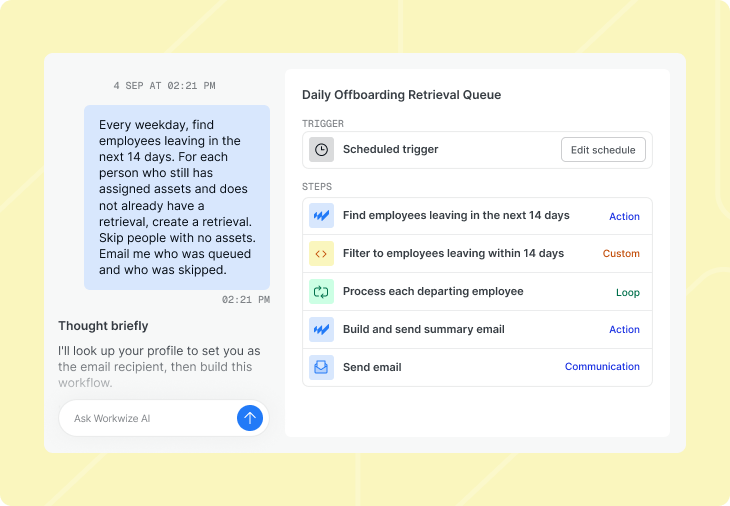
In the diagram below, the left column shows what the workflow does at each stage, and the right column shows the control that keeps that stage safe.
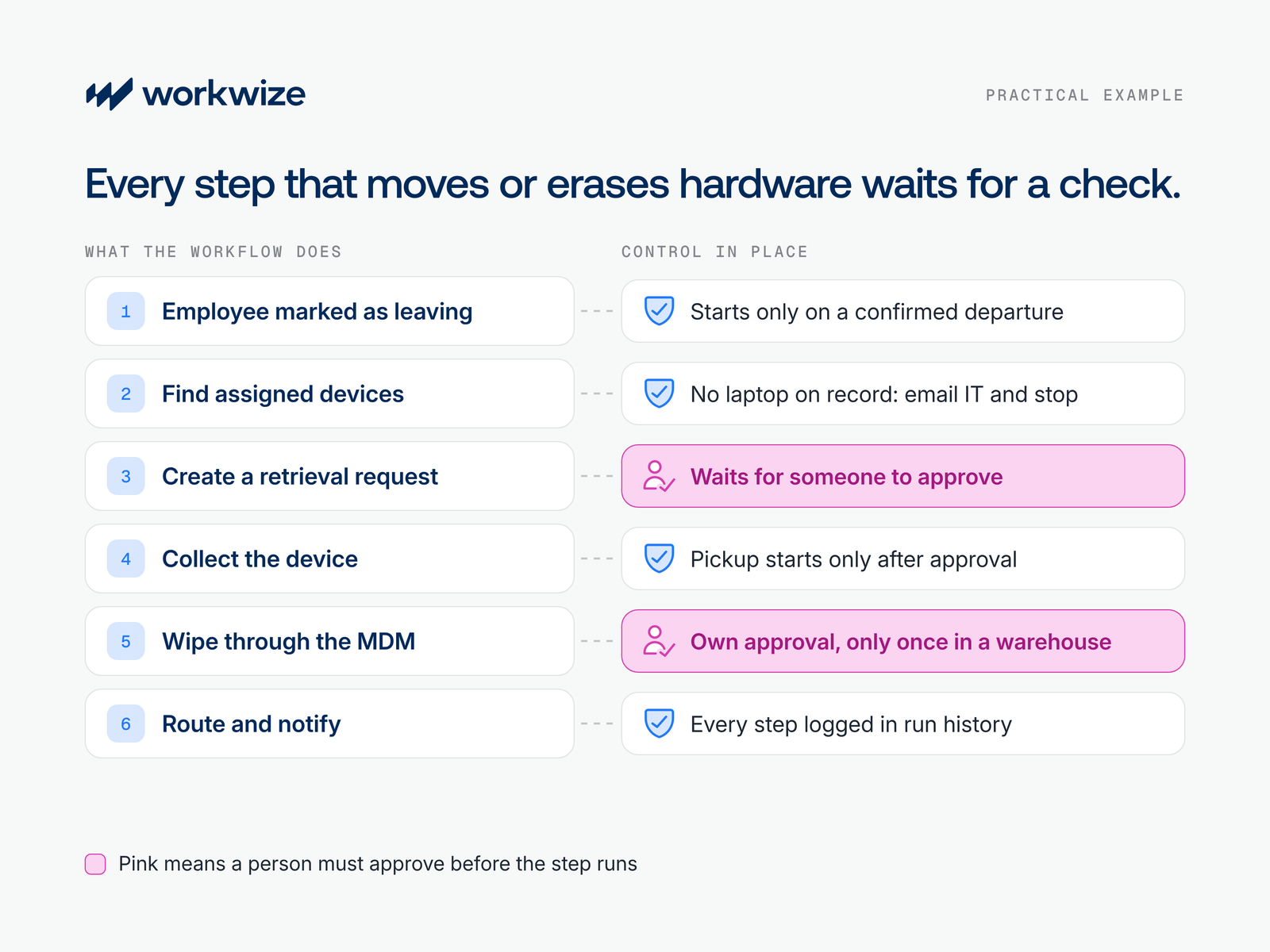
The workflow starts by checking the employee's assigned devices. If it finds a laptop, it creates a retrieval request that requires approval before Workwize coordinates physical collection.
The workflow also needs to handle cases where things don't go as planned. If no laptop is assigned to the employee, it notifies the IT team and stops instead of creating an incorrect retrieval request.
If the workflow includes a device wipe, that action gets its own approval and checks to confirm the right device is targeted. The wipe runs through your connected MDM, while Workwize's warehouse and logistics network handles the physical retrieval. That way, one workflow connects the automated steps, the security checks, and the physical device retrieval.
To see the whole process, read more about automated offboarding with Workwize.
Build IT workflows with control and visibility using Workwize
Secure automation comes down to a few steady habits. Define the job clearly, read what the Agent builds, put a person in front of risky actions, and test before you publish. Once the workflow is live, keep an eye on every run.
Workwize makes this easier. You describe what you need in plain English, and Workwize Agent builds the workflow. Workflows then run the triggers, conditions, and actions, while Workwize's logistics network handles the physical work of managing devices. Your IT team can automate more of the device lifecycle without losing sight of how the work gets done.
Workflow Builder is available in early access, and existing customers can get access through their CSM. To see it in action, explore Workflow Builder or book a demo.


Establish a single source of truth for every IT asset across the globe.
.png?width=258&height=318&name=g10%20(5).png)
More related resources to help you stop firefighting hardware operations.

Get monthly insights into how other IT leaders are improving their ops.



.png?width=2880&height=1232&name=Group%202147262874%20(1).png)
Stop coordinating
hardware like it's 2012.
.svg)
.png?width=172&height=68&name=apple%20business%20patner%20(1).png)
.svg)
.svg)
.svg)
.svg)