






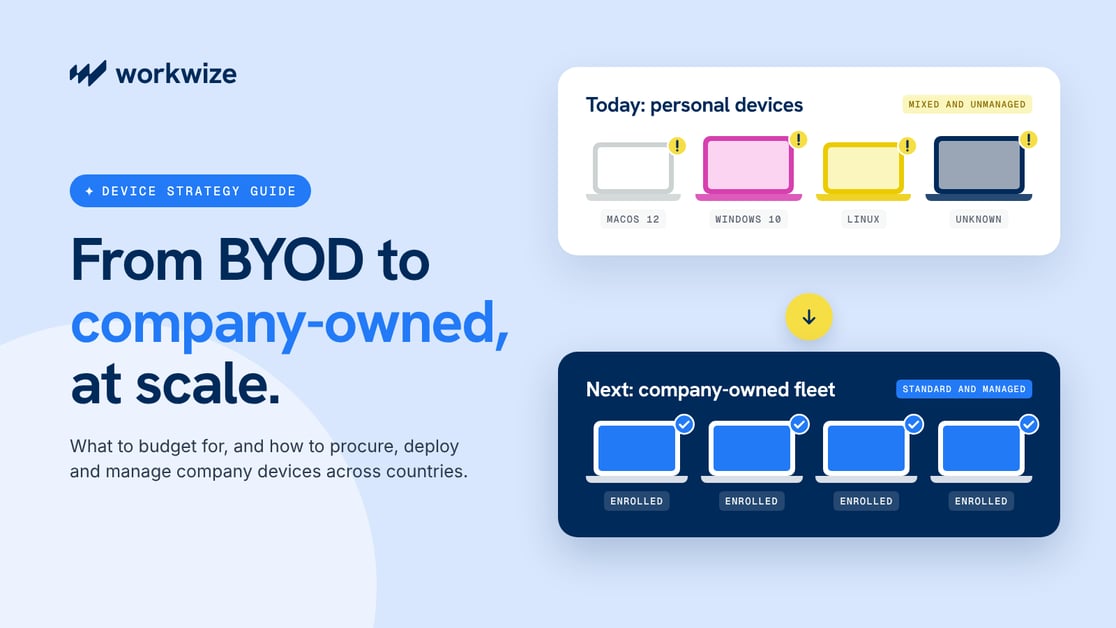

BYOD can help you equip employees without buying everyone a laptop. Employees use familiar devices, while your company reduces upfront hardware spending.
But as your team grows, supporting different devices can take more time. Stricter security requirements and limited visibility into personal hardware may also make your current BYOD setup harder to sustain.
Switching to company-owned devices involves more than just buying devices. You need to budget for ongoing costs, configure and deliver equipment, support employees, and recover devices when they leave. For a distributed workforce, you have to replicate this across multiple countries.
This guide explains when switching makes sense, what to budget for, and how to procure, deploy, and manage company-owned hardware across multiple countries.
TL;DR
- Company-owned devices are hardware your business purchases and assigns to employees, with IT managing security and support.
- BYOD lets employees use personal devices for work, reducing upfront hardware spending while giving IT less device-wide control.
- Consider switching when your BYOD setup cannot meet security requirements or makes device support and oversight increasingly difficult.
- Before switching, budget beyond hardware for ongoing management and recovery, then compare total costs against BYOD over the same period.
- Start the transition with a workforce and asset audit, then pilot standardized device kits before expanding deployment in phases.
BYOD vs. Company-Owned Devices: What Changes for the Business?
BYOD, or bring-your-own-device, means employees use their personal devices (laptops, tablets, computers, smartphones, etc.) for office work. Companies may reimburse employees for device costs, while IT manages access to business applications and data.
But the BYOD model comes with a major tradeoff: control.
You cannot control the devices employees use, the OS they run, or the apps they install. And this makes device management complex, as IT is expected to enforce stronger security and compliance requirements.
Company-owned devices are ones you purchase upfront or reassign from your existing inventory.
This model gives you more control because you can enforce security settings, limit access, install approved apps, and control the OS, among other things.
But this model requires an upfront purchase, which may not suit all companies, especially the ones looking for a stable OpEx.
This side-by-side comparison between BYOD vs company-owned devices will make the difference even clearer:
| Factor | BYOD (employee-owned devices) | Company-owned devices |
|---|---|---|
| Ownership | Employee owns and keeps the device | Company owns and assigns the device |
| Upfront costs | Employee-funded hardware; possible company allowance | Company-funded purchase or lease, setup and delivery |
| Lifecycle costs | Work software, security, and support; hardware reimbursement varies | Hardware, management, repairs, retrieval and disposal |
| Security control | Fewer device-wide controls unless fully managed | Broader control over updates, app restrictions and device wiping when properly managed |
| Employee privacy | Work profiles can separate personal and work data | Broader IT visibility; full wipes include personal files |
| Support | Mixed device setups; employees may handle hardware repairs | Company-arranged hardware and software support |
| Device standardization | Varied personal models and specifications | Company-approved models and specifications |
| Hardware recovery | No company-owned hardware to recover | Retrieve for reuse, resale, or disposal |
When Does Moving From BYOD to Company-Owned Devices Make Business Sense?
Moving away from BYOD makes sense when the limitations of employee-owned hardware begin affecting security, support costs or IT operations. Base the decision on specific business requirements, not company size alone.
Here are three situations that may justify the switch.
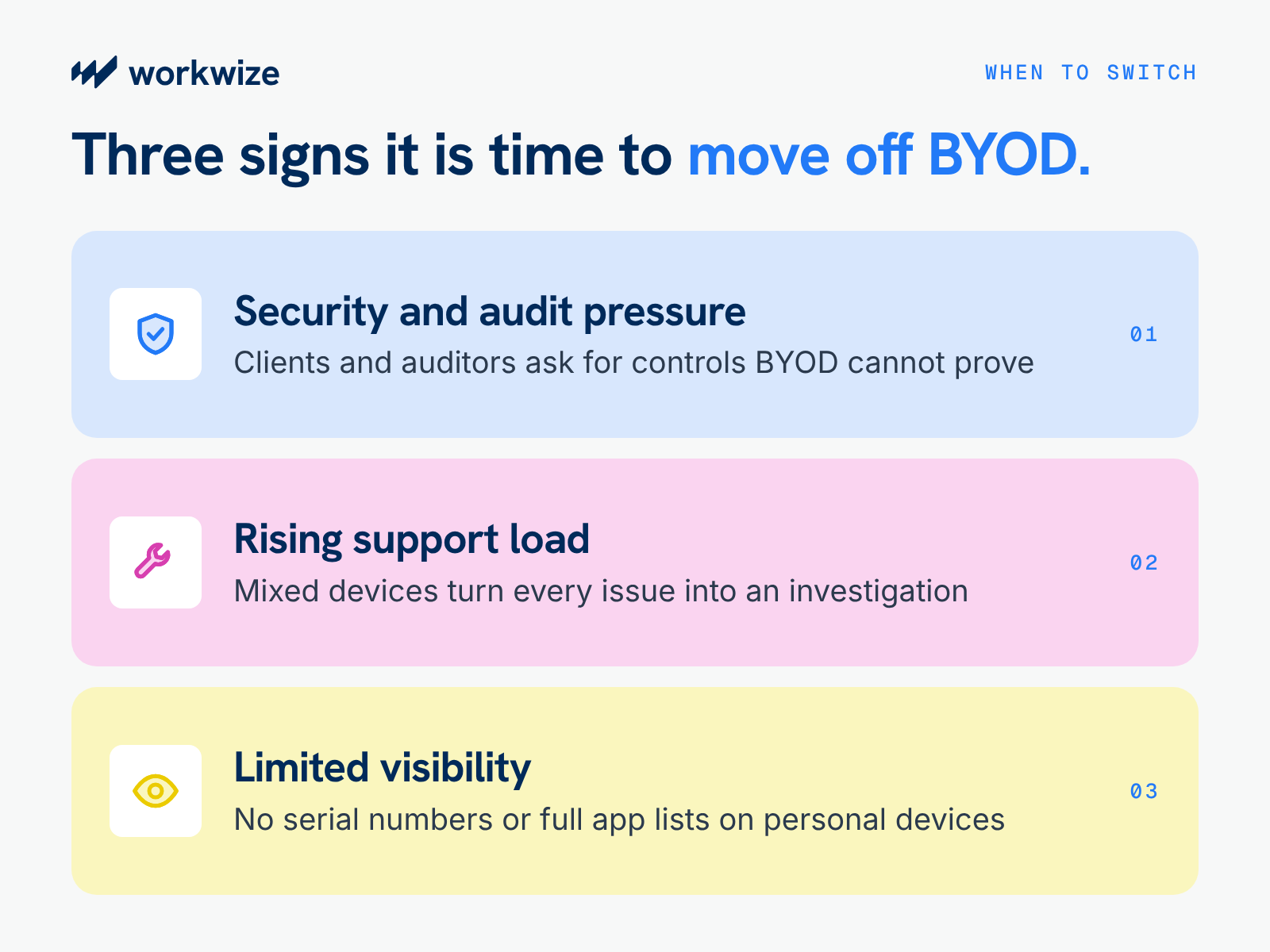
Increasing security, compliance, or audit requirements
BYOD may have helped you equip employees without buying laptops outright.
But as you take on clients with stricter security requirements, you may need to show the devices accessing their data are encrypted and updated.
If your BYOD setup cannot enforce these controls or report whether they’re in place, IT may struggle to meet those requirements and provide evidence during audits.
According to the Canadian Center for Cyber Security, the BYOD model offers less control over device security and configurations. For instance, a user might install unauthorized apps without informing IT, putting sensitive company data at risk.
Company-owned devices become worth considering when your existing BYOD controls cannot meet customer security requirements, enforce required configurations, or provide sufficient evidence during audits.
Before switching, identify unmet requirements and whether stronger BYOD management could address them. This helps you avoid replacing devices when a policy or configuration change would be sufficient.
Rising IT support complexity across different personal devices
IT can always manage some level of non-standardized devices. But as your team expands and devices come from different manufacturers or run different OSes, gaps start to appear.
According to a Forrester study, non-standardization complicated device support at a manufacturing company. The infrastructure architect of the same manufacturing company mentioned, and we quote:
“We ran into so many problems because we were not standardized. If we had an application issue, we wouldn’t know why it wasn't running without a ton of investigation.”
Review how much time IT spends troubleshooting device-specific problems, how often compatibility issues recur and whether resolution times are increasing. If supporting different personal devices consumes more resources than a standardized fleet would require, company-owned hardware may be a better long-term approach.
Limited visibility into hardware used for business
BYOD can limit what IT sees on a device to protect employee privacy. For example, Apple’s User Enrollment is designed for employee-owned devices but prevents IT from retrieving serial numbers or a complete app list.
This can mean extra checks to match devices to inventory records or identify devices running vulnerable software.
If limited device visibility prevents IT from verifying security requirements, investigating incidents or maintaining accurate hardware records, switching to company-owned devices with broader management capabilities may be the better option.
Next, decide which employees need to switch and which can keep using personal devices. Apply this decision rule to choose between company-owned hardware, BYOD, and a hybrid approach:
| Device model | When to use it |
|---|---|
| Company-owned | Your approved BYOD setup cannot meet the role’s hardware requirements, security controls, or client terms. |
| BYOD | Personal hardware meets the role’s requirements, IT can enforce required controls, and support responsibilities are clear. |
| Hybrid | Company hardware is needed for some tasks, while approved personal devices handle others; for example, a company laptop alongside a personal phone with managed work apps. |
What Does It Cost to Move From BYOD to Company-Owned Devices?
Switching to company-owned devices means budgeting for everything that happens after checkout. Someone has to configure the laptop, ship it, manage it, fix it, and recover it when the employee leaves.
Where you buy matters, too. For instance, shipping devices internationally can add freight and customs charges. Workwize’s local sourcing lets you procure equipment in the employee’s country, avoiding that additional cross-border shipment.
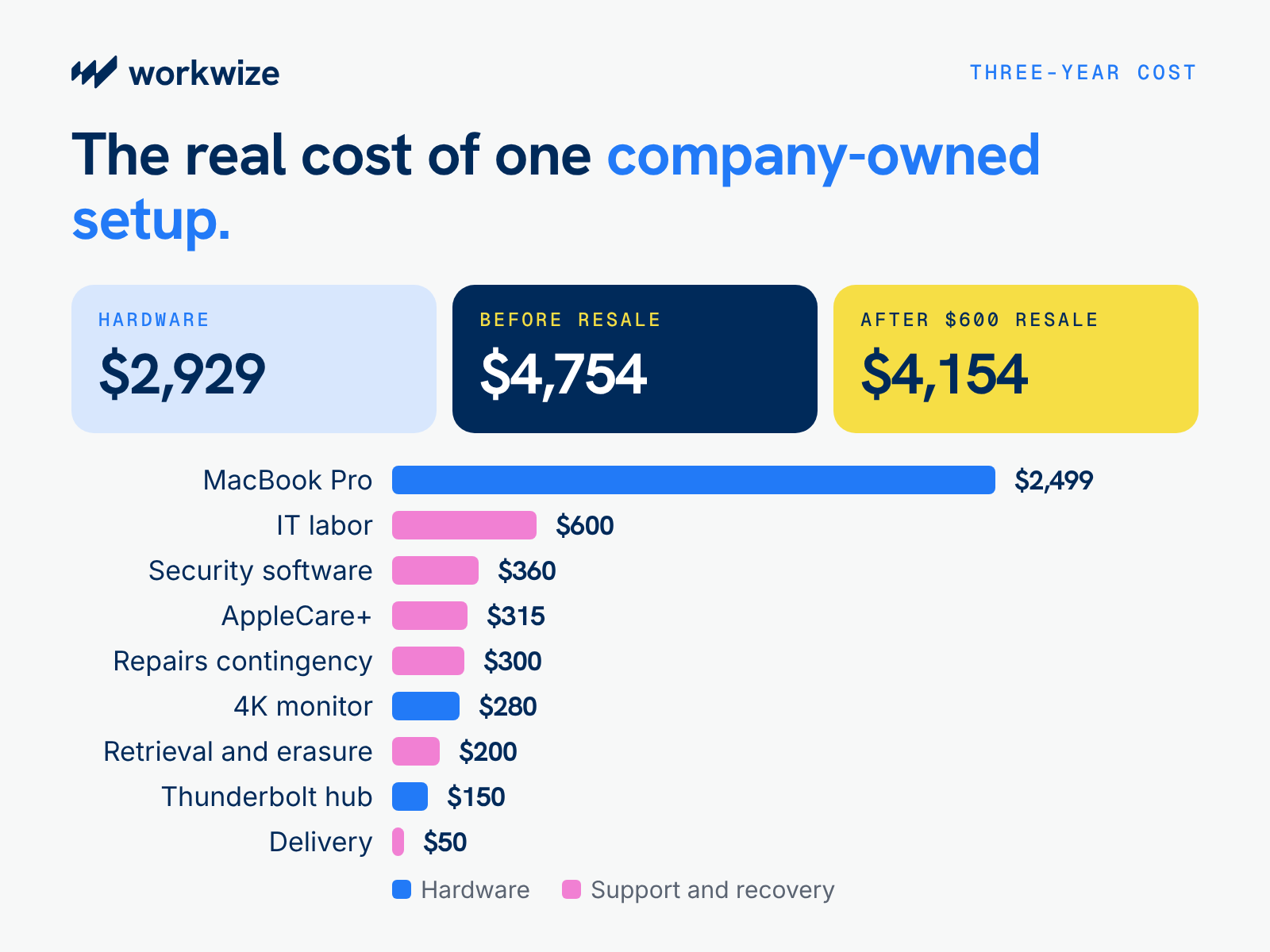
Consider a US-based developer who needs a laptop, monitor, and docking hub. The example below estimates the cost of providing and managing that equipment over three years.
These are illustrative budget assumptions, not a Workwize quote. Actual costs will depend on hardware prices, service requirements, employee location, and the device's eventual resale value.
| Expense | Three-year cost |
|---|---|
| 14-inch MacBook Pro: M5 Pro, 24GB memory, 1TB storage | $2,499 |
| Dell S2725QS 27-inch 4K monitor | $280 |
| Belkin Thunderbolt 4 5-in-1 Core Hub | $150 |
| AppleCare+: $104.99/year × 3, assuming unchanged pricing | $315 |
| Repair deductibles/replacement contingency | $300 |
| Domestic delivery allowance | $50 |
| Management/security software allowance: $10/month × 36 | $360 |
| IT labor: configuration, migration, support and offboarding; 12 hours × $50 | $600 |
| Storage, retrieval and secure erasure/resale processing allowance | $200 |
| Total before resale | $4,754 |
| Assumed resale proceeds after three years | −$600 |
| Budgeted three-year TCO | $4,154 |
The laptop, monitor and hub account for approximately $2,930 in initial hardware spending. After allowing for protection, delivery, software, IT labor, repairs and retrieval, the estimated three-year cost is $4,754 before resale.
If the company recovers the assumed $600 through resale, the net three-year cost falls to approximately $4,154. Actual resale proceeds will depend on the device's condition and market value.
Note. The above estimate assumes you’re sourcing the devices locally. Otherwise, add shipping and customs clearance fees to this estimate.
Compare This Against Your Current BYOD Costs
The company-owned estimate is only one side of the financial decision. To determine whether switching makes sense, compare it against the cost of maintaining BYOD over the same three-year period.
Include employee device allowances, software and security licenses, IT support time, reimbursement administration, and any additional controls needed to meet company requirements.
For example, a $75 monthly device allowance costs $2,700 per employee over three years before software, support, and administration. That doesn't automatically make company-owned devices cheaper, but it gives finance and IT a starting point for comparing both approaches.
Use the same employee roles, locations, and time period in each calculation. Also account for devices you can redeploy, since reusing existing hardware can reduce future purchases.
How to Transition From BYOD to Company-Owned Devices at Scale?
Transitioning from BYOD to company-owned devices is more than just budgeting and approving purchase orders.
You must audit your workforce, standardize device kits, plan procurement, coordinate preconfiguration and deployment, roll out in phases, and manage devices throughout the asset lifecycle. Here’s how you can systematically plan the transition:
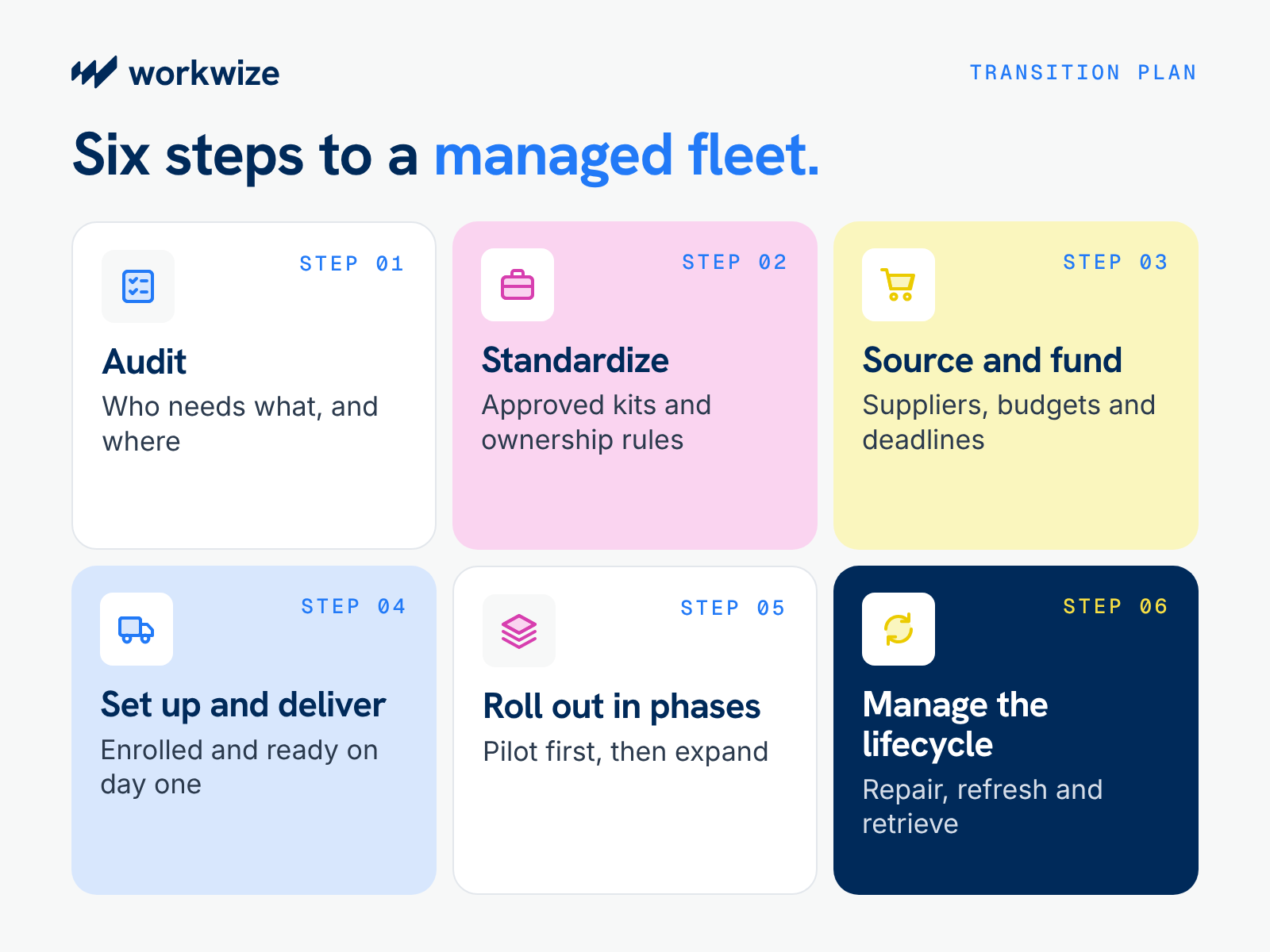
1. Audit your workforce, existing assets, and regional requirements
Before you order or select devices, check which employees need company devices, what their roles require, and whether the equipment is already in stock. Then, confirm availability and support if your employees are spread globally.
Start with:
- Workforce and locations: Pull the employee list from HR and confirm roles, countries, and delivery addresses with employees. This establishes who gets company-owned equipment and where it needs to go.
- Work requirements: Ask employees and managers about required apps, demanding workloads, accessories, and accessibility needs. Check software requirements to define hardware specifications that can handle each role’s work.
- Security requirements: Review sensitive-data access, administrator privileges, and client restrictions by role. This defines which controls the new devices and management setup must support.
- Existing devices: Match asset records with employee confirmations. Check ownership, specifications, and condition, then inspect available company stock to determine what you can reuse and what you must buy.
- Current allowances: Check payment amounts, frequency, and agreed terms with HR or payroll. Identify which payments need reviewing when company equipment is issued; internet reimbursements may still be needed.
- Regional requirements: Ask suppliers to confirm local availability, keyboard layouts, power adapters, delivery times, and repair coverage. Verify destination-country warranty coverage and any import requirements to choose a workable purchasing route.
At the end of the audit, you should have an approved transition list showing which employees need company-owned devices, their hardware requirements, locations, available stock and target deployment dates. This becomes the basis for budgeting and scheduling the rollout.
2. Standardize device kits and set ownership rules
Use the audit findings to establish approved device configurations, purchasing limits and ownership policies. These decisions should cover both the equipment employees receive and how IT will support it throughout its lifecycle.
- Define approved kits and exceptions: Set specifications, approved models, accessories, and budget limits for each role. Assign someone who approves exceptions and who covers the budget. This keeps purchasing consistent while accommodating needs the standard kit cannot meet.
- Set replacement rules: Set target replacement cycle and criteria for repairing, replacing early, or extending use. Decide this based on the performance, repair costs, and security support so refresh spending follows clear priorities.
- Define acceptable use: Decide whether personal use and employee-installed apps are permitted. Explain what IT manages and monitors, so employees understand the boundaries before moving from personal devices.
- Assign ownership and responsibilities: State that issued devices remain company property. Specify who arranges and funds repairs, how employees report loss or damage, and when employees must return equipment. This establishes accountability throughout the device’s lifecycle.
Document these decisions in a device policy that IT, procurement, and employees can reference throughout the transition.
3. Plan how to source and fund devices across locations
Turn your approved device kits into a purchasing schedule, with quantities, suppliers, and funding agreed for each country.
- Forecast demand: Combine the transition list with approved hiring, planned replacements, and spare-device needs. Now, subtract reusable stock to get the actual order quantities, rather than buying everything upfront.
- Compare buying and leasing: Compare the cost of buying and leasing the devices over the same period. Check out our in-depth guide to choose the right procurement model: Buying Vs Leasing Equipment.
- Choose your supplier approach: Compare global providers, regional suppliers or a combination of both based on total delivered cost, local availability, delivery times, warranty support, and retrieval capabilities. For remote employees, confirm direct-to-employee delivery, enrollment registration, and responsibility for faulty-device returns.
- Assign budget responsibility: Decide whether spending is controlled centrally or regionally, who approves orders, and which entity pays. Budget for local pricing, currencies, shipping, taxes, and applicable import charges.
- Set ordering deadlines: Work backward from when employees must be ready to work. Factor in time for stock availability, configuration, delivery, customs, and setup.
Compare in-country sourcing with cross-border shipping, and order earlier when lead times demand it.
4. Coordinate device setup and delivery
Once suppliers, budgets, and timelines are agreed, decide how each device will reach the employee and complete setup. This means bringing procurement, IT, and logistics together before shipments begin.
- Assign an owner: Start by assigning a rollout owner who coordinates IT, suppliers, and logistics. Also decide who prepares devices, handles shipping problems, and resolves enrollment failures so issues have a clear owner.
- MDM enrollment: Before dispatch, confirm that supported devices are registered for Apple Automated Device Enrollment or Windows Autopilot, with the correct enrollment or deployment profiles assigned.
Configure your MDM to apply the required apps, security policies, and settings during setup. Test this process with a small pilot before releasing larger batches.
Registering a device for automated enrollment doesn't guarantee that it's ready for work. During the pilot, verify that the device enrolls successfully, receives required applications and security policies, and allows the employee to access their work systems.
Note. For remote employees, send tracking details and short setup instructions, with a support contact they can reach before their new laptop works. Track each device’s serial number against its assigned employee, shipment, and setup status.
- Define what counts as deployment: Deployment isn’t complete when the employee gets the device; it’s complete when the employee can start working. This gives you a clear basis for closing each deployment or escalating unresolved problems.
5. Roll out in phases and help employees make the switch
Start with a pilot covering primary roles, operating systems, and locations. Resolve issues that block work or required security controls before approving the next group.
This helps IT identify problems with device setup, delivery and employee access before expanding the rollout.
For each group, follow a consistent transition process:
- Communicate the change. Tell employees when they'll receive their new devices, what equipment is included, whether BYOD allowances will change, and where to get support.
- Prepare the new devices. Confirm enrollment, required applications, security settings, and access permissions before employees begin setup.
- Support data migration. Provide instructions for moving approved work files and settings from personal devices to company-owned equipment. Explain which personal files should remain on the employee's device.
- Verify readiness. Ask employees to confirm that they can access their work applications, files, and communication tools before retiring their BYOD setup.
- Remove company access from personal devices. Once migration is complete, revoke access or remove managed work data according to company policy, without erasing personal information.
- Close the transition. Update asset records, confirm device assignment, and coordinate any changes to employee hardware allowances with HR or payroll.
Before moving to the next group, review deployment completion rates, MDM enrollment failures, support tickets, and unresolved migration issues.
Expand the rollout once the pilot meets your agreed readiness and security requirements.
6. Manage devices throughout the lifecycle
Once employees receive their company-owned devices, IT needs a process to maintain them, manage changes, and recover equipment when it's no longer needed.
Start by recording each device's serial number, assigned employee, location, model, warranty details, and lifecycle status in your IT asset management system.
Then establish processes for:
- Maintenance and repairs: Give employees a way to report damaged or malfunctioning devices, request repairs, and receive replacements when needed.
- Employee changes: Update device assignments when employees change roles, relocate, or transfer between teams.
- Hardware refresh: Review device age, performance, repair history, and warranty coverage to decide when to repair, replace, or retain equipment.
- Offboarding and retrieval: Trigger retrieval requests when employees leave and track devices until they return them.
- Reuse and disposal: Inspect returned devices and decide whether to repair, reassign, resell, or securely recycle them.
Workwize helps IT teams manage these activities through a centralized asset lifecycle platform, with device records and operational updates available as equipment moves through different stages.
Regularly reconcile asset records against employee assignments and physical inventory so missing or outdated information doesn't affect future purchasing and retrieval decisions.
How to Manage Company-Owned Hardware Across Multiple Countries?
Managing company-owned devices across countries introduces challenges that don't exist in a single-location rollout. Hardware availability, delivery times, repair coverage, customs requirements and local supplier capabilities can vary significantly.
To keep operations consistent across regions, focus on four areas.
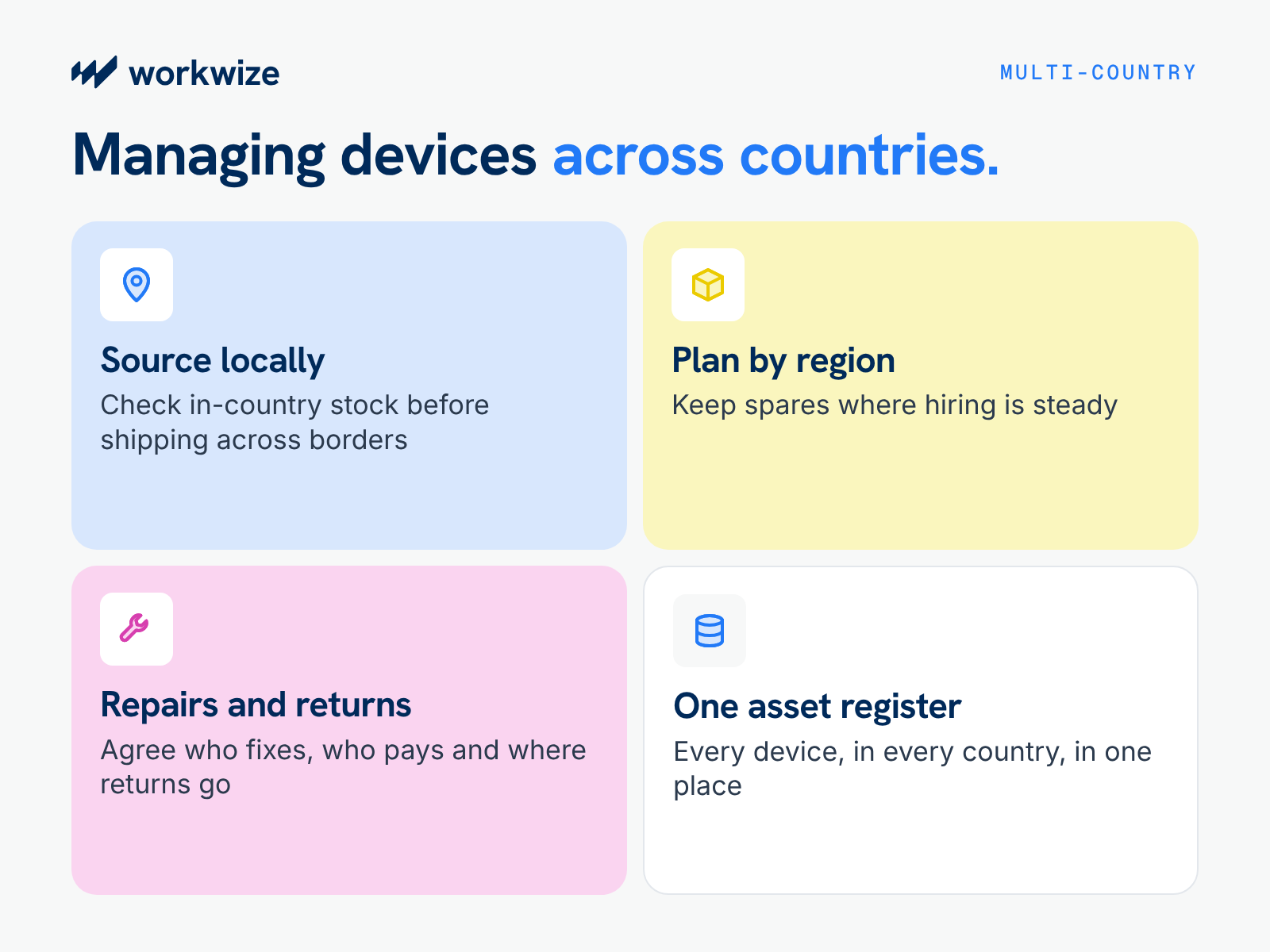
Source hardware locally where practical
Check whether approved device models are available in each employee's country before placing orders. Local sourcing can reduce international shipping costs, customs delays and the administrative work involved in importing equipment.
However, compare total delivered costs and supplier capabilities rather than assuming local purchasing is always cheaper.
Plan inventory around regional demand
Use hiring forecasts, replacement schedules and existing stock to determine where equipment will be needed.
For regions with regular hiring, maintaining a small pool of ready-to-deploy devices may reduce onboarding delays. In locations with infrequent demand, purchasing against confirmed requirements may be more economical.
Establish regional repair and retrieval processes
Confirm how employees will request repairs, receive replacements and return equipment when they leave.
Check whether suppliers provide local repair coverage, who handles shipping costs and how returned devices reach an approved inspection or storage facility.
Maintain consistent asset records
Use a central asset register to record device assignments, locations, shipment statuses, repairs and retrievals across countries.
This gives IT a consistent view of the fleet while allowing procurement and logistics processes to vary by region.
For distributed organizations, the goal is to standardize how hardware is managed without requiring every country to use the same supplier or delivery process.
How Workwize Helps Companies Procure, Deploy, and Manage Devices Globally
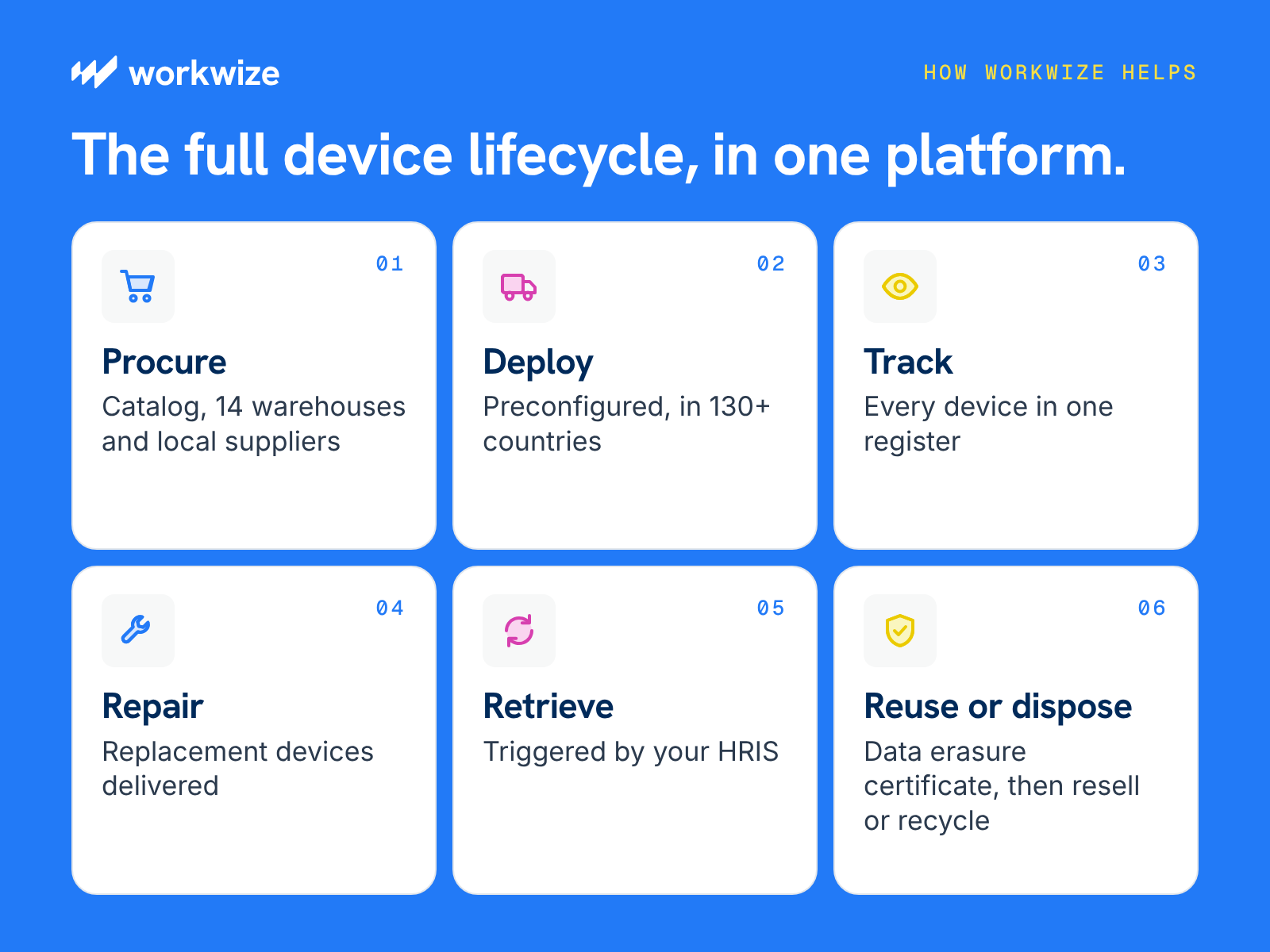
Workwize is a global ITAM platform that automates the complete asset lifecycle from procurement, deployment, and management to retrieval and disposal across 130+ countries.
This means you can source, pre-configure, deploy, manage, maintain, retrieve, and dispose of devices in one platform with minimal manual effort. Here’s how:
- Procurement: Order or let the employees choose from an approved list of devices from Workwize’s catalog and source them locally from our 14 warehouses or local suppliers.
Once you integrate Workwize with your HRIS platform, you can automatically initiate onboarding when you add a new hire to your HRIS. No back-and-forth required between IT and HR.
- Deployment: Preconfigure the devices with the required apps and security policies and deliver ready-to-use equipment across 130+ countries.
- Tracking and Management: Track your assets in real-time throughout the lifecycle and manage them from the same dashboard.
- Repair: Order repairs and get replacement devices delivered, so there’s no downtime.
- Retrieval: Initiate retrieval automatically (post-integration with your HRIS) after the end date is updated in your HRIS. Employees get a prepaid return kit with instructions, while you can track the return in real time.
- Secure Data Erasure: Wipe the devices clean, get a data erasure certificate, and maintain chain-of-custody records for audits.
- Reassignment, Resale, or Recycle: Inspect the devices with Workwize and reassign the ones in good condition, resell those that aren’t fit, and recycle the rest securely.
For IT teams managing equipment across several countries, the advantage is having procurement, deployment, retrieval, and asset records connected through one platform. This reduces the need to coordinate each hardware request separately across suppliers, spreadsheets, and internal teams.
Book a demo now to see how Workwize simplifies managing company-owned devices for globally distributed workforces.


Establish a single source of truth for every IT asset across the globe.


Get monthly insights into how other IT leaders are improving their ops.




Stop coordinating
hardware like it's 2012.


