



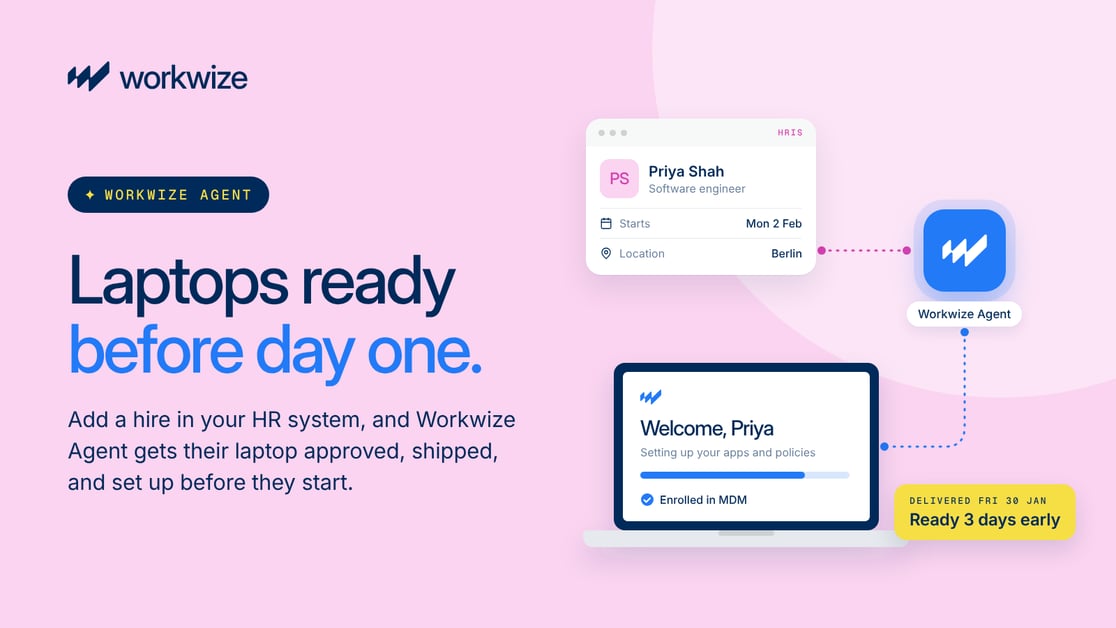

Imagine your new engineer starts on Monday, and the laptop order is still waiting on an approval nobody has seen, and her address is missing a postal code. But you only find out on Friday afternoon, when it’s too late to fix, and then IT has to explain to her manager why she can’t work yet.
Most late laptops come from small handoffs between HR, IT, and procurement rather than the courier. Someone has to notice the hire, chase the approver, and fix the address by hand, and the more people you hire in more countries, the more often one of those handoffs gets missed.
The fix is a process that runs the same way for every hire, wherever they are. This guide covers the six steps that get a laptop to a new hire before their first day, what Workwize takes care of at each step, and where Workwize Agent can automate the follow-ups in between.
How laptop provisioning works with Workwize Agent, step by step
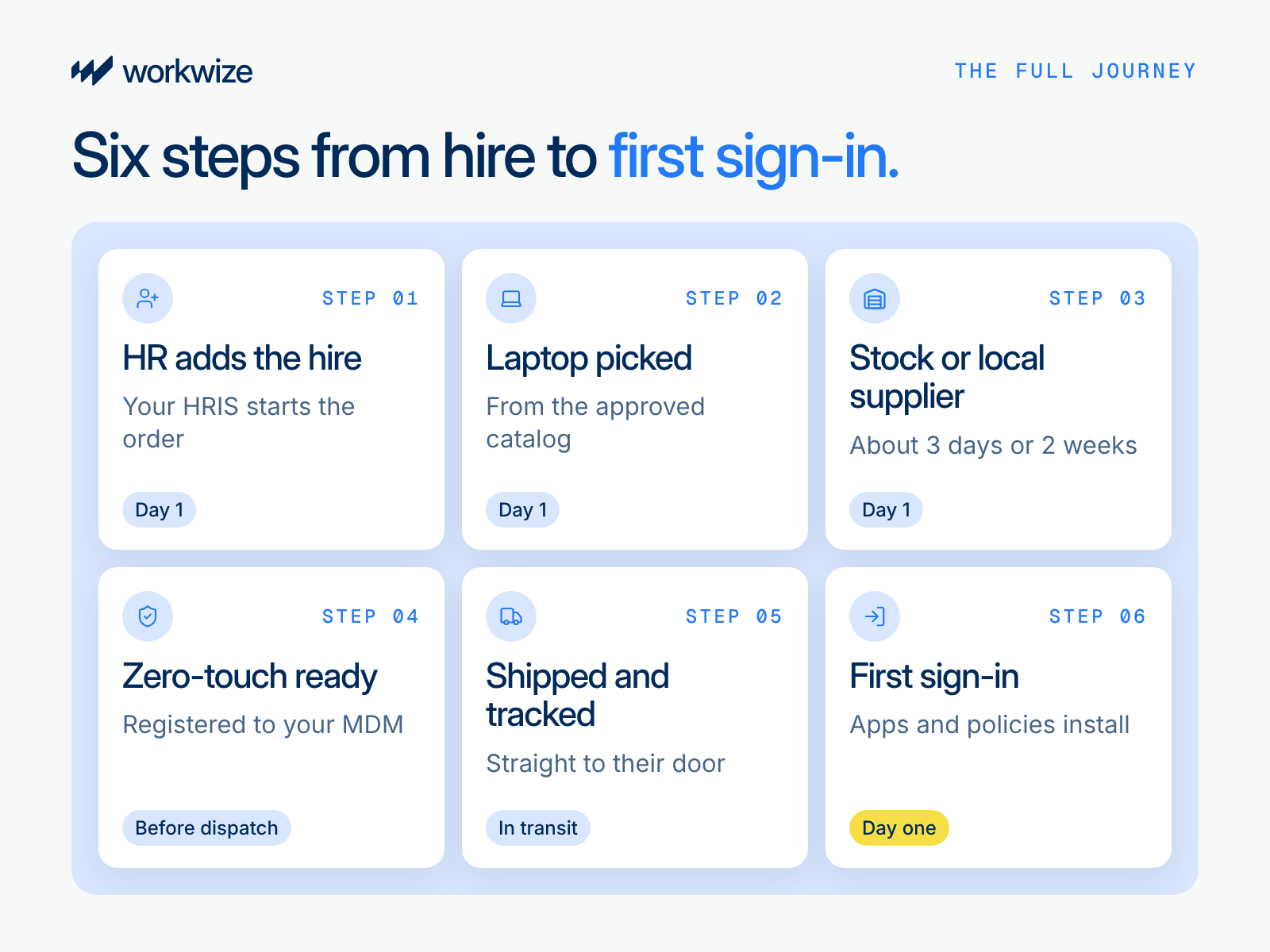
Each laptop goes through the same six steps, starting when HR adds the hire and ending when that person signs in for the first time.
Step 1. Let your HR system start the process
IT shouldn't have to wait for an email to learn about a new hire. Workwize connects with HR systems such as Workday, BambooHR, Personio, Rippling, and HiBob, and creates an employee profile with the person's role, department, location, and start date as soon as HR adds them.
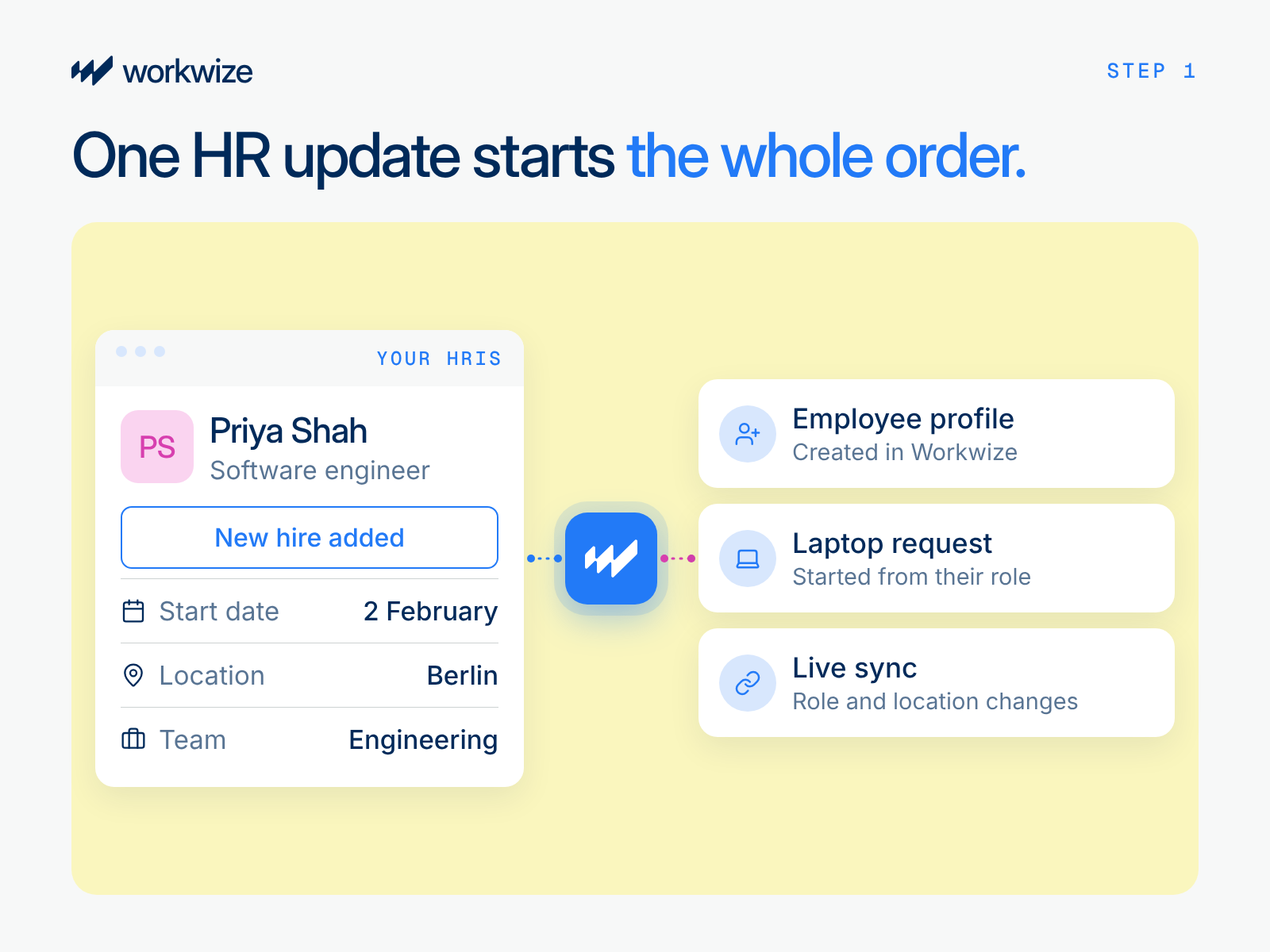
Changes sync too. If HR updates someone's role, department, location, or start date, Workwize uses the new details, and if the start date moves after the laptop is ordered, you can review the order and delivery schedule. For hires who aren't in your HR system, your team can create the profile directly in Workwize, or through the Workwize API on the Enterprise plan.
Where Workwize Agent helps: A workflow can start the moment that employee profile appears, or check your HRIS for new hires on a schedule, so the order begins without anyone forwarding a message.
Step 2. Pick the right laptop from an approved catalog
Your IT team sets up a catalog of approved devices for each role, with budgets and purchasing rules for each department and location. That way, each hire is only offered the laptops meant for their role. For example, a software engineer might get a high-spec MacBook Pro, while someone in sales gets a lighter model.
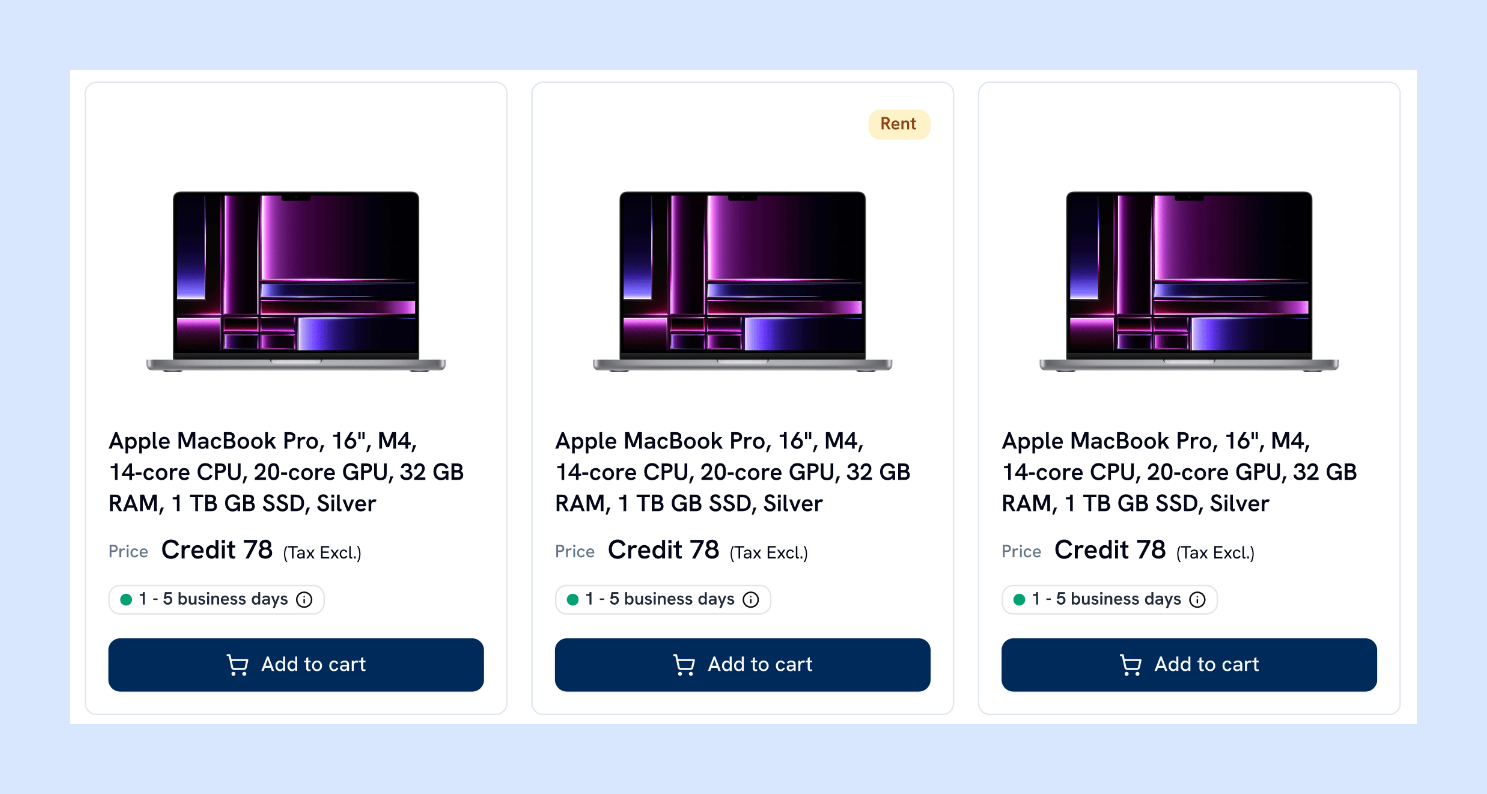
Some companies prefer to let new hires choose. In that case, employees pick from the same catalog in a branded self-service portal, and your team still decides which products appear, how much each team can spend, and which requests need extra approval.
Where Workwize Agent helps: The workflow can match the employee's department, job title, and location to the right catalog item, so nobody has to pick the device by hand.
Step 3. Get the order approved and placed
Nothing should be bought until the right person signs off. Set up approval rules in Workwize for each team and spending level, and approvers can accept or reject a request from Slack without logging in.
After approval, Workwize picks the fastest way to get the laptop to your new hire. There are usually two options.
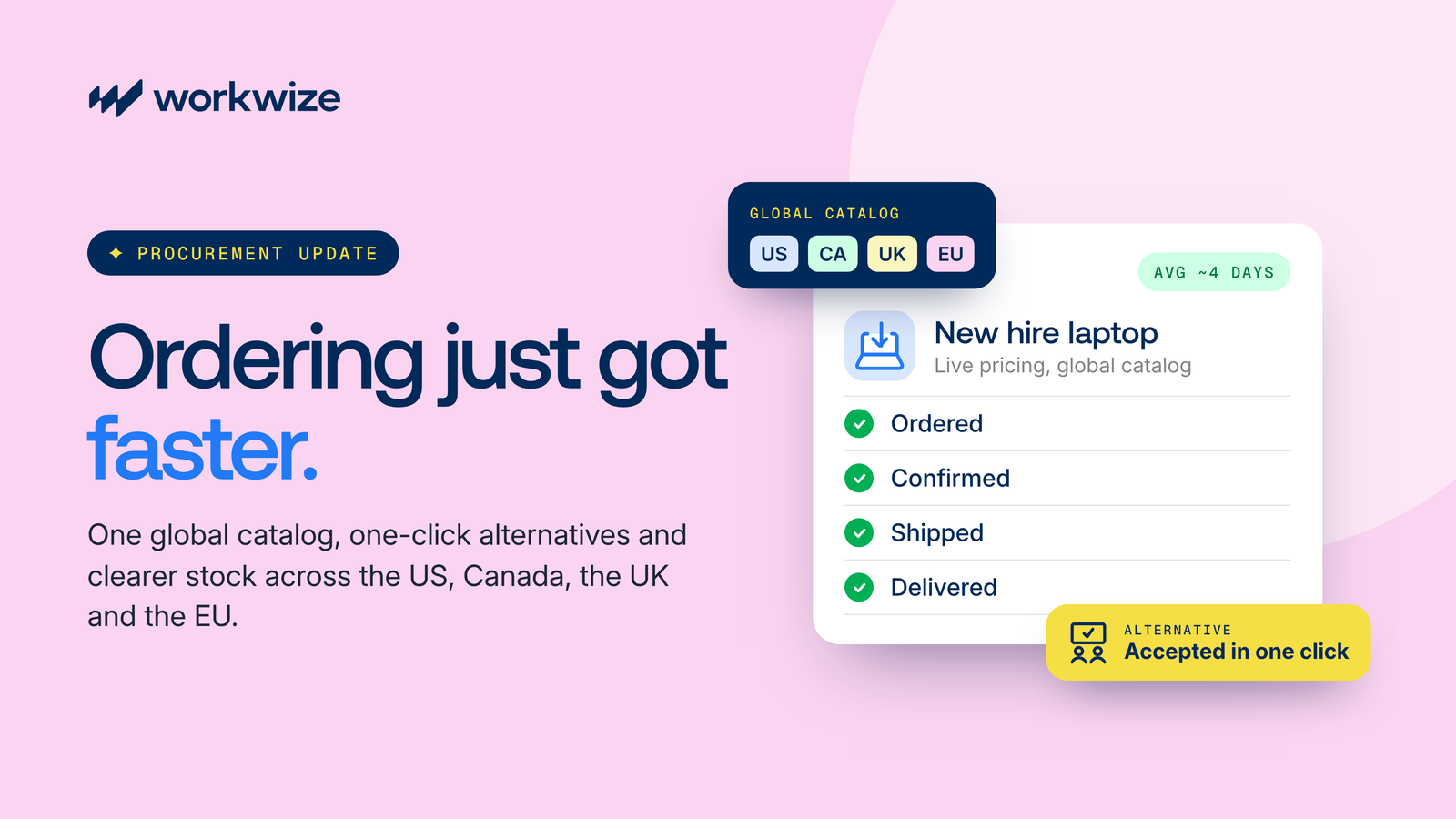
- Nearby Workwize warehouse: If you keep stock in a Workwize warehouse near the employee, the laptop ships from there and usually arrives in about three days.
- Local supplier: If there's no suitable device in stock, Workwize buys one from a supplier in the employee's country. That avoids customs delays and import fees, though it takes around two weeks.
Where Workwize Agent helps: The Agent can send the approval request and place the order once it's approved. Orders it creates still wait in your approvals queue by default, and you have to choose to skip approval for a step.
Step 4. Prepare the laptop for zero-touch setup
Workwize supports zero-touch deployment through Apple Business Manager and Windows Autopilot, so the laptop can set itself up when the new hire turns it on.
Before shipping, Workwize or the supplier registers the device for automated enrollment and assigns it to your company's MDM. You can check the registration status of each laptop in Workwize before it leaves.
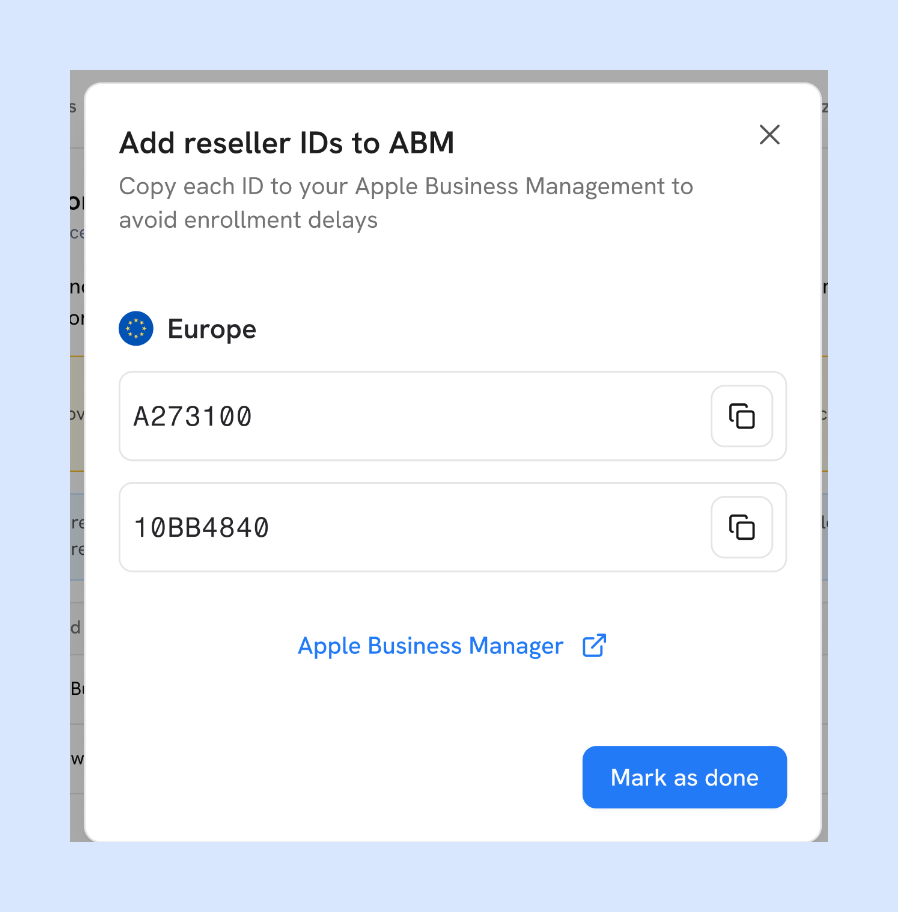
When the new hire turns on the laptop and connects to Wi-Fi, it enrolls in your MDM and pulls down the apps and security policies for their role. Your IT team still owns the MDM policies, enrollment profiles, and access rules. Workwize prepares the hardware.
Step 5. Ship the laptop and keep everyone updated
The laptop goes straight to the new hire's home or office, from a warehouse or directly from the supplier, so you don't pay to ship it twice. Workwize delivers locally through warehouses and suppliers in markets including the US, Canada, the UK, the EU, India, Singapore, and Australia.
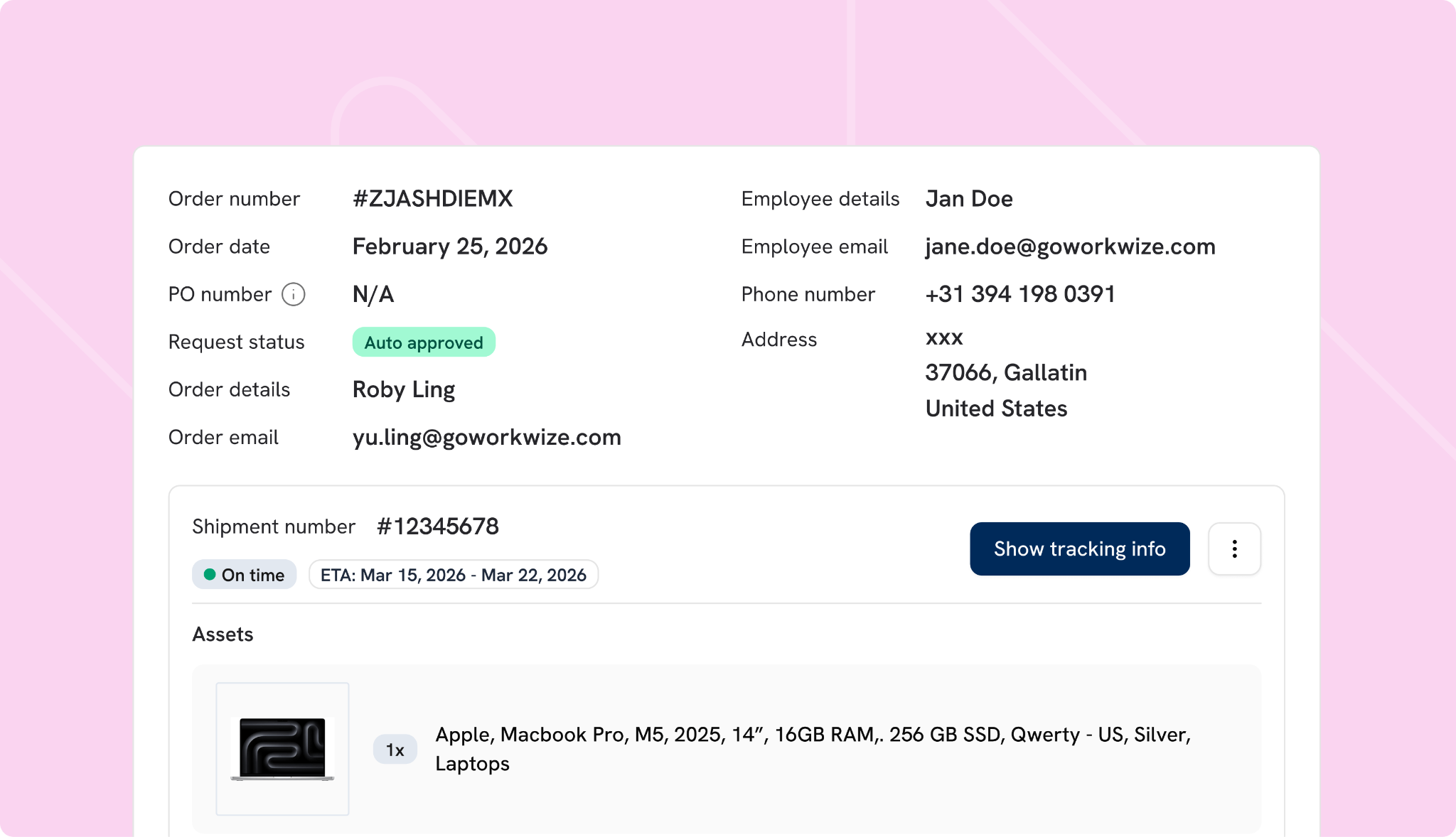
You can follow each shipment in the order details, and employees can track their own order in the self-service portal.
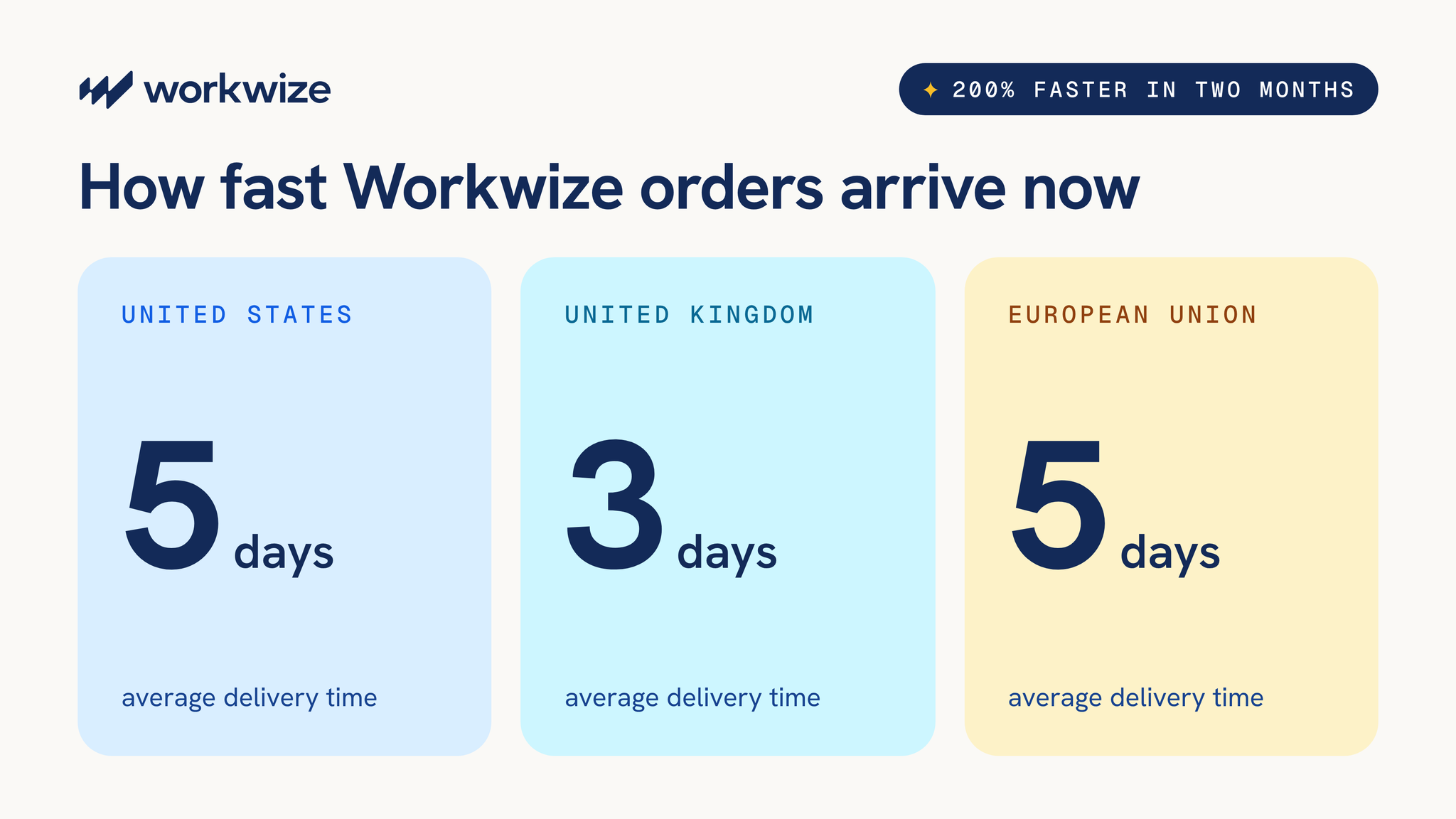
Average delivery takes five days in the US and EU and three days in the UK. The actual time depends on the destination, what's in stock, and how the order is fulfilled, so allow more time in countries with fewer local suppliers.
Where Workwize Agent helps: The Agent can add the order number and a link to the onboarding ticket in Freshservice, ServiceNow, or Jira Service Management, and post status updates to Slack, Microsoft Teams, or email, so the hiring manager doesn't have to ask IT for news.
Step 6. Confirm receipt and get ready for the first sign-in
Once the laptop is delivered, run through a quick check before the start date:
- The laptop has been delivered to the correct address.
- The device is registered for the required enrollment process.
- The employee's work accounts and access permissions are ready.
- The necessary applications and security policies are configured in your MDM.
- The employee has sign-in instructions and knows where to get support.
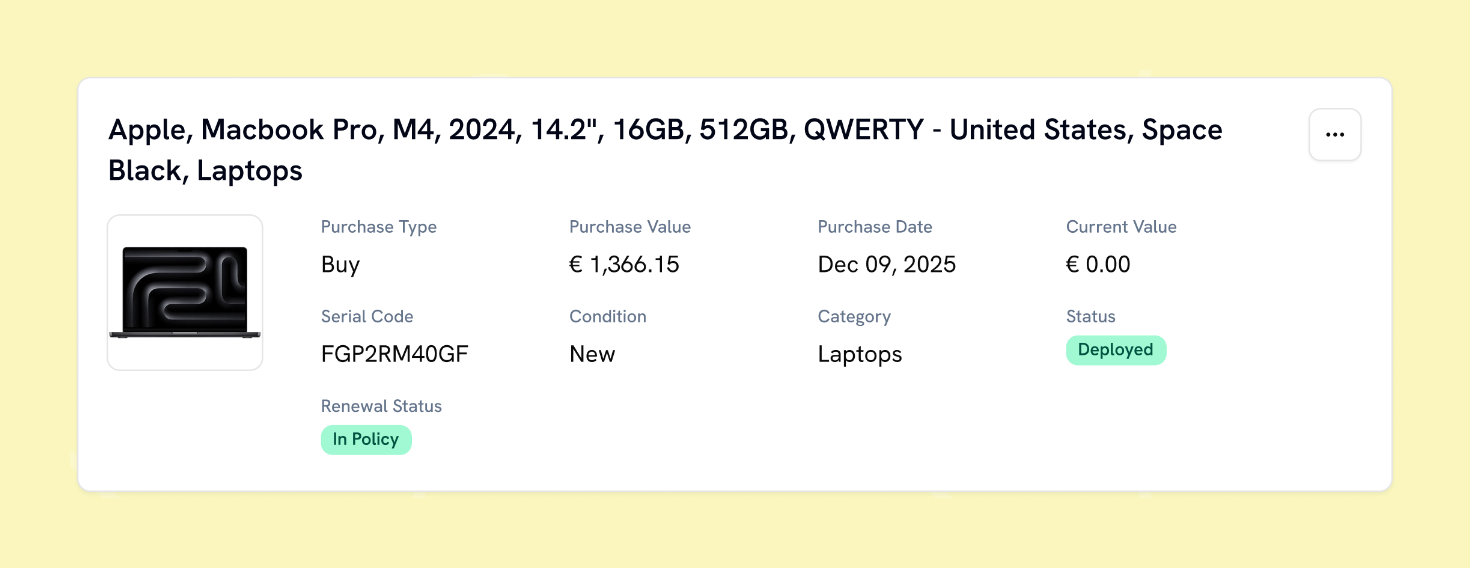
If the laptop arrives damaged, the new hire can report it in the portal and Workwize arranges a repair or replacement. The device is also added to your asset registry with its serial number, model, owner, location, and status. You'll use that same record later for repairs, retrievals, redeployment, or end-of-life processing.
How to set up Workwize Agent for new hire laptops
Workwize does the physical work at every step above. What the Agent adds is the coordination between the steps: noticing the hire, sending the approval, flagging missing details, and keeping people updated. To set it up, open Workwize Agent and write out what should happen when someone joins, the same way you would explain it to a colleague. For example:
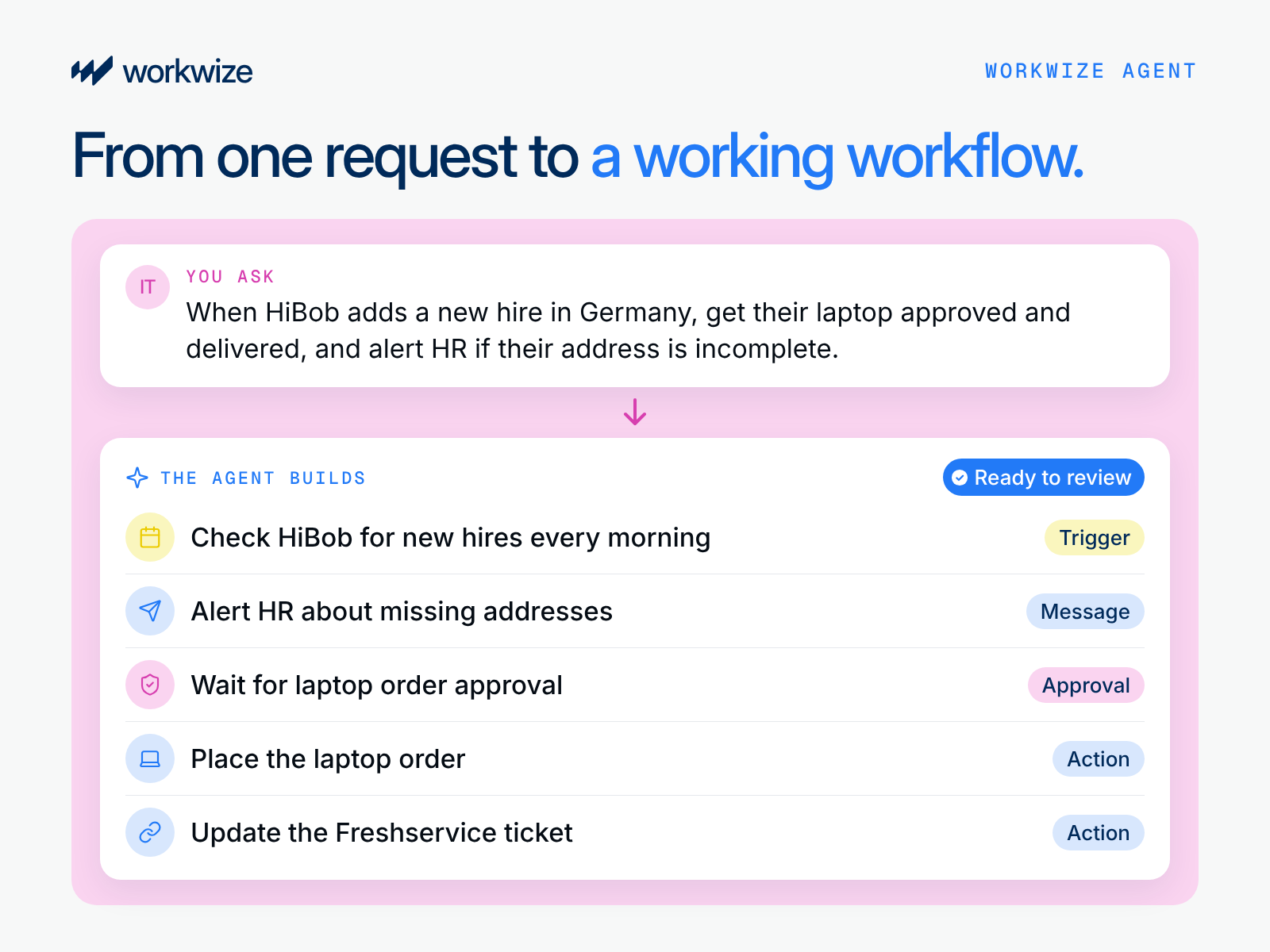
"When HiBob records a new employee in Germany, check their start date and equipment requirements. Request approval for a suitable laptop, arrange delivery, and update their onboarding ticket in Freshservice. If their address is incomplete, alert HR before placing the order."
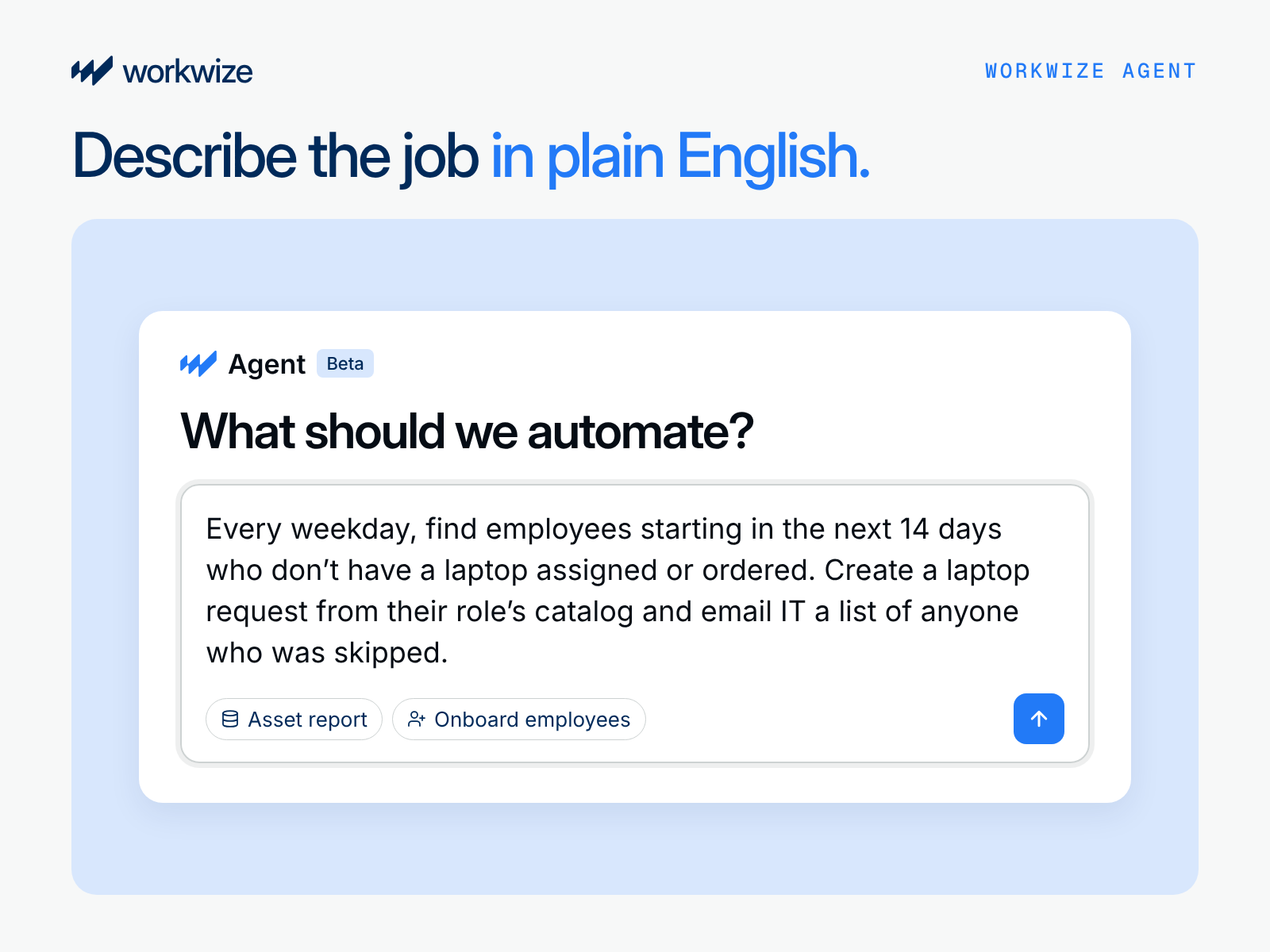
If anything is unclear, the Agent asks a follow-up question. It then builds the workflow in Workflow Builder, where you can check each trigger and action, run a test, and adjust it for specific locations or teams before you publish it. Workwize Agent connects natively to MDM platforms such as Microsoft Intune, Jamf Pro, Iru (formerly Kandji), and JumpCloud, and to service desks and messaging apps.
Three smaller workflows that keep laptops on track
Once your main workflow is live, you can add smaller ones for the problems that most often make laptops late. You can describe each in a sentence or two, and there's no need to set them all up at once. For more ideas, see 6 IT workflow examples you can automate today, and to see how approvals and version history work, read 5 steps to building secure IT workflows.
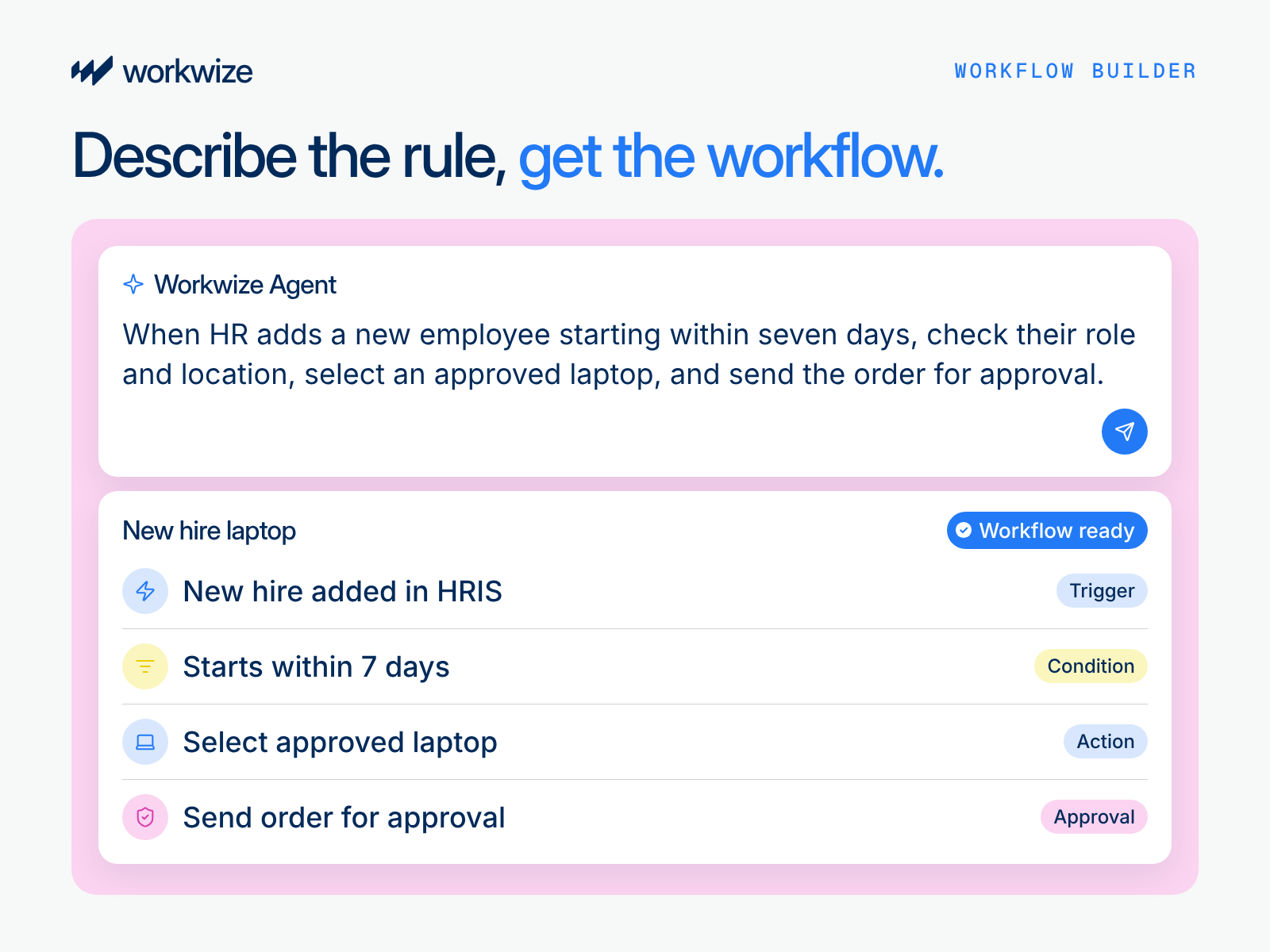
- Catch hires who still need a laptop: "Every weekday, find employees starting in the next 14 days who don't have a laptop assigned or ordered. Create a laptop request from their role's catalog and email IT a list of anyone who was skipped." This catches hires that HR added late, without anyone checking the hiring list by hand.
- Fix address problems before the order ships: Add an address check to your onboarding workflow so the Agent alerts HR when a street, city, or postal code is missing, and only places orders for hires with complete details. Missing address details are a frequent cause of late deliveries.
- Keep an eye on stock: "Every Monday, email me the available laptop stock per warehouse, and flag any location with fewer than two of our standard models." That gives IT time to restock a location before a big hiring month.
What to set up before your first order
Your first order goes more smoothly if you make a few decisions during setup. Workwize's onboarding team works through them with you, and you only do this once. After that, each laptop follows the delivery times in Step 5. Before the first order, you'll want:
- Device catalog and budgets: Pick approved laptops for each role and set spending limits.
- Approvals: Decide who approves which requests, spending exceptions, and purchases.
- HR system and apps: Connect your HRIS, plus any service desk, MDM, or messaging apps your workflows will use.
- Zero-touch setup: Finish the one-time Apple Business Manager or Autopilot setup, which our zero-touch deployment guide walks through.
- Existing laptop inventory: Import the devices you already have so you can see every laptop in one place.
- Spare stock: Choose the locations where keeping extra laptops on hand makes sense.
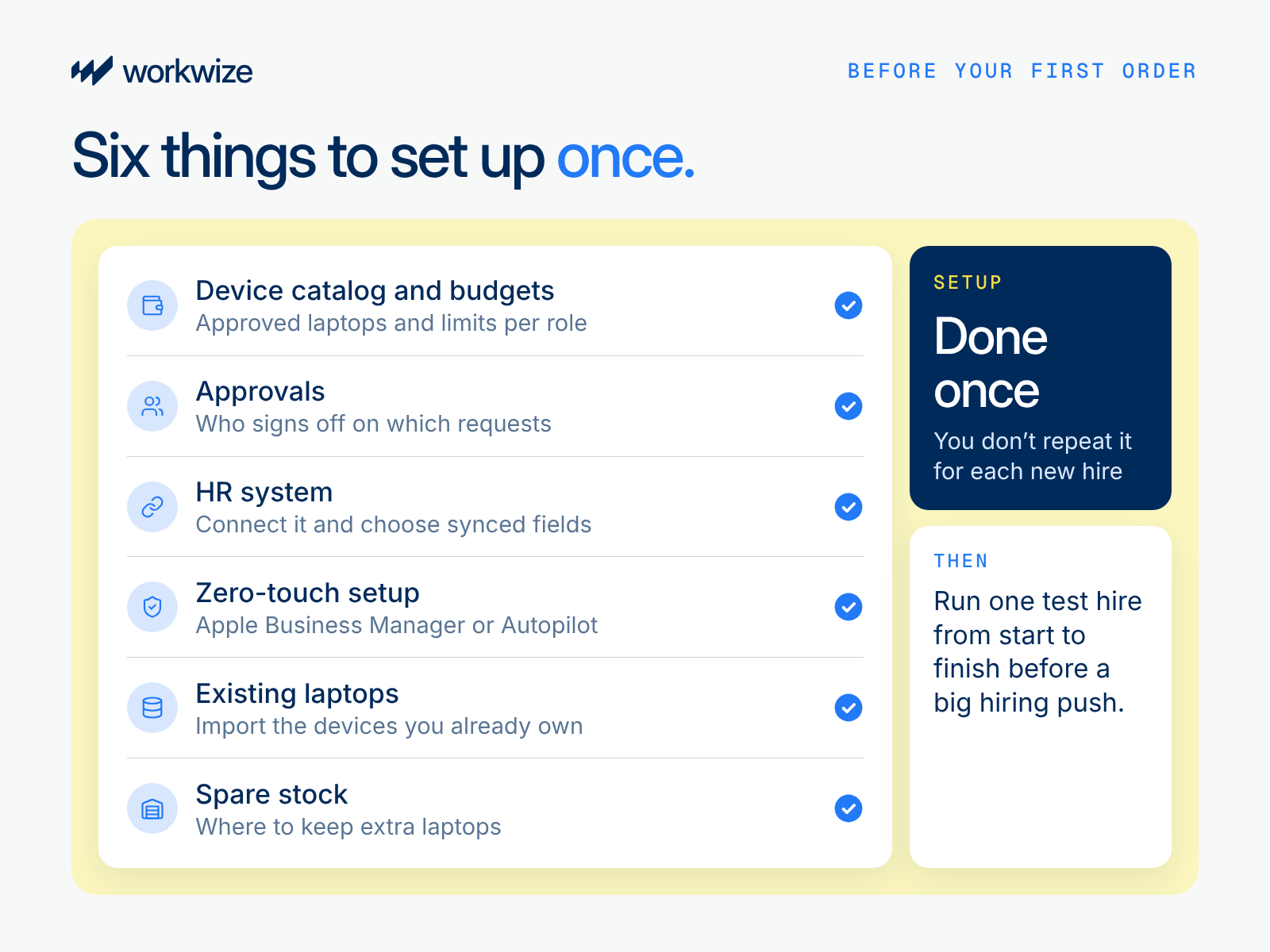
Before a big hiring push, send one test hire through the workflow and check that the laptop enrolls on first startup. For an overview of the full flow, see automated IT onboarding.
How Workwize helps IT teams scale laptop onboarding across countries
Each new country brings its own suppliers, shipping requirements, and import rules. Because Workwize buys and delivers laptops locally, and the Agent can handle the coordination, your team follows the same process whether the hire is in Austin or Bangalore, and finance sees equipment costs across regions in one place.
HighLevel, a marketing software company with close to 1,000 employees, had this problem. Its team works across the US and India, with a growing group in the Philippines, and it onboards around 60 people a month. Before Workwize, each region used a different hardware provider, email replies across time zones could take up to 18 hours, and some new hires bought their own laptops so they could start on time.
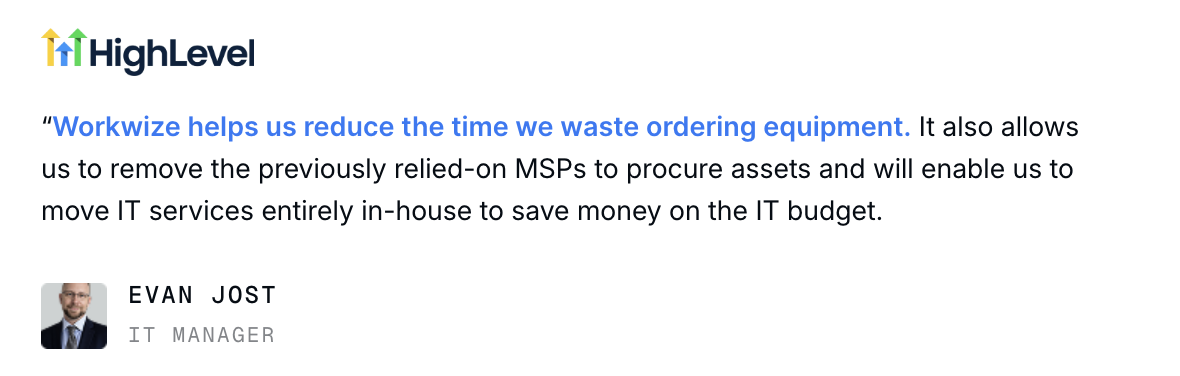
After moving to Workwize, HighLevel standardized its equipment and gave employees a self-service ordering portal. The company reports spending 70% less time on IT equipment and saving $1.4 million in hardware management. The HighLevel case study has the details.
Get every new hire equipped before day one
New hires get started faster when their laptop is set up before their first day. Workwize sources, prepares, and delivers the device in more than 130 countries, and Workwize Agent can handle the follow-ups between steps, while your team keeps control of device standards, budgets, and security rules.
If you hire in several countries and want to see this with your own setup, book a Workwize demo and we'll walk you through it, including how Workwize Agent can run the coordination.


Establish a single source of truth for every IT asset across the globe.

More related resources to help you stop firefighting hardware operations.

Get monthly insights into how other IT leaders are improving their ops.




Stop coordinating
hardware like it's 2012.