




.svg)
.svg)

.svg)


.svg)




.svg)
.png?width=500&height=424&name=Style-1---V1-(1).png)

.png?width=1230&height=692&name=Vector%20(13).png)
The Mac vs. PC debate has raged for decades.
Mac loyalists swear by performance and polish. And Windows advocates value flexibility and compatibility.
But within hybrid organizations, this choice isn’t a fan-club battle; it’s a business decision. Choosing the right ecosystem impacts productivity, support overhead, costs, and employee experience.
So, how do you decide which operating system works best for your organization?
This article will help you compare Macs and PCs in key areas that matter for hybrid companies.
We’ll look at the total cost of ownership (TCO), performance, software compatibility, security, user experience, availability, support, employee sentiment, sustainability, and manageability.
Rather than crown an absolute winner, we’ll identify where each platform shines and how a mix of both can often be ideal.
By the end of this guide, you’ll have a data-driven understanding of Mac vs PC for business and practical tips for mapping the right devices to each role in your hybrid workforce.
TL;DR
- Macs cost more upfront, but often win long-term on TCO, resale, and support overhead.
- Windows PCs shine in compatibility, flexibility, and procurement speed
- Software compatibility still tilts toward Windows—especially for finance, ops, and legacy tools.
- macOS leads in built-in security and privacy; Windows can match it with the right setup.
- Mac delivers superior UX, while Windows enables deeper customization and broader hardware choice.
- Employees prefer Macs when given the choice, boosting satisfaction and retention.
- Matching roles to platforms (Mac for creatives, PC for analysts) improves productivity.
- A mixed Mac + PC fleet is often the most strategic and future-proof approach.
- IT teams need ITAM solutions like Workwize to manage all the assets in one place and automate the asset lifecycle (procurement, deployment, repair/replacement, retrieval, and disposal).

Mac vs Windows for Work: Comparing What Matters?
Below, we’ll compare both Macs and Windows devices based on the factors that matter for hybrid IT teams:
Total Cost of Ownership & Lifecycle
The total cost of ownership includes costs incurred throughout the device’s lifecycle. So, to compare the costs, we need to factor in:
Upfront Costs
It’s a fact that Apple laptops and workstations are more expensive than Windows devices.
For instance, the latest entry-level MacBook Air (16GB/256GB) with the M4 chip costs around $999. And a Windows equivalent HP OmniBook 3 Laptop (16GB/256GB) costs $899.
A $100 difference may not look significant, especially when you’re buying a handful of devices. But when you’re procuring 200 laptops, you could save $20,000 by buying Windows.
But let’s not jump to conclusions, since the upfront cost doesn’t tell you the complete story.
Here’s a Reddit user who agrees MacBooks are costlier, but considering the TCO, they can be competitive:

Source: Reddit
- Repair Costs: While Macs are less likely to need repairs than Windows devices, they almost always require a certified Apple repairperson. Also, the proprietary parts cost way more than Windows.
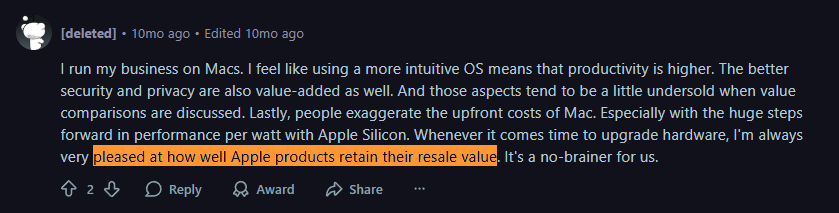
- Resale Value: Although Apple devices have a higher upfront cost, they age gracefully, unlike Windows devices, which tend to slow down over time. As a result, Apple devices have a higher resale value than Windows devices. Here’s a Reddit user mentioning how well Apple devices retain their value, making them a no-brainer choice for them:
Source: Reddit
Winner: Tie (depends on scale and lifecycle priorities)
Macs have a higher upfront cost, but their longevity, lower support overhead, and high resale value can balance that out over time.
For large enterprises with strong Apple IT infrastructure (like IBM) the total cost of ownership (TCO) often tilts slightly in favor of Macs, saving up to $543 per device over four years.
However, for companies prioritizing flexibility, lower upfront costs, or diverse hardware configurations, Windows PCs can be more cost-effective. This makes even more sense during bulk procurement or in-house repair capabilities that reduce long-term spend.
Ultimately, the more “affordable” option depends on how you calculate value. For instance, upfront pricing and scalability often favor PCs, while reliability and lifecycle efficiency can make Macs the smarter investment in the long run.
Pro Tip: If higher upfront costs are a problem, but you still want Macs, you can rent them via Workwize. At Workwize, you can buy or rent Windows or Mac assets and automate the complete asset lifecycle: from procurement, deployment, and management to retrieval and disposal.
This helps you save big on upfront costs, manage your assets more effectively, and even handle the logistics of asset management.
Performance & Hardware Capabilities
Device performance and hardware capabilities are directly linked to user productivity, making them important factors to consider.
Mac
Apple’s M-series chips (M1, M2, M3) offer fast, energy-efficient performance. You can do multi-tasking, creative work, or develop applications quite smoothly.
Also, Apple devices are less likely to experience slowdowns than Windows devices over the years. This is probably because Apple Inc. designs both the hardware (e.g., Apple Silicon) and the operating system (macOS). This enables optimizations that most Windows PC makers can’t match because hardware and OS come from multiple vendors.
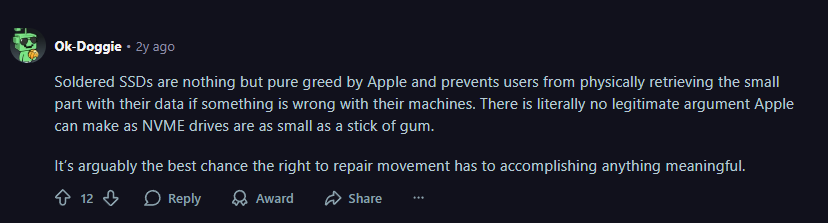
However, upgrading hardware in a Mac is a whole other world. For instance, Apple is known for soldering components such as RAM and SSDs to make devices thinner. This means that if you need extra storage, you have to buy an external one, which can be a deal-breaker for some.
Here’s a Reddit user expressing their concern about soldered SSDs in Apple devices, making it hard to retrieve data if anything goes wrong with the machine:
Source: Reddit
Windows
How PCs or Windows devices perform significantly depends on the device you have. For instance, high-end gaming or business PCs can easily outperform Macs for hardware-heavy tasks like 3D rendering, game development, and more.
However, because companies tend to go for mid-range PCs or laptops for their workforces, you might experience slower performance as compared to Macs.
But there’s a massive advantage with Windows devices. You can upgrade them (memory, storage, and even GPU) however you like—way easier and more affordable.
Winner: Tie/Depends
For general productivity and creative workflows, MacBooks with M-series chips deliver outstanding performance, especially on battery power. They’re a safe bet for roles like design, software development, and everyday office apps.
However, Windows PCs offer performance flexibility: you can get exactly the hardware you need (including high-octane GPUs or niche peripherals) for roles that Macs can’t serve as well.
Let your workload guide you. Choose Macs for video editing or Xcode development, but a beefy PC for 3D CAD or machine learning models that require GPU muscle.

Software Compatibility
Organizations use hundreds of apps/software (legacy or cloud apps) on a daily basis. For instance, according to the 2025 SaaS Management Index report, companies on average use 275 SaaS applications. Therefore, you must choose an OS/device that supports most apps.
Mac
Macs support most cloud-based tools like Slack, Zoom, and Notion. They’re great for video editing (supports apps like FinalCut Pro), software development (supports apps like Xcode), and sync smoothly with other Apple products.
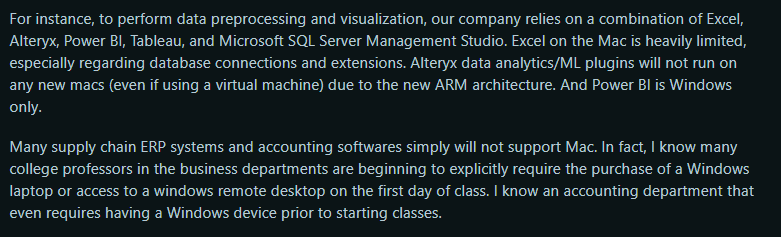
However, many businesses require software solutions that are exclusive to Windows or tailored for Windows. Here’s an example of a Reddit user whose company relies on tools like Excel, Alteryx, Power BI, Tableau, and Microsoft SQL Server Management Studio:
Source: Reddit
The problem here is that Excel on Mac is severely limited in its database connectivity and extensions. And Power BI is not native to Apple. So, either it doesn’t work or you need workarounds. The same goes for supply chain ERP systems and accounting software.
But this is more of a preference than a disadvantage. If you need systems for your accounting or analytics teams, go for Windows; for creatives, go for Mac.
Windows
Windows 11 devices are comparatively more compatible with both modern tools and traditional business software.
Whether it's accounting systems, government portals, or custom apps, Windows computers typically work out of the box. This makes the operating system more flexible for roles in finance, operations, or customer service.
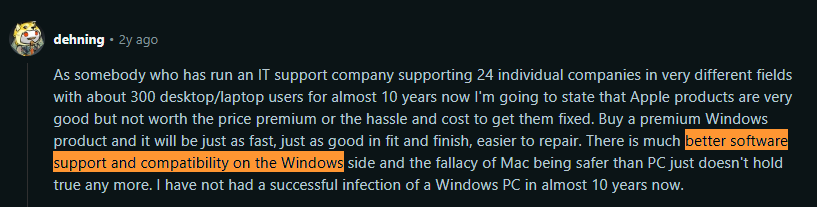
Here’s a Reddit user who runs an IT support company mentioning how Windows devices have better software compatibility and support:
Source: Reddit
Winner: Windows/PC
When it comes to sheer software compatibility, Windows still wins due to its prevalence in business environments. PCs can run pretty much anything, which is crucial for roles that need legacy or specialized apps.
Macs offer enough compatibility for most modern workflows (and excellent integration within the Apple ecosystem), but you don’t want to go against the flow if your key business app is Windows-only.
That said, many companies successfully run a mixed environment: using Macs where possible and providing a few PCs or cloud VM solutions for the rare Windows-specific tasks.
Security & Privacy
This is another factor over which Mac and Windows users argue a lot. But the reality is different from what you think.
Mac
Macs are inherently considered more secure than Windows. And there are several reasons behind this belief.
For starters, macOS is Unix-based, which means strict file permissions, process isolation, and non-root execution. And features like FileVault and Gatekeeper are enabled by default, which keeps the users protected.
Here’s a Reddit user sharing how it’s inherently unlikely for users to unknowingly install malware in Macs:

Source: Reddit
Also, Apple is more rigid and controls what you can and cannot do with their devices. For instance, you cannot just download and install any app (outside the app store), as you can on a Windows device.
But that doesn’t mean Macs are bulletproof. According to Red Canary, macOS threats rose by up to 400% from 2023 to 2024.
Note. While the 400% jump in threats notes a serious increase, threats reported on Windows devices remain relatively higher due to its higher market share.
Windows
Windows OS has become stronger over the years. For instance, there’s BitLocker encryption and Windows Defender, which sometimes flags shady apps or files.
But market share is not a friend of Windows when it comes to security.
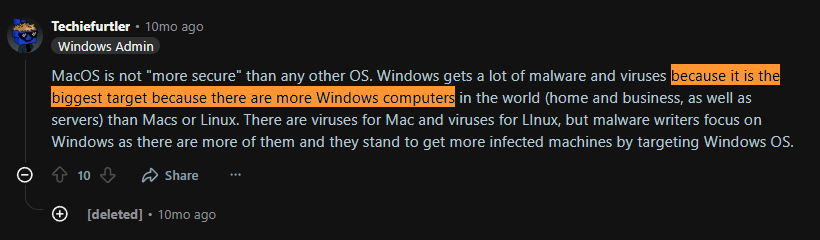
According to StatCounter, Windows has a 66.14% market share, while macOS has 18.42%. And from the attackers’ perspective, it only makes more sense to create malware that targets Windows devices. That’s one of the reasons Windows devices are attacked more often.
Here’s a Windows admin on Reddit sharing how Windows gets more malware attacks because of the massive market share of Windows devices:
Source: Reddit
Another reason is the flexibility Windows offers to its users.
Windows devices offer more flexibility to users. You can download and install whatever app you want, as long as it’s compatible (surprisingly, the majority are), on your Windows machine, without much effort.
However, it pays to be a little careful when using Windows machines. Just by using verified apps and avoiding sketchy websites and emails, you can substantially reduce the attack surface on Windows devices.
Winner: Mac–by a Slim Margin
Both platforms are secure for enterprise use, but Macs have the edge with fewer inherent vulnerabilities and fewer reported malware incidents. They require slightly less third-party bloat to lock down, which can lead to a smoother user experience.
Windows PCs are perfectly viable with proper security tools and policies (and sometimes industry mandates them), but expect to invest more in managing those defenses.
Ease of Use & User Experience
Ease of use and user experience impact user engagement, which is linked to productivity. Let’s understand which devices offer a better overall experience:
Mac
macOS is widely popular among users for it's seamless, minimalistic, and intuitive UI. Updates are less frequent, the machines run quietly, and there’s no bloatware or ads, unlike Microsoft Windows.
I have been a Windows user all my life, but when I switched to a Mac mini, I was surprised by how smooth the UI was. Yes, I had some problems finding out how the “minimize” function worked and that there’s a Command key instead of Windows. But within a few days, I wanted everything Apple.
Plus, Apple devices work very well together. If you have multiple Apple devices in your ecosystem (MacBook, Mac mini, iPhone, iPad), you’d know how seamless it is to sync them all and share your data.
I eventually switched back to Windows. Find out why below.
Windows
I am a pro Windows user. And I was fine using Windows (until I tried the Mac mini), my entire life. While it may look complex to native Apple users, Windows offers you a lot of customizability. You can arrange windows, menus, and settings more freely compared to a Mac.
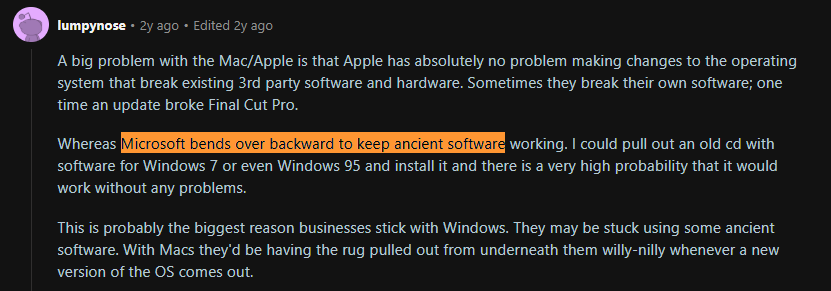
I used a Mac mini for almost 2.5 years, but switched back to Windows because of the backward compatibility. Apple keeps upgrading its OS, which makes apps released just a few years ago incompatible. And that was a deal breaker for me.
But for Windows, I can run my favorite game from when I was 10 without any issues. Sadly, I can't say the same about Macs. Granted, playing games is not a corporate need. But many businesses need older apps and choose Windows for the same reason.
Here’s a Reddit user talking about how Microsoft's backward compatibility is one of the reasons businesses stick with Windows:
Source: Reddit
However, Windows can feel less streamlined. The factory-installed bloatware and frequent notifications (antivirus scans, system updates, software patches) may disrupt the user experience. They sure interrupted my experience.
Many users complain of “my work PC is slow" which often traces to background processes or misconfigurations. And slow devices translate to slower support in remote or hybrid scenarios.
Also, there are multiple manufacturers of Windows devices (HP, Dell, Acer, Asus, Alienware, and more), leading to inconsistent performance and different (slightly) user experiences.
Winner: Mac
It’s not that Windows devices aren’t easy to use or lead to a poor user experience every time, but Macs are more optimized and seamless. You’ll understand this better if you switch from Windows to a Mac, or vice versa.
Repairability
Mac or Windows devices can malfunction. But can you repair them? If yes, how easily? Let’s find out.
Mac
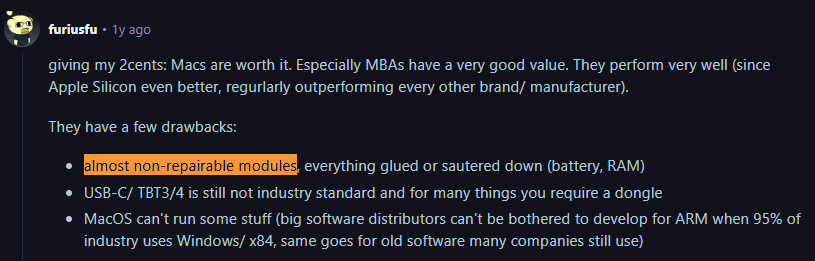
Apple’s devices are known for sleek design, but that often comes at the cost of repairability. Newer Macs have components like RAM and SSD soldered, making field upgrades or repairs difficult.
Here’s a Reddit user stating how Macs are great devices but come with non-repairable modules:
Source: Reddit
While Macs don’t require repairs as frequently as Windows devices, when they do, it can cost you a lot, especially outside warranty. Because you almost always need an Apple-certified repair guy.
Even this Reddit user also mentions that while old MacBooks function well and have a great resale value, they can cost you a lot for out-of-warranty repairs:

Source: Reddit
The user needs to be either technically skilled (to use Apple’s Self Service Repair program) or located where an Apple service centre is available. Otherwise, you’d have to ship a replacement device, which can be a hassle.
Workwize, however, makes repairs easier. With Workwize, users can submit a repair request and order a replacement instantly.
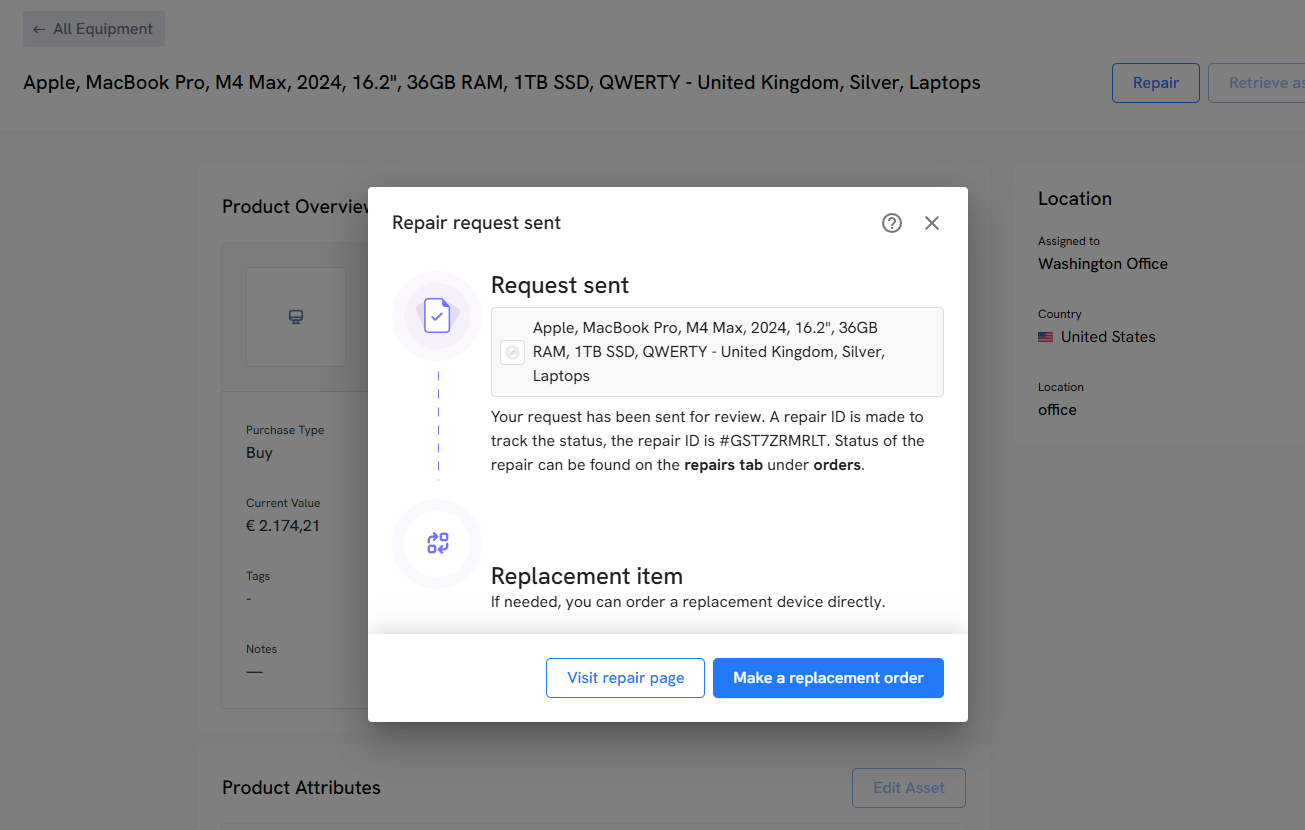
And Workwize will make sure the replacement device reaches your employee by or before the due date. Convenient right? Book a free demo to try placing a repair and replacement request on your own.
Windows
The PC world offers more repair options. Most major PC OEMs offer next-business-day on-site support. For instance, Dell or HP will send a technician to the user’s location to fix a laptop under warranty.
Spare parts (batteries, keyboards, RAM sticks, and even motherboards) are more readily available and often cheaper from third-party sellers.
In IT teams, some have the expertise to swap components in-house for PCs, which isn’t possible on Macs due to proprietary designs.
Repairability scores usually favor PCs, especially business models that prioritize easy service (some ThinkPads, for example, are built with modular components). If a contractor spills coffee on a Lenovo laptop, an IT generalist might repair it themselves or take it to a local computer shop.
With a Mac, that same scenario is likely to end with an expensive Apple logic board replacement.
Winner: PC
When it comes to repairability and support logistics, PCs have the advantage. They are generally cheaper and faster to fix, with abundant spare parts and on-site service options from vendors.
Macs score points for reliability (fewer repairs needed overall), but when something goes wrong, the support funnel is narrower (mostly through Apple).
For a hybrid strategy, consider the support network you have:
- If you go Mac-heavy, investing in AppleCare+ and having contingency devices is wise.
- If using PCs, standardize on models that support global on-site repair services to keep your distributed team up and running.
Employee Perception
Macs
Many employees love their Macs. Offering MacBooks can be seen as a workplace perk that signals trust and a quality-focused culture. Based on Wipro’s survey that involved 500 US-based IT leaders, 59% said they’d prefer a Mac over Windows.
Why? This could be because of several reasons. For starters, Macs cost more upfront and are perceived as elite.
A survey from market research firm Vanson Bourne, commissioned by Jamf, says Mac users have a strong feeling towards the brand and choose Mac because of the following reasons:
- Ease of use (59%)
- Reliability (57%)
- Durability (48%)
- Synchronization with other devices (49%)
Windows
PCs are often seen as the standard workhorse: reliable, familiar, but not always exciting.
However, employee perception can vary by role and generation. Some users are die-hard Windows fans, or have specific reasons for preferring PCs (maybe they are avid gamers or Excel power users)
One advantage is that issuing a PC is rarely seen as “second class”; it’s the norm in many industries.
In terms of productivity, if someone’s job relies on Windows-only tools, giving them a Mac could actually hinder productivity because of workarounds. So matching the device to the role’s needs is key.
Winner: Mac(for most knowledge workers)
High satisfaction scores and user surveys tilt in favor of Macs, driving better employee experience and even productivity metrics. A Mac can make employees feel valued and motivated, especially in creative, development, or leadership roles.
However, the true winner is employee choice: giving people the platform they prefer leads to the best outcomes.
A hybrid company might officially declare both Mac and PC “winners” and let the user pick.
In scenarios without that flexibility, consider the demographic. If your staff is mainly designers or millennials who are familiar with Apple and Macs, it could be a cultural win. If they’re finance experts living in Excel, they might be happier on Windows.
Sustainability & Environmental Considerations
If sustainability and environmental considerations are a primary factor for choosing the right hardware, don’t miss this:
Macs
Apple has taken a very public stance on sustainability. Macs are generally built to last (longevity itself is eco-friendly), and Apple often highlights that its devices use recycled materials and are manufactured with a smaller carbon footprint.
For instance, Apple products in 2021 used:
- 45 percent certified recycled rare earth elements
- 30 percent certified recycled tin
- 13 percent certified recycled cobalt
- Certified recycled gold
Moreover, Apple provides robust recycling and trade-in programs. You can return older Macs, and Apple will refurbish or recycle them responsibly.
On the flip side, repairability issues hurt sustainability. For instance, the inability to upgrade RAM or storage means a part failure might scrap the whole device unless repaired. Also, Apple’s tightly controlled repair ecosystem draws criticism from right-to-repair advocates.
Windows
The PC industry is more fragmented, but major players have made green moves too.
For instance, companies like Dell and HP have sustainability programs that use ocean-bound plastics, offer take-back recycling, and design products with some modularity.
Because you can upgrade PCs, there’s potential to extend their life by replacing components like RAM, HDDs with SSDs, and GPUs without replacing the entire unit.
However, the iteration of models and sheer volume of PC equipment means e-waste can pile up if not actively managed.
From an energy perspective, Windows laptops have improved efficiency, but a powerful PC with a high-end GPU can draw significantly more power than a MacBook.
Winner: Mac (by a slight margin)
Apple’s end-to-end approach to reducing environmental impact gives Macs an edge in sustainability messaging. Their energy efficiency and longevity also contribute to lower e-waste per device.
That said, a well-managed PC fleet can be nearly as green. After all, PCs allow for part upgrades, and multiple vendors are embracing recycled materials.
Pro Tip: If you want to practice sustainability at scale, partnering with an ITAM solution like Workwize makes sense. How?
Workwize handles your asset retrievals end-to-end.
When the HRIS updates that an employee is leaving, the retrieval workflow is triggered. The Workwize team sends the packaging material and tracks the entire return process. We then perform certified data erasure and, based on your preference, resell, ethically dispose of, or recycle your assets (Mac or Windows), ensuring compliance with local and global laws.
Mac Vs PCs: At a Glance
Here’s a visual comparison between Macs and PCs to help you decide easily.
|
Factor |
Mac (0–5) |
Windows (0–5) |
Winner |
|
Total Cost of Ownership & Lifecycle |
4.5 |
4.0 |
Mac |
|
Upfront Cost |
3.0 |
5.0 |
Windows |
|
Performance (General / Creative Workloads) |
5.0 |
4.0 |
Mac |
|
Performance (Specialized Workloads — CAD, BI, ML GPU)** |
4.0 |
5.0 |
Tie / Depends on role |
|
Upgrade & Hardware Flexibility |
2.0 |
5.0 |
Windows |
|
Software Compatibility (Business Apps, Legacy Tools) |
4.0 |
5.0 |
Windows |
|
Security & Privacy (Default Posture) |
5.0 |
4.0 |
Mac (slightly) |
|
Ease of Use & UX |
5.0 |
4.0 |
Mac |
|
Repairability & Maintainability |
2.5 |
5.0 |
Windows |
|
Employee Preference & Perception |
5.0 |
4.0 |
Mac |
|
Sustainability & Environmental Considerations |
5.0 |
4.0 |
Mac (Slight margin) |
|
Hybrid & Remote Support Logistics |
4.0 |
5.0 |
Windows |
|
Best Overall Strategy |
— |
— |
Mixed Fleet / Employee Choice |
How to Choose the Right Platform for Your Hybrid Workforce
Here are some practical tips to help you choose the right platform for your workforce:
Map Roles to Platforms
- Creative & Design Roles: Graphic designers, video editors, and marketing teams often prefer Macs for superior colour-accurate displays, efficient M‑series chips, and seamless integration with iPhone/iPad for content review.
- Finance & Operations: Roles that rely on Excel macros, Access, Power BI Desktop, or industry‑specific Windows software should lean toward PCs.
- Engineering & Development: Developers may prefer Macs for Unix‑based tools and smooth virtualization. However, workloads like 3D rendering, AI training or CAD may require high‑end Windows workstations.
- Customer Support & General Office Work: Either platform can work. You can decide based on software requirements, TCO, and employee preference.
- Sales & Executives: Macs can provide prestige and improved productivity metrics, but Windows devices with touch/stylus capabilities might be more versatile for on‑the‑go presentations
Audit Existing Infrastructure & Software
Before making a broad decision, do an audit of what you have and need:
- List out all software your teams use (including custom or legacy apps). Identify anything that is Windows-only or Mac-only, or that has different features on each platform. This inventory shows where you have platform lock-in.
- Assess cloud alternatives: If some processes currently require Windows-specific software, check if there are cloud or cross-platform alternatives.
- Review peripheral and network compatibility: Do you have essential devices (scanners, badge readers, lab equipment, VPN appliances) that only have Windows drivers? Macs can now connect to most generic peripherals, but specialized hardware may be left out.
- Assess IT management tools: Ensure your device management and security tools support both macOS and Windows. Many endpoint management solutions are cross-platform, but you might need to consolidate. If you use Microsoft Intune for PC, can it co-manage Macs, or will you add a tool like Jamf?

Estimate Total Cost & Plan Budgets
- Use TCO calculators or models: Factor in not just the hardware cost, but software licensing, support, and lifecycle.
- Budget for training and transition: If you’re introducing Macs into a previously PC-only shop (or vice versa), include the cost of retraining IT staff and users.
- Consider support and warranty add-ons: For Macs, an AppleCare for Enterprise plan or at least AppleCare+ on each device is recommended to control repair costs. For PCs, consider buying extended warranties or accidental damage protection from the OEM, especially for laptops shipped to remote workers.
- Energy and infrastructure costs: It’s minor, but note that energy-efficient devices (like Apple’s M1/M2 Macs) use less electricity, which could slightly reduce energy bills, especially in offices or for always-on devices. If you’re deploying high-end PCs, ensure you account for any additional gear (docking stations, extra monitors, etc.) that might differ by platform.
Offer Employee Choice Where Feasible
One increasingly popular strategy is Choice Programs: letting employees pick Mac or PC (within policy). If feasible for your IT and security environment, this can yield several benefits:
- Empower employees with their preferences: This can boost productivity and even retention. Employees who get to choose tend to be more loyal and productive, according to a Wipro study.
- Standardize security across both: If you do offer both, ensure you have equivalent security policies and controls on Mac and PC.
- Provide cross-platform support resources: If users can choose, some may jump to an OS they’re less familiar with. Offering training (short how-to videos, documentation) and a responsive helpdesk is crucial to make the choice viable.
Plan for Scalability & Future-Proofing
When shaping your device strategy, look down the road a few years:
- Align with refresh cycles & key dates: A big one: Windows 10 end-of-life was October 14, 2025. If you currently have many Windows 10 PCs, you should plan to upgrade them to Windows 11 or replace them before that date. This could be an opportunity to introduce more Macs (e.g., instead of buying all-new Windows 11 hardware, deploy some Macs where appropriate).
- Consider emerging tech requirements: AI and machine learning capabilities are rising in importance. Notably, recent trends indicate that AI-accelerated features (such as local generative AI assistants) are coming to PCs. Apple has integrated Neural Engines in M-series chips and currently leads with about 45% of the AI-capable PC market share
- Ensure Management Tools Scale: Evaluate whether your device management approach will work for hundreds or thousands of endpoints.
Implement Gradual Rollouts and Training
If you’re making a change (like introducing Macs into a PC shop, or vice versa, or scaling up a mixed model), proceed with a controlled rollout:
- Start with pilot groups: Identify a small group of users or a department to trial the new platform mix. Gather feedback: what issues did they face? Were there software limitations or support questions? Use this to refine your deployment images, settings, or documentation before a wider rollout.
- Stagger deployments: Rather than flipping half the company to Mac overnight (or all new hires to choice), do it in phases. This ensures IT isn’t overwhelmed with simultaneous requests or issues.
- Provide training and resources: Accompany new device rollouts with proper onboarding. Create quick-start guides for macOS and Windows that are customized to your company’s tools (“Here’s how to access the VPN on Mac vs on Windows”, “How to install corporate apps”, etc.).
- Update onboarding and offboarding processes: When offering multiple device types, coordinate with HR and procurement on how new hires choose their device and receive it. You might allow selection during onboarding paperwork.
Make sure your onboarding workflow supports both (e.g. IT knows which to prepare). Leverage zero-touch deployment for both platforms to drop-ship devices that auto-configure for day one.
For offboarding, have clear steps for retrieving devices regardless of type. For instance, Workwize can handle retrievals end-to-end, sending return packages, arranging pickups, tracking asset recovery, performing data erasures, and finally, ensuring secure returns.
Who Wins the Mac Vs. PC War?
There’s no universal winner in the Mac vs. PC debate, and that’s okay. In fact, many hybrid companies find that the best solution isn’t picking sides but to assign the right tool for the job.
- Macs offer a premium experience, strong security, and often a lower total cost over their lifecycle, but they come with higher upfront prices and some software limitations.
- Windows devices offer broad compatibility, affordability, and a wide range of hardware options, though they may require more support and face more security threats day to day.
The key is to make a data-driven decision. Consider the above guide and the factors that matter the most to your business to make the right choice.
But whatever you choose, Macs, Windows, or a mix of both, Workwize is there to help. From procurement to deployment, tracking, and retrieval, Workwize automates the entire IT asset lifecycle so your hybrid workforce stays productive and secure from day one.
Let me show you how.
How Workwize Can Help You Manage a Hybrid (Mac+PC) Workforce?
Selecting the right devices is just the first step.
What about procuring, configuring, and delivering them to your workforce across the globe? And who would you handle remote management, retrievals, and disposals? That’s when Workwize comes into the picture.
Workwize is an all-in-one platform that enables IT teams to procure, deploy, track, and recover both Mac and PC devices with equal visibility and control.
- Streamlined Procurement: With Workwize, you can order laptops and accessories for any employee, in any country, from a vetted network of suppliers. Whether it’s a MacBook Pro or a Dell, we handle sourcing and logistics. Workwize’s global reach spans 100+ countries, so your remote hires get devices delivered to their doorstep quickly, without customs or procurement headaches on your end. No more back-and-forth with regional distributors or shipping bottlenecks; Workwize centralizes the entire procurement process in one platform.
- Flexible Device Ownership: With Workwize, you can both buy and rent devices. If you have a limited budget and want to save big on upfront costs, renting would be a savior. Renting allows you to conserve capital and scale hardware quickly for short-term projects or fast-growing teams, while purchasing provides long-term ownership and depreciation benefits, all managed within the same unified platform.
- Zero-Touch Deployment: Workwize can coordinate with your MDM/Intune setups so that devices are shipped pre-configured. A new Mac or PC arrives at the employee’s home ready to go: apps installed, security policies applied, and user credentials set up. This “warehouse to work-ready” approach saves IT tons of time and ensures a consistent setup for both platforms.
- Unified Asset Management: In the Workwize dashboard, you’ll see your entire device inventory (Mac and PC) in one place. It provides real-time tracking of device status, assignments, and location. You can easily monitor warranties, get alerts for devices due for refresh, and maintain compliance records. No more juggling separate Excel sheets for Macs vs PCs: it’s one unified asset register.
- Support & Repairs: Workwize offers services to handle repairs and maintenance. If an employee’s laptop breaks, Workwize helps facilitate a fix or provides a loaner device to minimize downtime. For Macs, this might mean leveraging Apple’s repair channels; for PCs, using local partners: Workwize coordinates it so IT doesn’t have to. You can track the repair status right in the platform.
- Offboarding & Retrieval: One of the toughest parts of hybrid IT is getting devices back from remote leavers. Workwize automates offboarding logistics by arranging pickup of the Mac/PC from the user, performing certified data wiping, and retrieving or redeploying the hardware. This ensures that no device (or data) is lost when employees depart. It also supports sustainability by refurbishing returned devices for reuse when possible.
- Secure and Compliant Asset Disposal: For end-of-life assets, Workwize performs asset disposals in accordance with local and global regulations, ensuring compliance with disposal laws.
By relying on Workwize for end-to-end IT asset lifecycle management of your PCs and Macs, you can automate manual tasks and save 40% more time. And this automation translates directly into savings.
For instance, HighLevel saves $1.4 million annually by using Workwize to automate and streamline procurement, deployment, retrieval, and disposal processes.
Ready to see how Workwize helps you streamline operations and cut costs? Book a free demo now and experience it first-hand.


Establish a single source of truth for every IT asset across the globe.
.png?width=258&height=318&name=g10%20(5).png)
More related resources to help you stop firefighting hardware operations.



Get monthly insights into how other IT leaders are improving their ops.



.png?width=2880&height=1232&name=Group%202147262874%20(1).png)
Stop coordinating
hardware like it's 2012.
.svg)
.png?width=172&height=68&name=apple%20business%20patner%20(1).png)
.svg)
.svg)
.svg)
.svg)